
On this page
How to enable spam protection in cPanel
Set up spam protection in cPanel - the Professional Spam Filter on shared hosting, the Spam Filters (SpamAssassin) tool on reseller and server plans, plus the optional BoxTrapper tool.
Your Kualo hosting includes spam filtering to keep unwanted email out of your inbox. The exact tool you see in cPanel depends on the type of server your account is on:
- On our shared hosting, you use the Professional Spam Filter (powered by SpamExperts).
- On reseller, VPS, and dedicated servers that do not use the Professional Spam Filter, you use the built-in Spam Filters tool (Apache SpamAssassin) instead.
cPanel also includes BoxTrapper on all server types if you want an extra, stricter layer of filtering.
Professional Spam Filter (shared hosting)
The Professional Spam Filter (powered by SpamExperts) scans your incoming mail on dedicated filtering servers and holds suspected spam in a quarantine, so it never reaches your mailbox. It is the spam tool we recommend for every account.
-
Log in to cPanel and, in the Email section, click Professional Spam Filter.
-
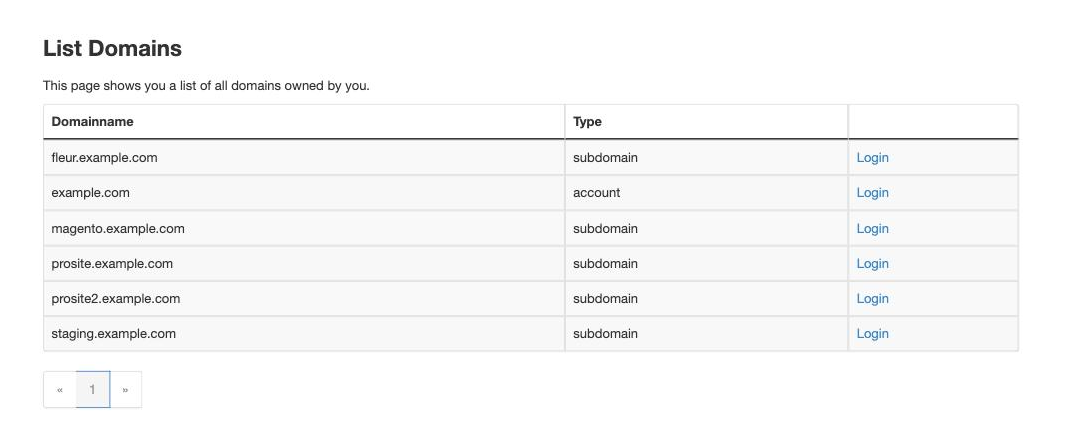
The List Domains page shows every domain on your account. Click Login next to the domain you want to manage.
-
That domain's spam dashboard opens in a new tab, where you can review quarantined messages, train the filter, and manage your allow and block lists.
For a full walkthrough of the dashboard, see:
Spam Filters / Apache SpamAssassin (reseller, VPS and dedicated servers)
If your account is on a reseller, VPS, or dedicated server without the Professional Spam Filter, you will instead have the Spam Filters tool, which uses Apache SpamAssassin. It scores each incoming message against a long list of known spam characteristics and acts on any that score too highly.
- Log in to cPanel and, in the Email section, click Spam Filters.
- Turn on Process New Emails and Mark them as Spam. SpamAssassin then starts scoring your incoming mail.
- Set your preferences:
- Spam Threshold Score - how strict the filter is. The default is
5; a lower number is more aggressive (it catches more spam, with a slightly higher chance of catching genuine mail). - Spam Box - deliver suspected spam to a separate
Spamfolder instead of your inbox, so you can review it rather than lose it. - Spam Auto-Delete - automatically delete messages that score above a level you choose (for example
8). Use this with care: auto-deleted mail cannot be recovered.
- Spam Threshold Score - how strict the filter is. The default is
- To control individual senders, open Additional Configurations and edit the Whitelist (always allow) and Blacklist (always mark as spam).
Start with the Spam Box rather than Auto-Delete. Once you are confident genuine mail is not being caught, you can switch on Auto-Delete for the highest-scoring messages.
BoxTrapper (optional, advanced)
BoxTrapper takes a stricter "challenge-response" approach: anyone who emails you and is not already on your whitelist must reply to an automatic verification message before their email is delivered. This blocks almost all automated spam, but it can also inconvenience genuine senders, so most people are well served by the Professional Spam Filter on its own.
-
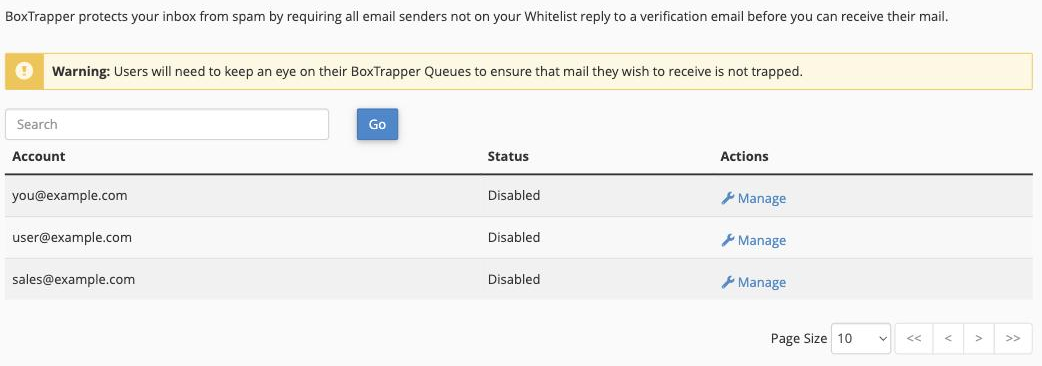
In cPanel, open BoxTrapper - you can find it using the search box at the top of cPanel.
-
Find the email address you want to protect and click Manage.
-
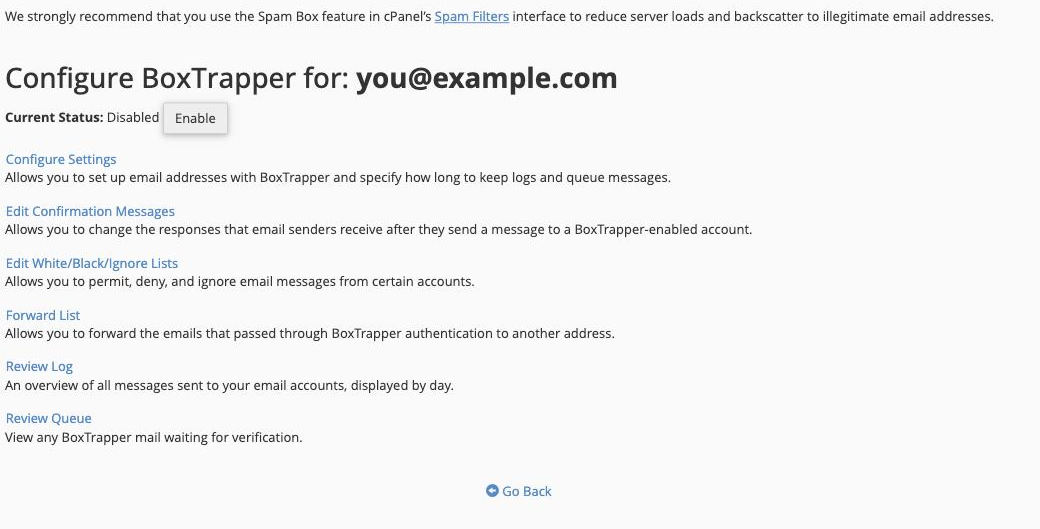
Click Enable to turn BoxTrapper on for that address. You can then fine-tune it with:
- Configure Settings - adjust how strict it is, and automatically whitelist people you email.
- Edit Confirmation Messages - customise the verification email that unknown senders receive.
- Edit White/Black/Ignore Lists - set senders who are always allowed, always blocked, or silently ignored.
- Review Queue - release any genuine messages that are waiting for confirmation.
Because BoxTrapper asks unknown senders to confirm before their first email reaches you, check the Review Queue regularly so you do not miss messages from people who have not replied to the verification.
Reporting spam that slips through
If a spam message still reaches your inbox, you can report it so the filters learn from it - see Report spam.