
On this page
How to set up a secure SSL/TLS IMAP email account on Android 5 Lollipop
Set up a secure IMAP email account on your Android 5 Lollipop phone using SSL/TLS and your Kualo hosting details.
This guide walks you through adding a secure IMAP email account to the Email app on an Android 5 Lollipop phone, using SSL/TLS encryption on port 993.
Before you start
You will need your incoming and outgoing server hostnames. To find them, log in to cPanel, go to Email Accounts, click Manage next to your address, then scroll down to Mail Client Manual Settings and note the values under Secure SSL/TLS Settings (Recommended).
Setting up your account
-
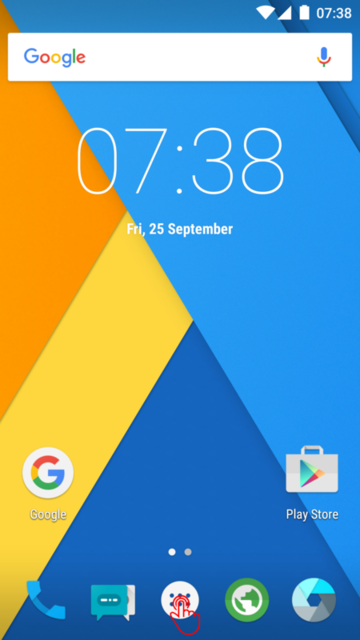
Tap the App Drawer on your home screen.
-
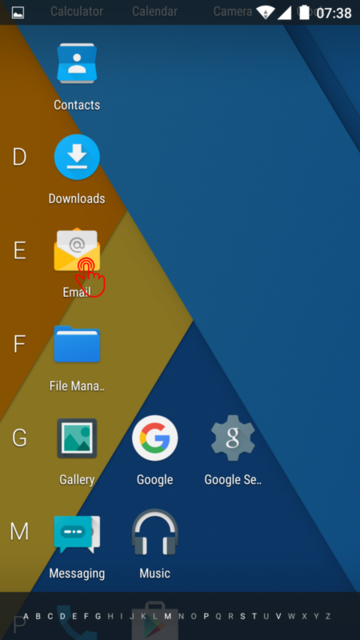
Open the Email app from your app list.
-
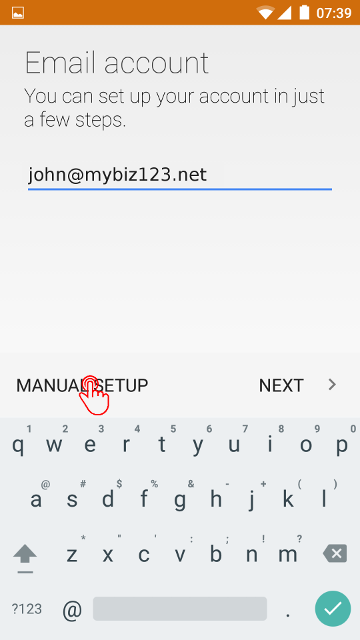
Enter your email address and tap Manual Setup.
-
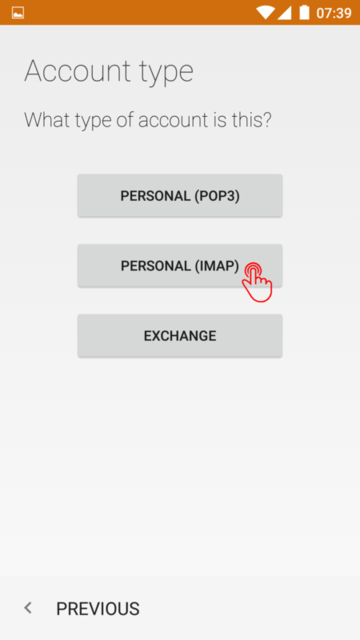
Select IMAP as the account type.
-
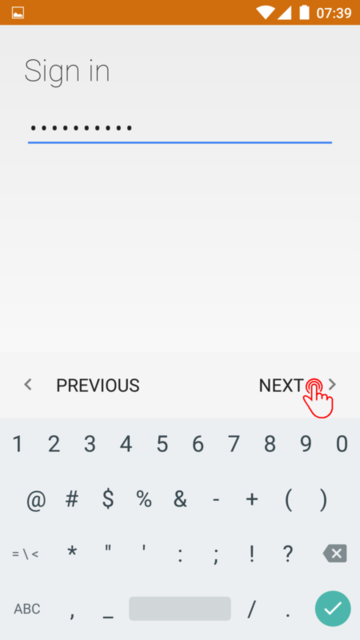
Enter your password and tap Next.
-
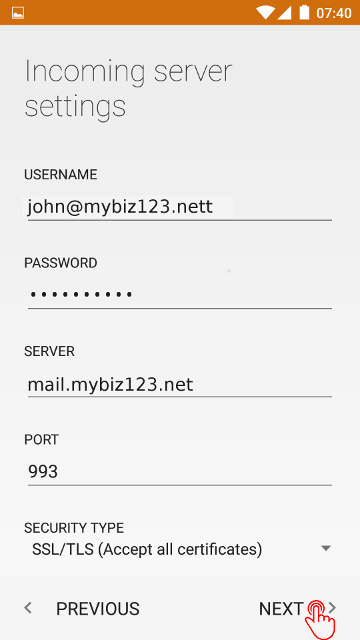
Fill in the incoming server settings. Your username and password should already be populated.
Setting Value IMAP server Your incoming server hostname from cPanel Security type SSL/TLS (Accept all certificates) Port 993 Tap Next.
-
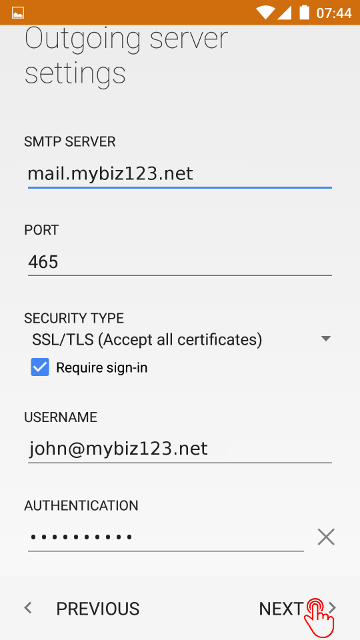
Fill in the outgoing server settings.
Setting Value SMTP server Same hostname as your IMAP server Security type SSL/TLS (Accept all certificates) Port 465 Require sign-in Ticked Tap Next.
-
Choose your sync preferences.
- Sync frequency - how often the phone checks for new mail.
- Sync emails from - messages older than this period will not be downloaded.
- Enable or disable notifications and automatic attachment downloads as you prefer.
Tap Next.
-
Give the account a display name and enter the name you want to appear on outgoing messages, then tap Done.
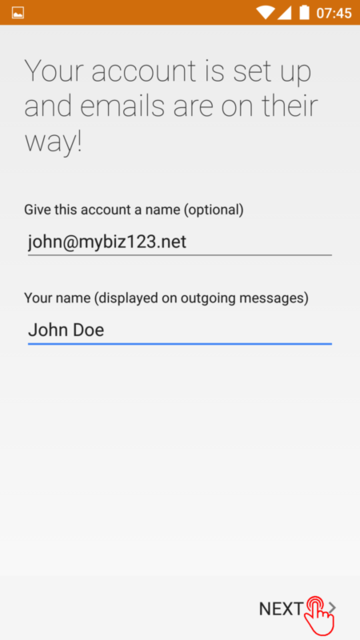
Your email account is now set up and ready to use.
If you see a certificate warning, check that the server hostname matches exactly what is shown in cPanel under Secure SSL/TLS Settings. Using your domain name as the server address instead of the mail hostname is a common cause of certificate errors.