
On this page
How to import data from other email clients
Apple Mail has a built-in import tool that lets you bring in mailboxes and email data from other email clients in a few steps.
Apple Mail has a built-in import tool that lets you bring in mailboxes and email data from other email clients quickly and easily.
Importing your mailboxes
-
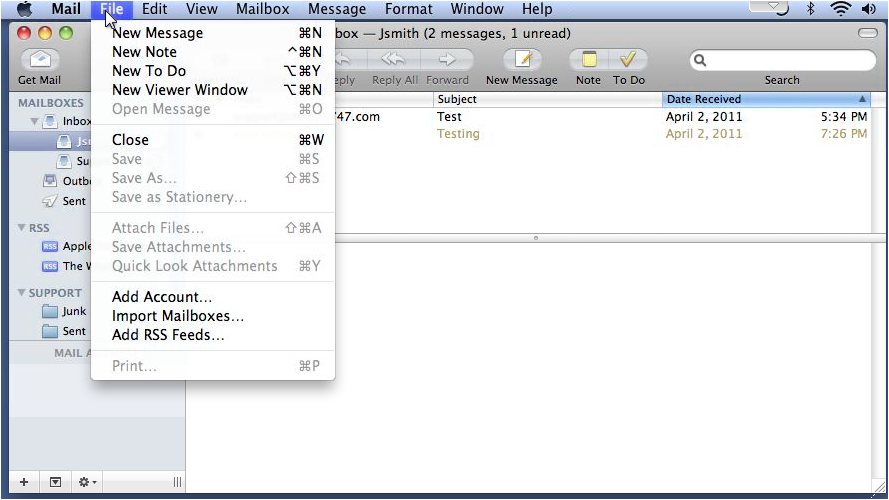
Open Apple Mail, go to File, and click Import Mailboxes.
-
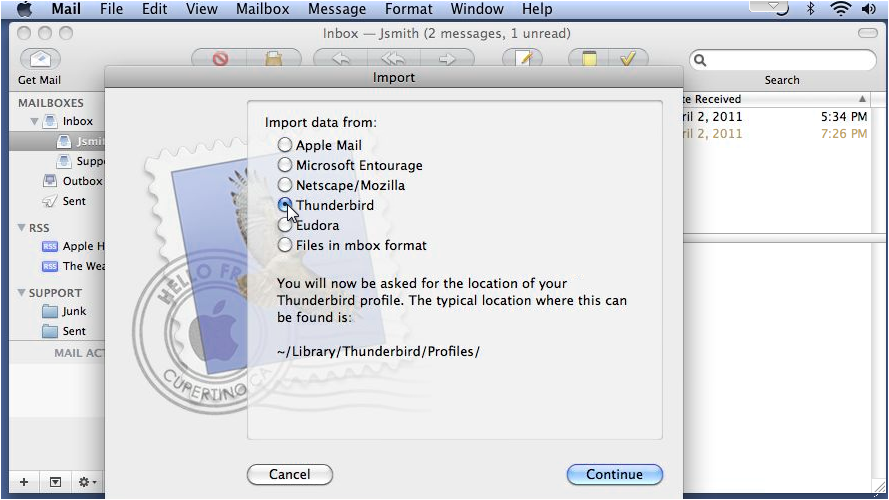
Choose the program you are importing from, then click Continue.
-
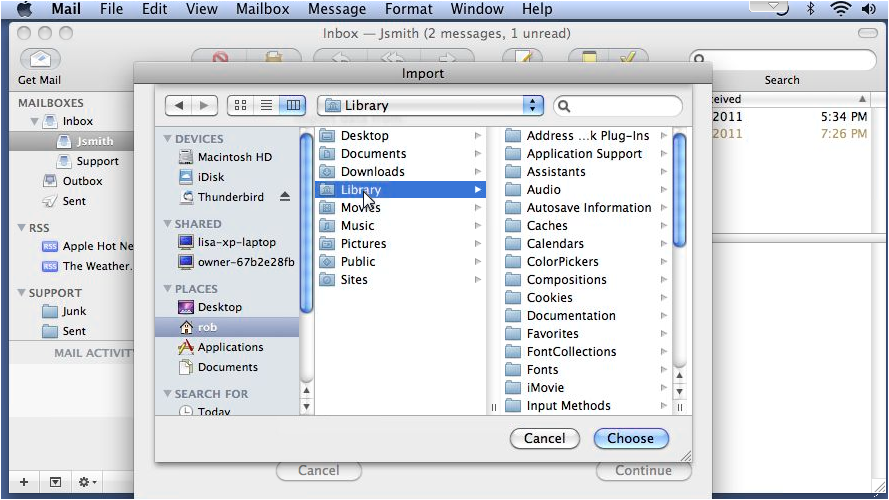
Browse to the location of your mail profile or data file, then click Choose.
-
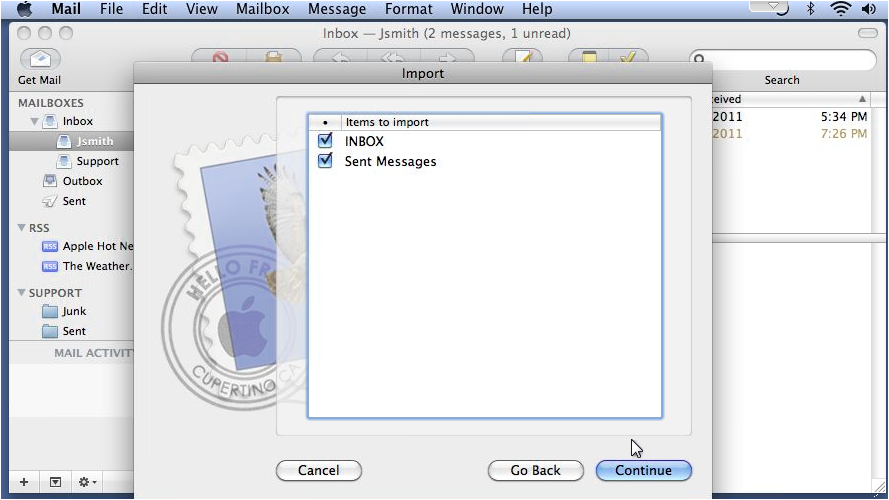
Select the items you want to import, then click Continue.
-
Click Done once the import has finished.
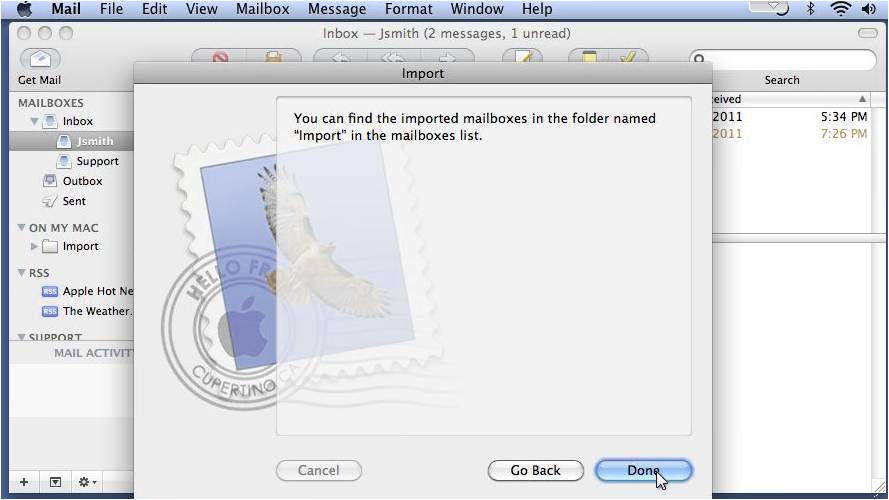
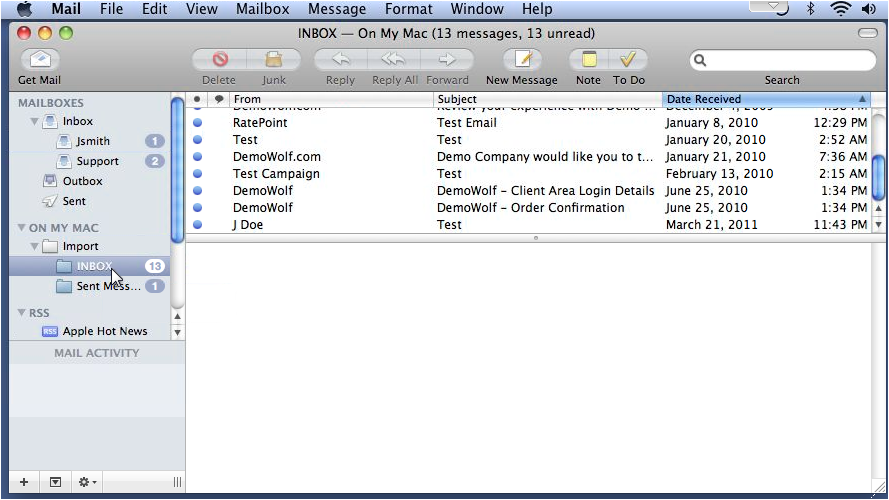
Your imported messages will appear in an Import folder in the Mail sidebar. You can move them to any mailbox from there.
Was this helpful?
Your feedback helps us find gaps in the docs.
Thanks for the feedback!
Related articles
Set up on Apple (Mac, iPhone, iPad)
How to set up a mail account using POP in Apple Mail
This guide explains how to add a POP email account to the Mail app on a Mac, including whe...
Set up on Apple (Mac, iPhone, iPad)
How to set up a mail account using IMAP on Apple Mail
Add your Kualo email account to the Mac Mail app using IMAP, with automatic setup for most...
Set up on Apple (Mac, iPhone, iPad)
How to read and send email messages in Apple Mail
A quick walkthrough of reading, replying to, and composing email messages in Apple Mail.
Set up on Apple (Mac, iPhone, iPad)
An overview of settings and preferences in Apple Mail
A quick tour of the preferences tabs in Apple Mail, so you know where to find every settin...
Still need a hand?
Real people, around the clock - start a chat or open a ticket and we'll help you put it right.