
On this page
How to create a GnuPG encryption key in cPanel
cPanel's Encryption tool lets you generate GnuPG keys so you can send and receive encrypted email that only the intended recipient can read.
The Encryption tool uses GnuPG (GNU Privacy Guard) to create encryption keys, so you can exchange email that only the intended recipient can read. GnuPG uses a matched pair of keys: a public key that you share with people so they can encrypt messages to you, and a private key, kept secret, that you use to decrypt those messages.
Open the Encryption tool
Log in to cPanel and, in the Email section, click Encryption.
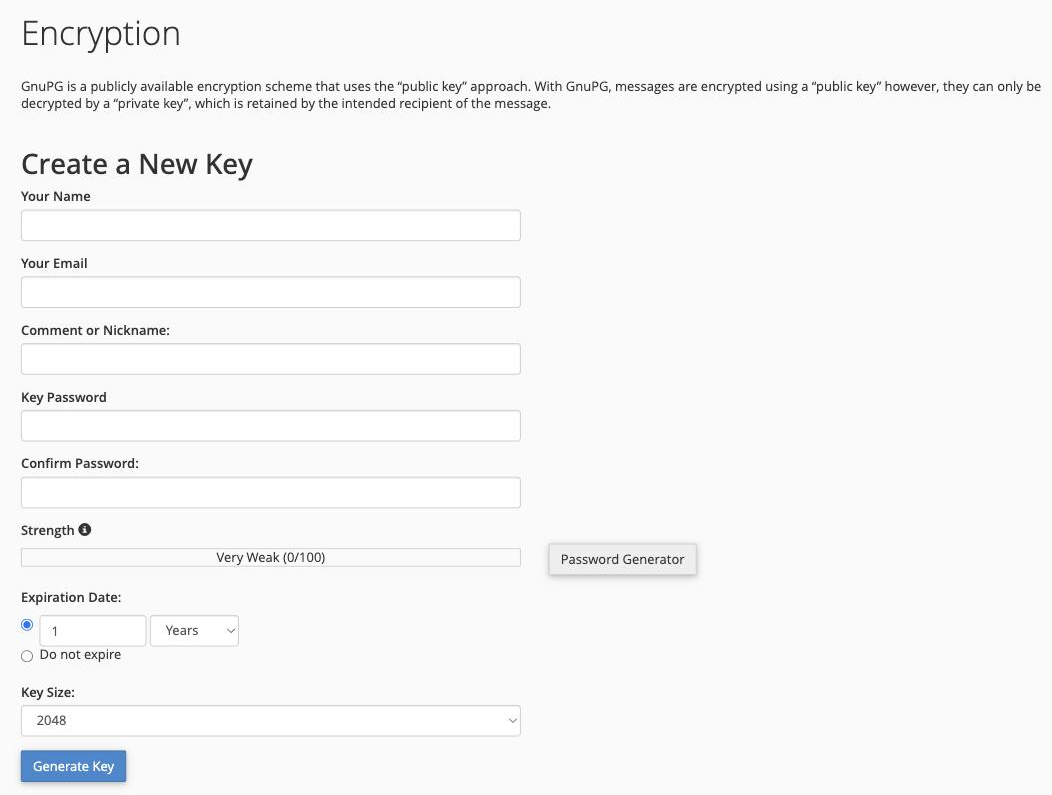
Generate a new key
In the Create a New Key section, fill in:
- Your Name - the name to attach to the key.
- Your Email - the email address the key is for.
- Comment or Nickname - an optional label to help you identify the key.
- Key Password and Confirm Password - a strong passphrase that protects the private key. Use the Password Generator if you would like cPanel to create one.
- Expiration Date - choose 1 Year, or select Do not expire.
- Key Size - a larger key is more secure;
2048is a sensible default.
When you are happy, click Generate Key. cPanel creates the key pair and lists it on the page, where you can view the public key to share it, or delete the key later.
Share your public key freely so others can send you encrypted email, but never share your private key or its password - they are what keep your messages secure.
You can also bring in a key you already hold using the Import Key section further down the page.