
On this page
Setting up a Zimbra Exchange email address in Microsoft Outlook 2016
Connect your Kualo Zimbra email account to Microsoft Outlook 2016 using Exchange ActiveSync.
Connect your Kualo Zimbra email account to Microsoft Outlook 2016 using the Exchange ActiveSync method, which is supported on the Professional plan and higher.
You will need your full email address and its password before you begin.
Important note about pre-installed Office
If your computer came with Windows and Microsoft Office pre-installed together, you may not be able to access the Control Panel Mail function described below. If that is the case, uninstall Office and reinstall it separately from Windows before continuing.
Adding the account
-
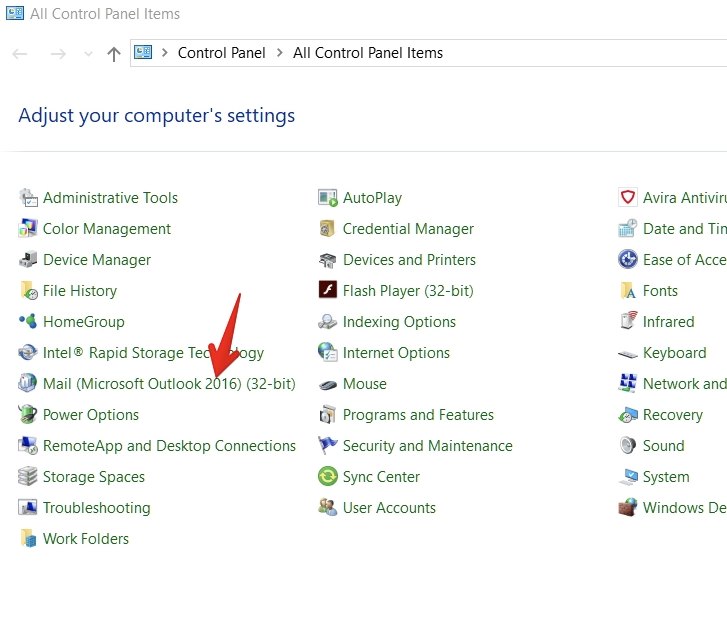
Click the Start icon in your taskbar and open Control Panel (usually listed under Windows System).
-
Click Mail (Microsoft Outlook 2016) (32-bit).
-
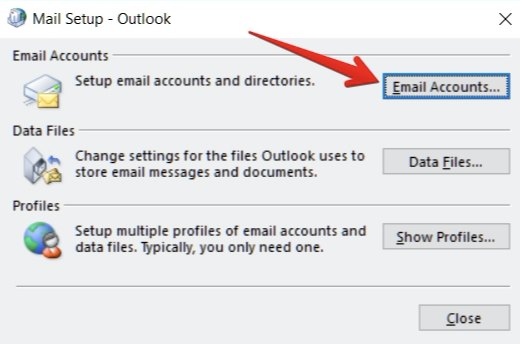
Click the Email Accounts button.
-
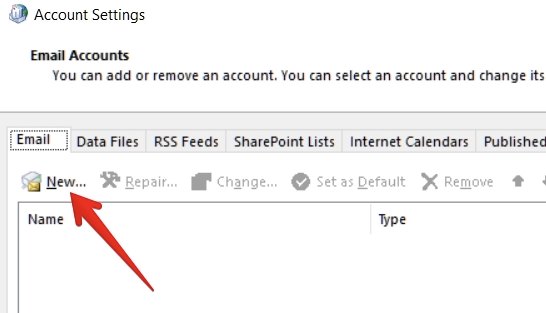
Under the Email tab, click New.
-
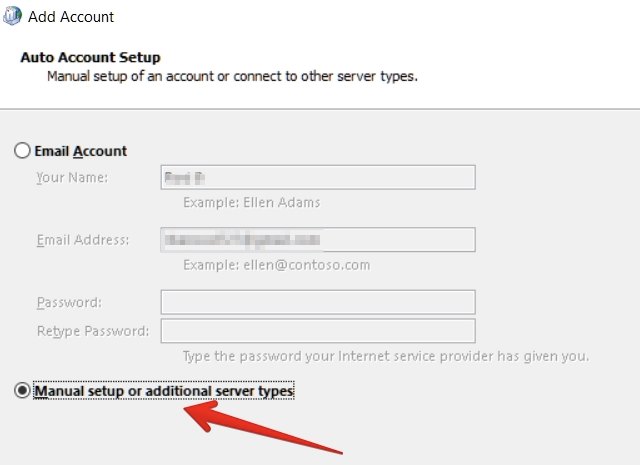
Select Manual Setup or Additional Server Types and click Next.
-
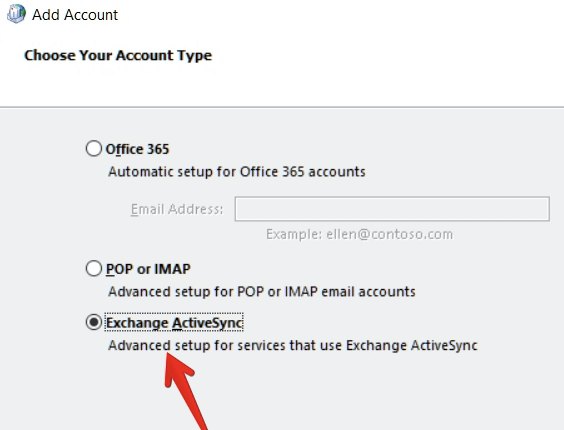
Select Exchange ActiveSync and click Next.
-
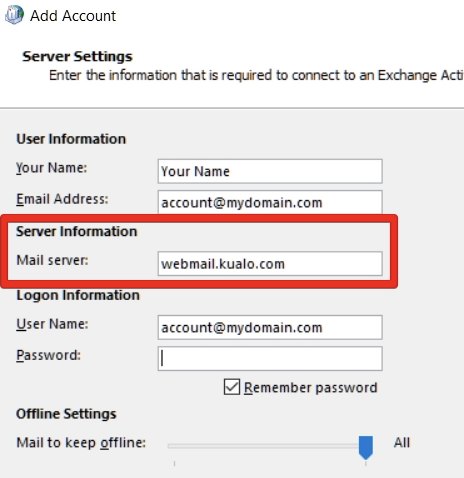
Enter your details as follows:
- Mail server:
webmail.kualo.com - User name: your full email address (for example,
[email protected]) - Password: your email password
- Mail server:
-
Outlook will test the connection. Once complete, you should see a success message.
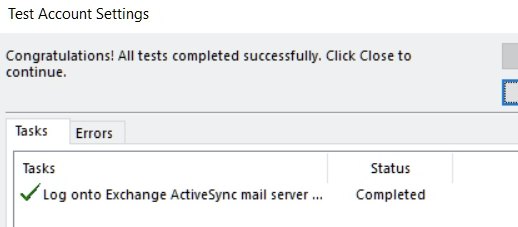
Your Zimbra email account is now connected to Outlook 2016 via Exchange ActiveSync.