
On this page
How to configure an email account in Thunderbird
Learn how to add your Kualo email account to Mozilla Thunderbird using the setup wizard or manual configuration.
This guide walks you through adding your Kualo email account to Mozilla Thunderbird. It assumes you have already downloaded and installed Thunderbird, and that you have created the email address in your hosting account.
Start the account setup wizard
-
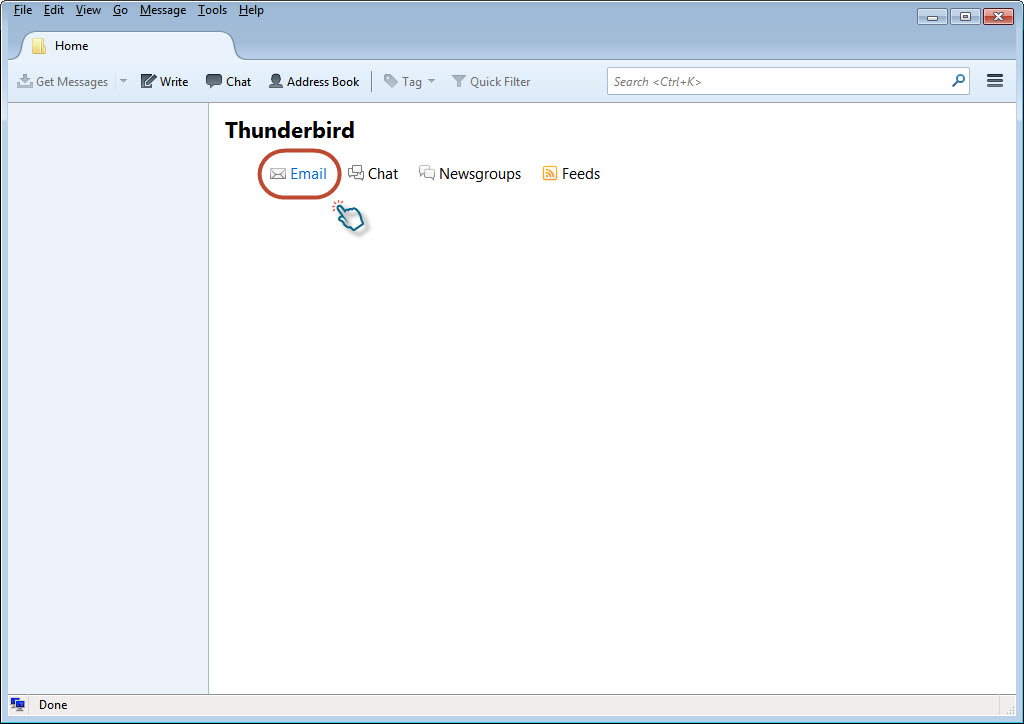
Open Thunderbird. On the home screen, click the Email link.
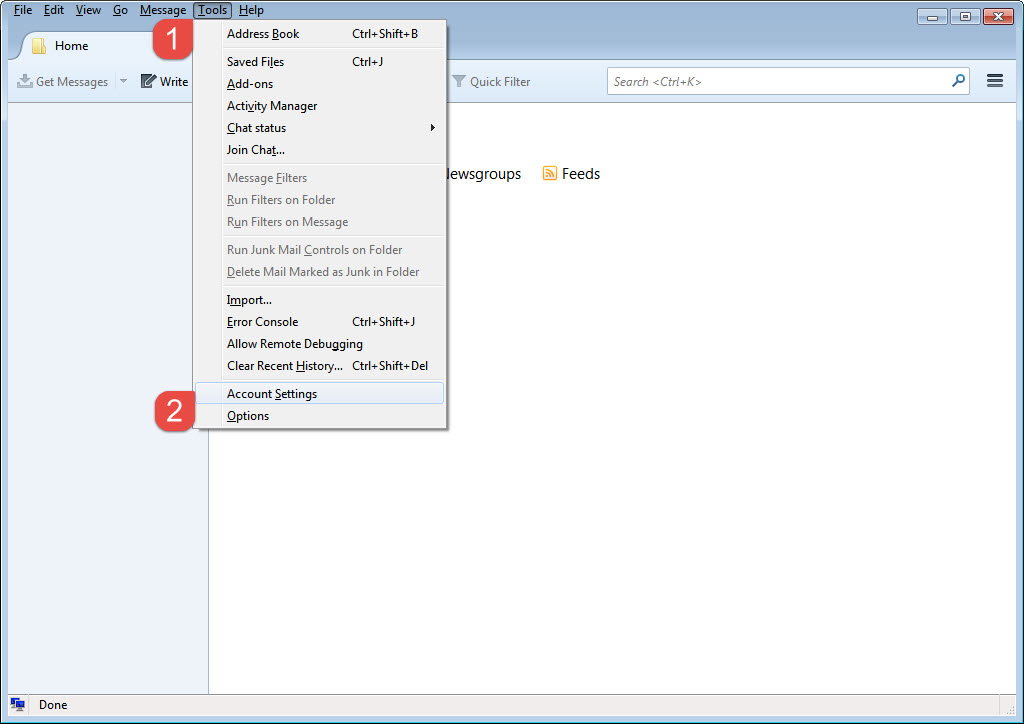
If you do not see that button, click Tools, then click Account Settings.
-
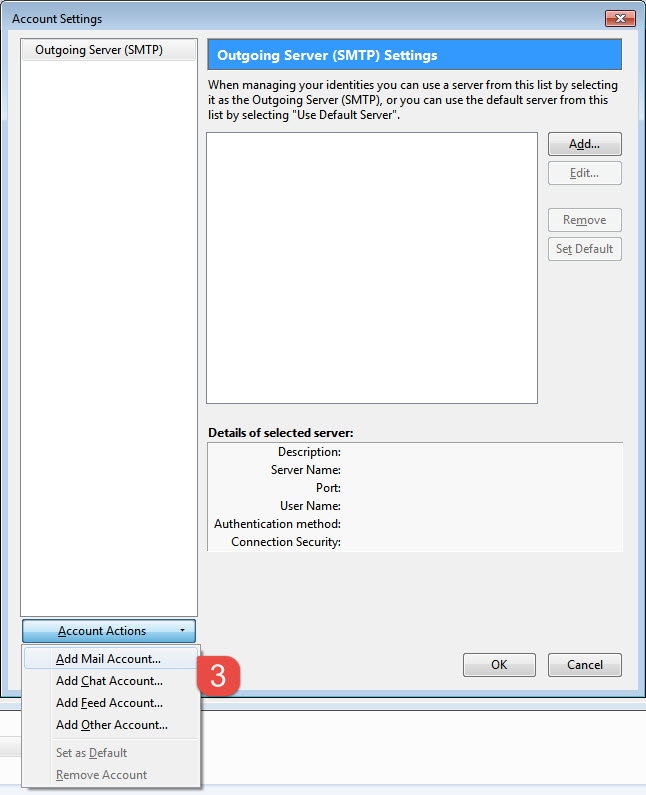
In the Account Settings window, scroll down and click Add Email Account.
-
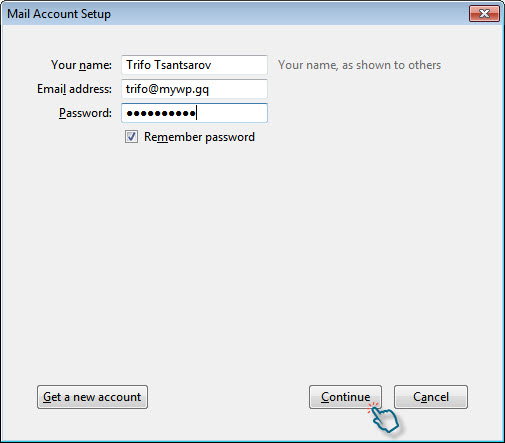
The Mail Account Setup wizard opens. Enter the following details, then click Continue:
- Your name - as you want it to appear in the From field of outgoing emails
- Email address - your full email address
- Password - the password for that email account
Complete automatic setup
Thunderbird will attempt to detect your server settings automatically. If it succeeds, it displays the incoming server, outgoing server and username. Click Done to finish.
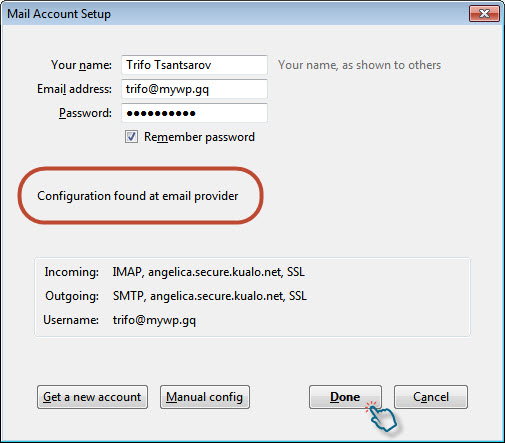
If auto-detection fails, or if you prefer to enter settings yourself, click Manual config and follow the steps below.
Find your server settings in cPanel
If you need to configure the account manually, you can look up the correct server details in cPanel.
-
Go to Email Accounts and click Connect Devices (or Set Up Mail Client) next to the relevant address.

-
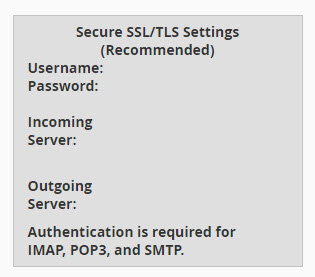
Scroll down to Manual Settings and use the values under Secure SSL/TLS Settings (Recommended) for both the incoming and outgoing server.
Configure manual settings in Thunderbird
Enter the server details from cPanel into Thunderbird's manual configuration screen. For the authentication method on both the incoming and outgoing (SMTP) server, set Authentication to Normal password.
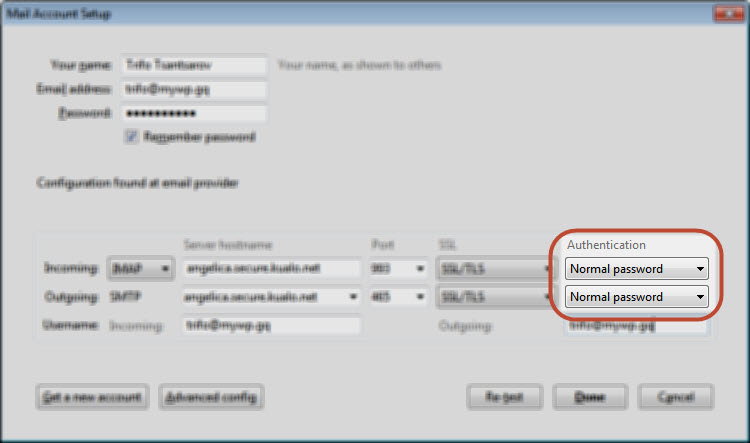
SMTP authentication means Thunderbird logs in to your mail server when sending emails, not just when receiving them. This ensures only you can send mail from your account. In most cases the SMTP username and password are the same as the incoming server credentials.
Once you click Done, Thunderbird will connect to your account and you can start sending and receiving email.