
On this page
How to use the SpamExperts spam filter
Your Kualo hosting account includes SpamExperts, an enterprise-grade spam filter that protects both inbound and outbound email at no extra cost.
Your Kualo hosting account includes SpamExperts, an enterprise-grade spam filter that protects your inboxes from spam, phishing emails, and viruses - and also filters outbound email to help keep the server off blacklists.

Outbound filtering is one of the key benefits of SpamExperts. Without it, a single compromised account on a shared server could cause the whole server to be blacklisted. SpamExperts stops those messages before they leave, so you should enjoy reliable email delivery as well as a clean inbox.
Accessing SpamExperts from cPanel
-
Log in to cPanel.
-
Click the SpamExperts icon.
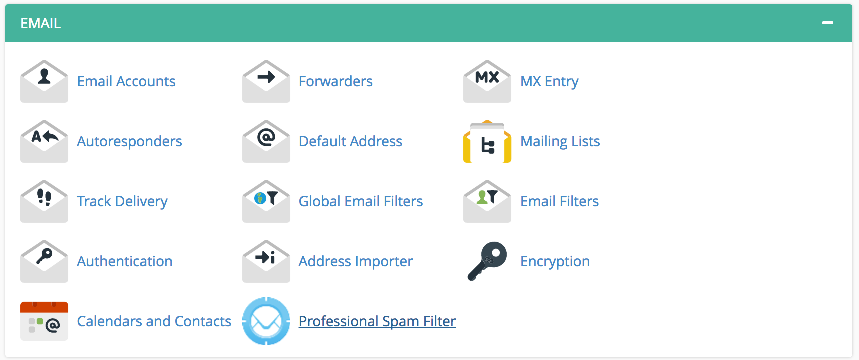
-
You will see a list of your domains, including any addon and parked domains. Click Login next to the domain you want to manage.

-
You are now in the SpamExperts domain control panel.
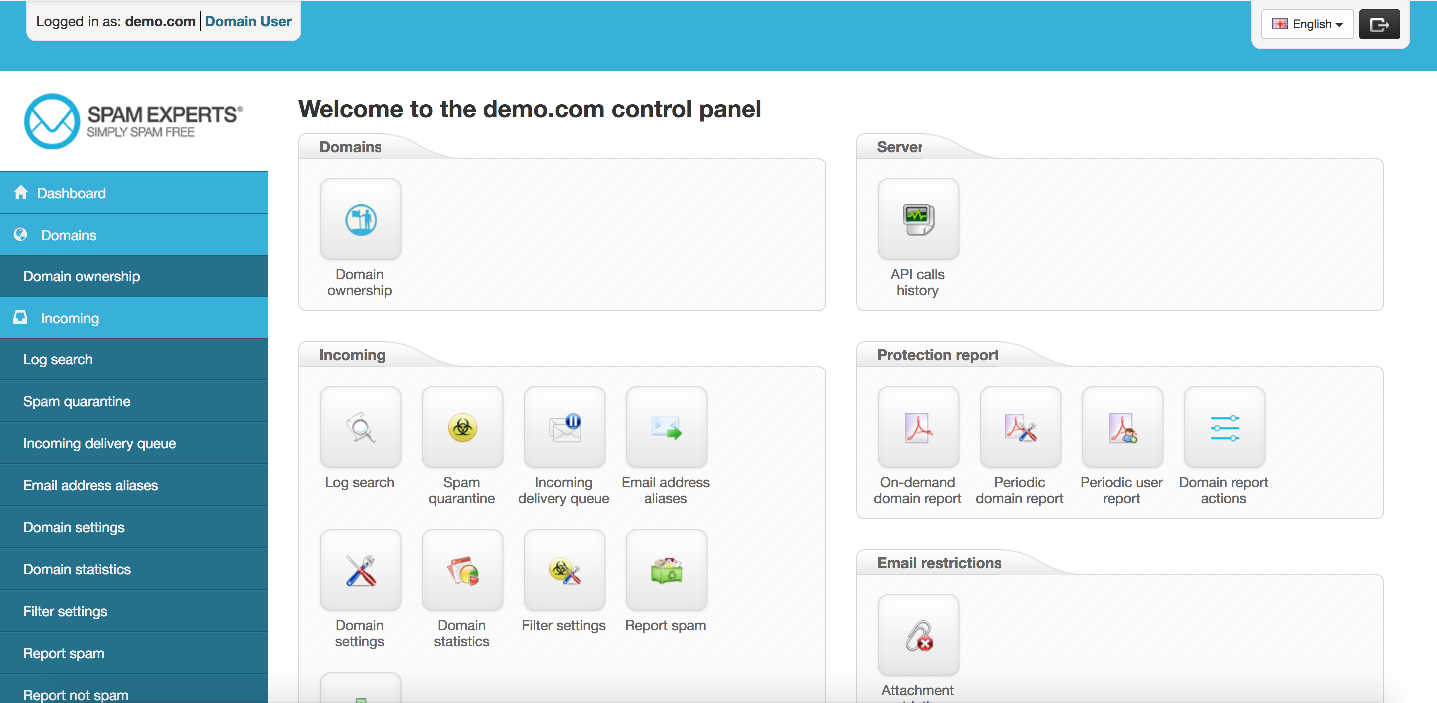
The dashboard is divided into several sections, described below.
Incoming
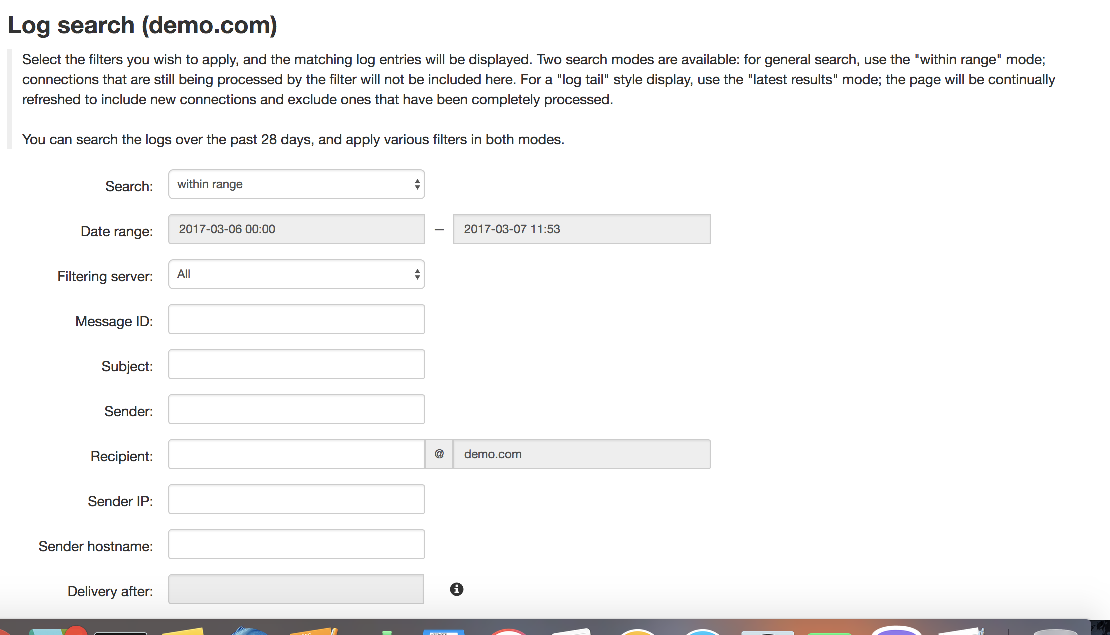
Log search
Log search lets you search all incoming messages and see how SpamExperts assessed each one. If a message was rejected, you can see the reason why.
Spam quarantine
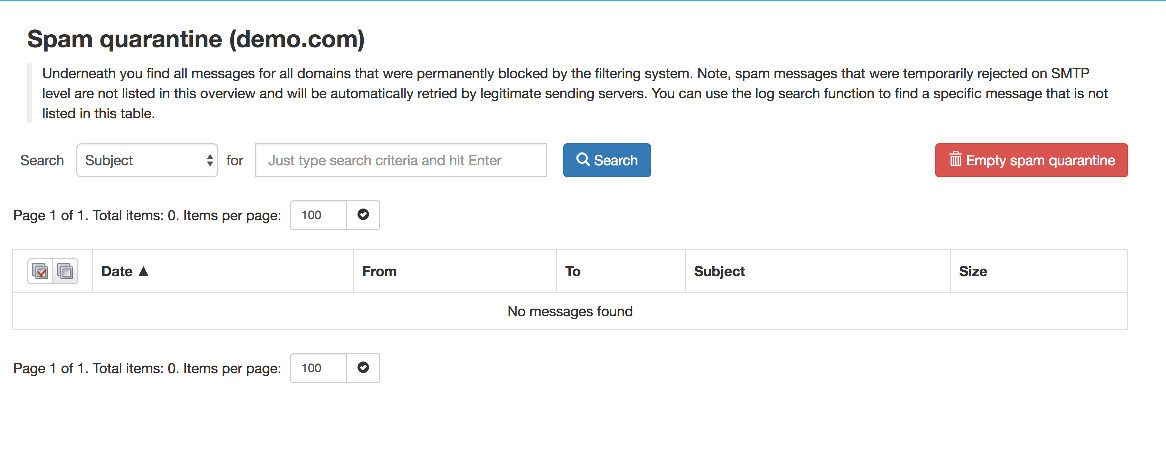
Messages identified as spam are held in the quarantine for 28 days. SpamExperts has a detection accuracy of 99.98%, so in most cases you will not need to check the quarantine at all. If you do want to review it, the most recent messages appear at the top, and you can search by subject, sender, or recipient.
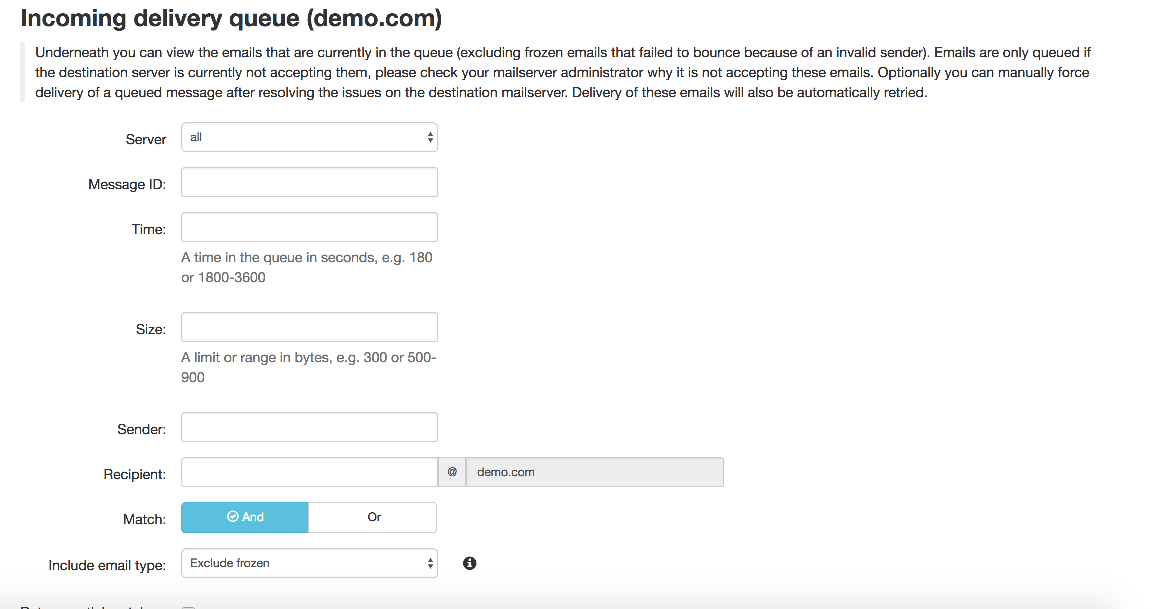
Delivery queue
The delivery queue holds messages that are waiting to be delivered - for example, because the destination mailbox was full or the mail server was temporarily unavailable. SpamExperts will attempt redelivery automatically, rather than bouncing the message back to the sender. You can also force delivery manually from this screen.
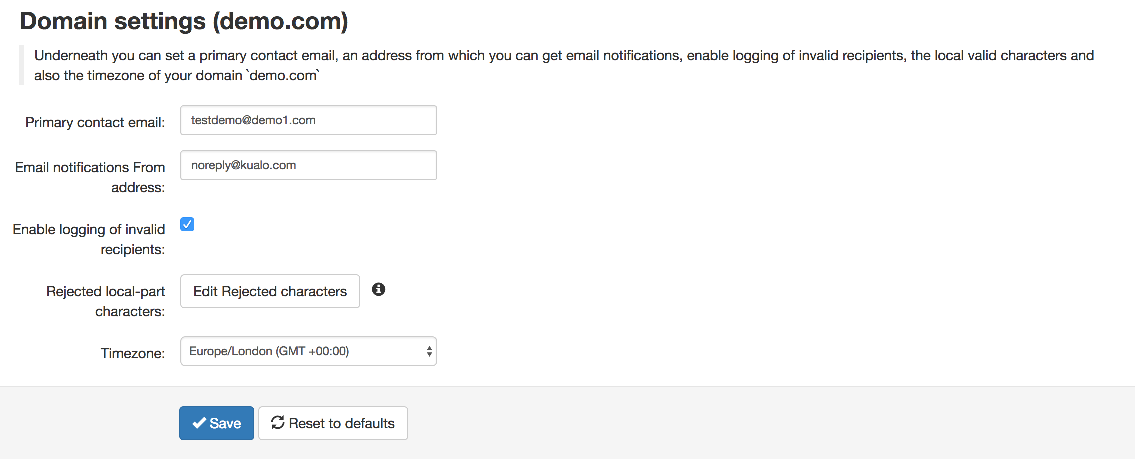
Domain settings
Here you can set the maximum number of bounces, enable or disable logging of invalid recipients, add contact details for the domain, and choose how many days logs are retained (the default is 28 days).
Domain statistics
Domain statistics gives you a statistical overview of the emails that have been delivered or quarantined.

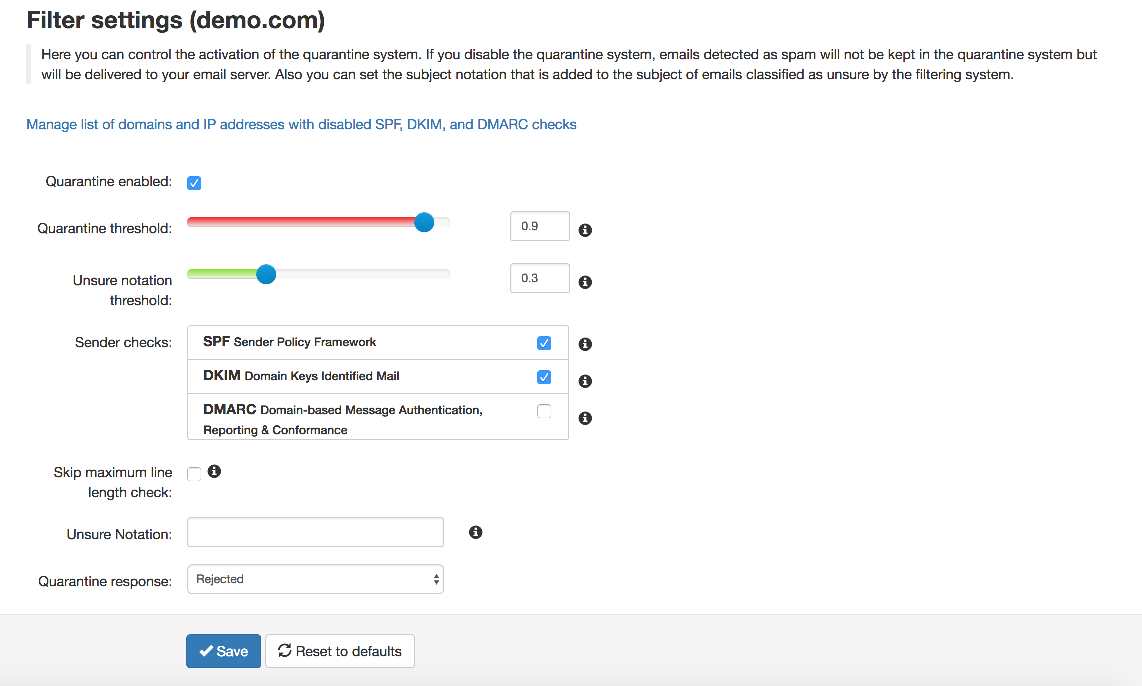
Filter settings
Here you can control whether the quarantine system is active. If you disable it, messages detected as spam will be delivered to your inbox rather than held in quarantine. You can also set the subject tag added to messages the filter is unsure about, so you can sort them in your mail client or open them with caution.
We do not recommend changing the default filter settings. They are automatically tuned for optimal filtering.
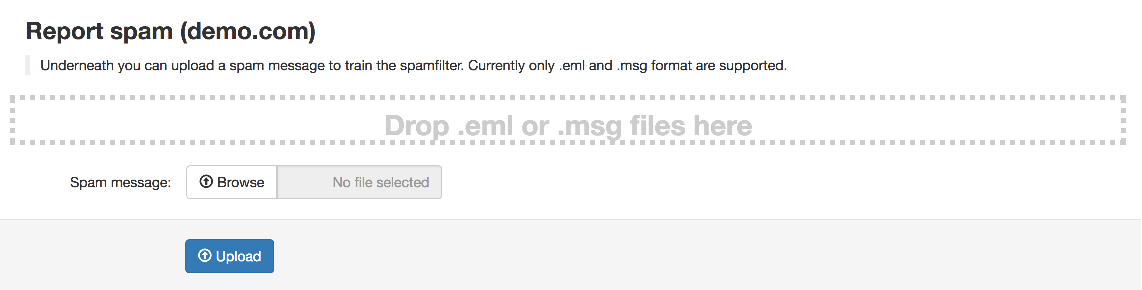
Report spam
The Report Spam function lets you upload a spam message to help train the filter. You can drag and drop a saved email file directly into the report area.
- Only emails that were processed by the SpamExperts cluster are accepted.
- Only the
.emlformat is supported for drag-and-drop uploads. - If your email client does not support
.emlexport (for example, Apple Mail), you can forward the spam email as an attachment to [email protected]. Any.emlattachments will be processed automatically.
Protection reports
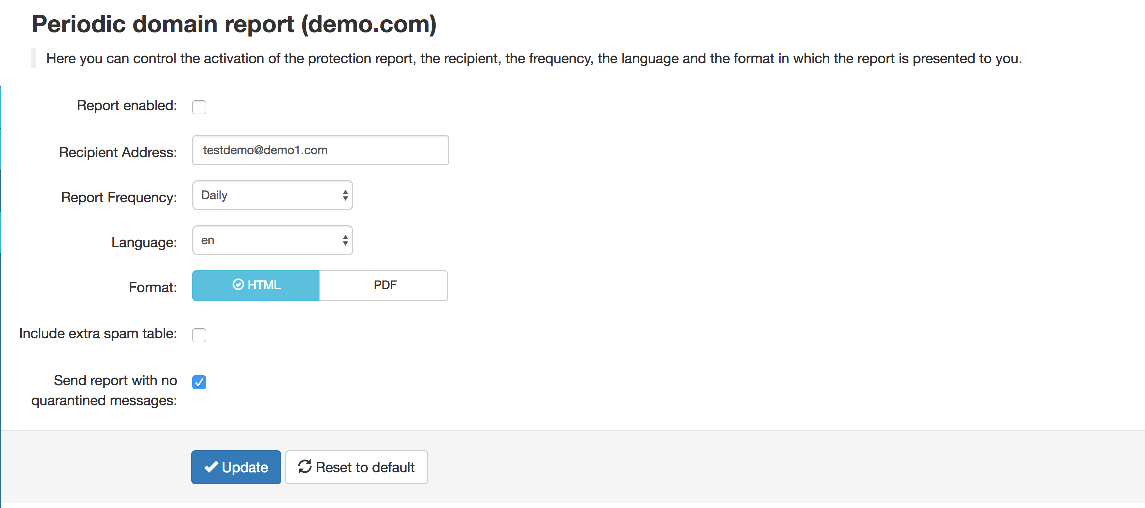
Periodic protection report
A daily or weekly report can be generated for each domain, or for specific recipients at a domain, and delivered by email. Separate multiple recipients with a comma. Reports can be sent as a PDF attachment or as inline HTML.
The report includes:
- A summary of spam and viruses blocked for the domain or address.
- The total volume of mail processed.
- A detailed table of messages that were rejected but not quarantined (included by default, but can be disabled for high-volume domains).
- A table of quarantined messages, with links to release each one directly.
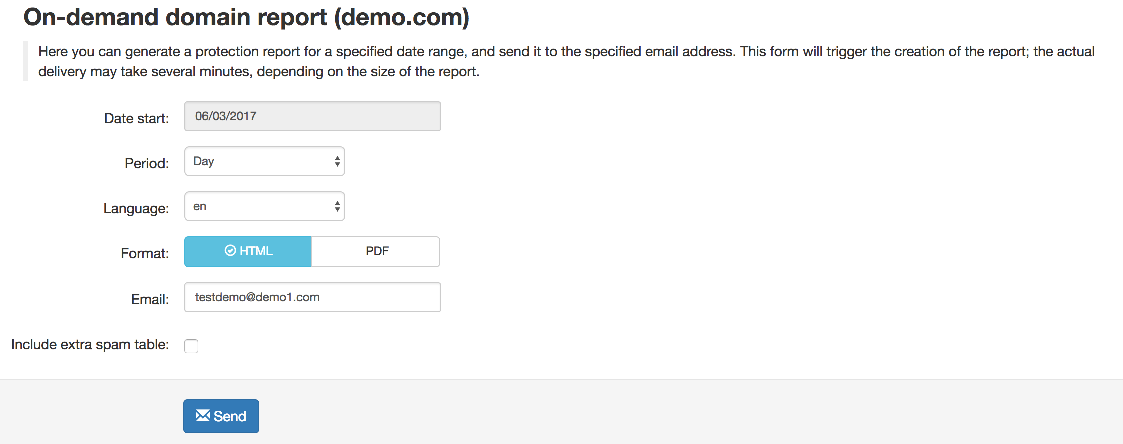
On-demand protection report
This triggers the report described above immediately. Delivery may take several minutes depending on the size of the report.
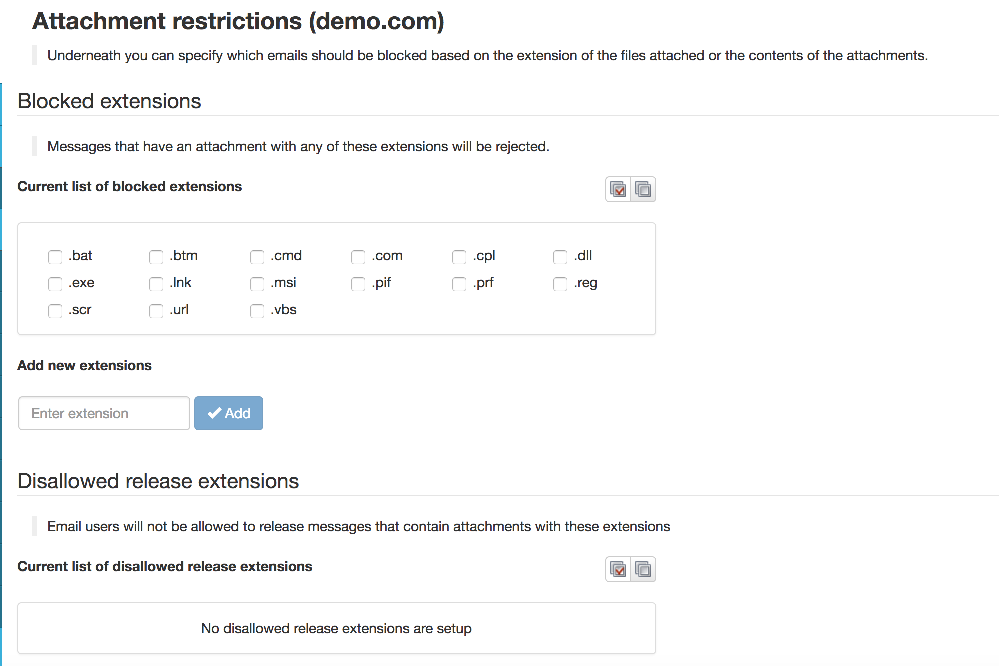
Email restrictions
Blocked extensions
The blocked extensions option lets you choose which file extensions to block from incoming email attachments.
Recipient whitelist and blacklist
The recipient whitelist and blacklist give you control over how filtering is applied to specific addresses at your domain.
Recipient whitelist
All filtering checks are disabled for whitelisted recipients. We recommend using this only for exceptional cases, such as abuse@ or postmaster@ addresses.
Recipient blacklist
Emails sent to blacklisted recipients are automatically rejected with a 5xx SMTP error. The messages are not quarantined - the sending server will generate a bounce to the original sender.
How to specify recipients
Enter the local part of the address only (the part before the @). For example, if your domain is mydomain.com and you add nofilter to the recipient whitelist, all email sent to [email protected] will bypass spam scanning. To apply the whitelist or blacklist to all recipients at the domain, enter the wildcard *.
Sender whitelist and blacklist
You can also whitelist or blacklist senders. The check is based on the MAIL FROM address provided at SMTP level, which may differ from the From: header visible in your email client. To find the actual sender address, check the envelope-from value in the email headers.
Sender whitelist
All filtering checks are disabled for whitelisted senders. You can whitelist a specific email address or an entire sending domain. Only use this if SpamExperts is incorrectly blocking a legitimate sender.
Spammers often use fake sender addresses that match the recipient's domain or a familiar sender, to try to bypass filtering. Use the sender whitelist with care. If a legitimate sender is being blocked, contact Kualo support so we can investigate the underlying cause.
Sender blacklist
Emails from blacklisted senders are automatically rejected with a 5xx SMTP error. The messages are not quarantined - the sending server will generate a bounce to the original sender.
How to specify senders
You can enter a specific sending email address or a full sending domain. To blacklist or whitelist all senders from a domain, enter the domain name only (without *@).