
On this page
Setting up a Zimbra Exchange email address in Android
Connect your Zimbra email account to the Android Mail app using Microsoft Exchange ActiveSync.
This guide explains how to connect a Zimbra email account to the default Mail application on an Android phone using Microsoft Exchange ActiveSync.
This setup method applies to Exchange-compatible accounts, which are available on the Professional plan and higher.
Before you start, make sure you have:
- Your full email address
- Your email password
Adding the account
-
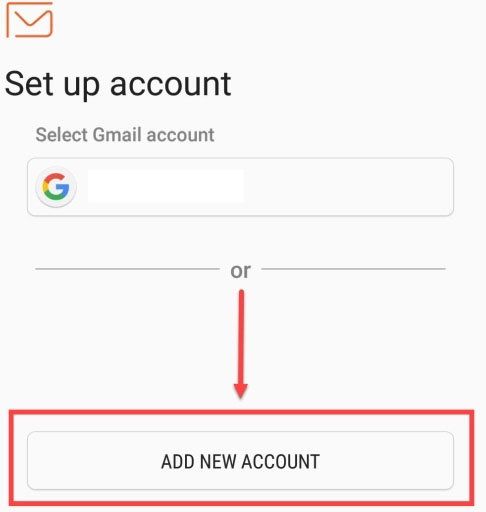
Open the Mail application, then tap ADD NEW ACCOUNT.
-
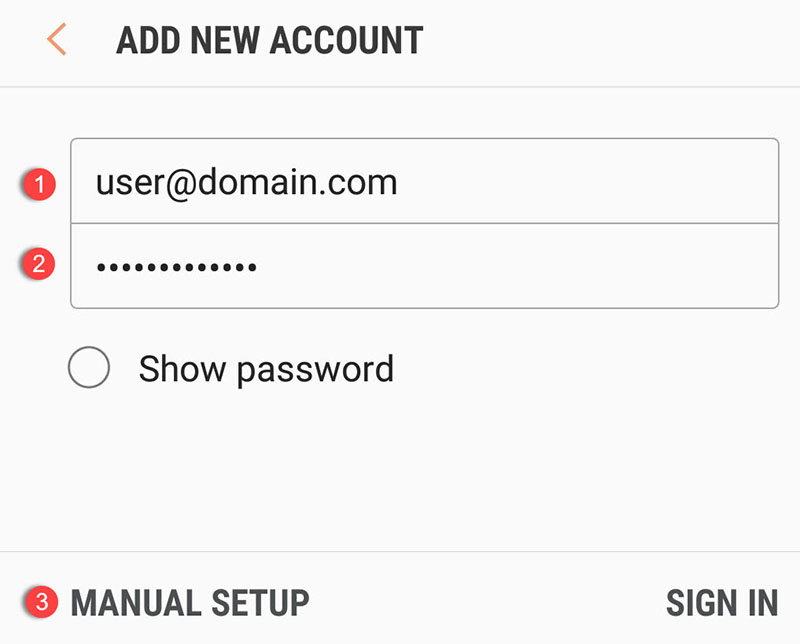
Enter your email address and password, then tap MANUAL SETUP.
-
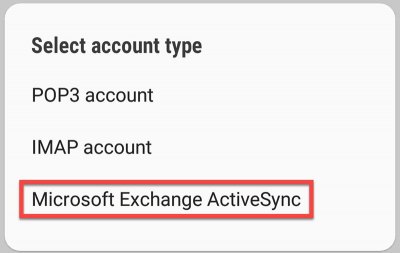
On the account type screen, select Microsoft Exchange ActiveSync.
-
Fill in the Domain\username field with your full email address, then set the Exchange server to
webmail.kualo.com. Tap SIGN IN to continue.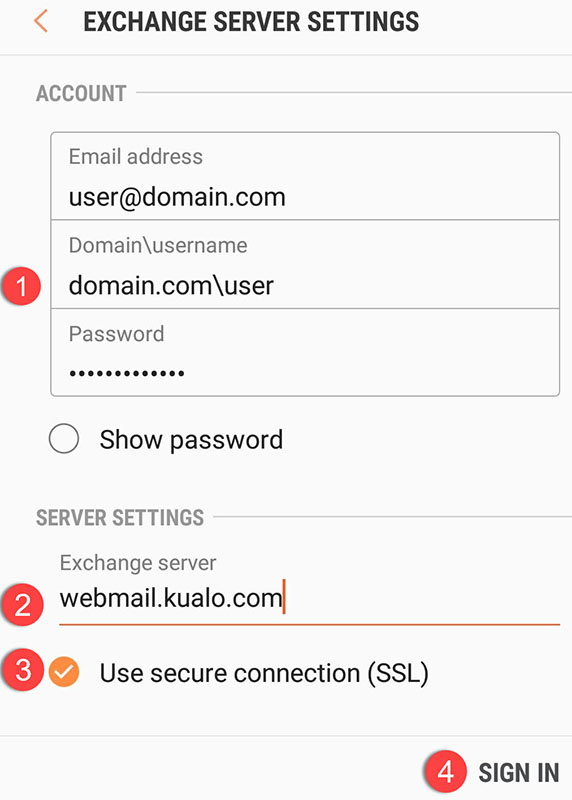
Was this helpful?
Your feedback helps us find gaps in the docs.
Thanks for the feedback!
Related articles
Zimbra
Getting started with Zimbra enterprise email
Connect to your Kualo Zimbra enterprise email via webmail, a desktop client, or a mobile d...
Zimbra
Changes to backups and restores in Zimbra 10
Zimbra 10 introduces important changes to how mailboxes and individual items can be backed...
Zimbra
Setting up a Zimbra Exchange email address in Mac Mail
Connect your Zimbra Exchange-compatible email account to Mac Mail in a few straightforward...
Zimbra
Setting up a Zimbra Exchange email address in Windows Mail
Connect your Zimbra Exchange Compatible email account to the Windows Mail app in a few sim...
Still need a hand?
Real people, around the clock - start a chat or open a ticket and we'll help you put it right.