
On this page
How to use the Email Disk Usage tool in cPanel
The Email Disk Usage tool in cPanel shows exactly where your mailbox storage is going and lets you clean it up safely.
Email has a habit of quietly piling up - not just the important stuff, but sent attachments you forgot about, calendar invites from years ago, and automated notifications that felt urgent at the time. Before you know it, your mailbox is full.
You could upgrade your hosting plan - and sometimes that is the right move. But if you would rather not keep six-year-old spam or a backlog of hefty attachments, the Email Disk Usage tool in cPanel shows you exactly where your storage is going and lets you clean it up safely.
See what's using your email space
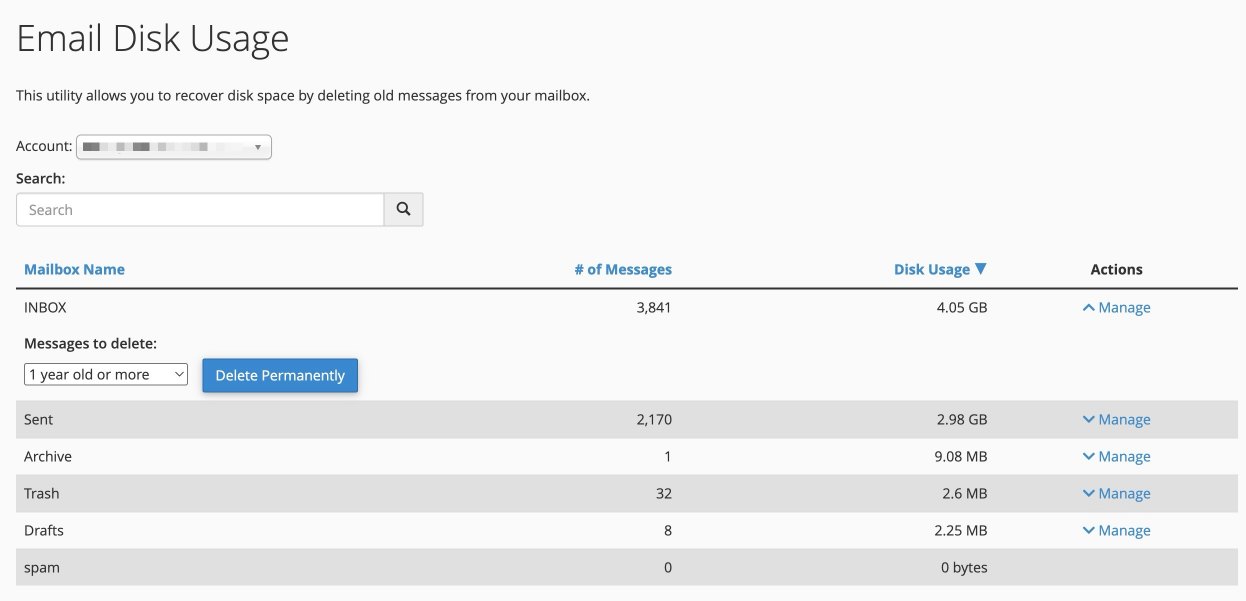
The Email Disk Usage tool shows how much space each folder in a mailbox is using, so you can quickly spot problem areas like a large Sent folder or attachment-heavy mail.
To access it:
- Log in to cPanel.
- Go to the Email section.
- Click Email Disk Usage.
- Select the mailbox you want to review.
You will see a breakdown of folders such as Inbox, Sent, Trash, and Spam, along with how much space each one is using.
Why mailboxes get big
Every copy of an email counts.
If you send a 10 MB attachment to five colleagues on the same hosting account:
- One copy lives in your Sent folder.
- One copy lives in each recipient's mailbox.
That is 60 MB of storage used by a single email.
This is why the Sent folder is so often the biggest surprise. Most email clients never clean it automatically, and replies usually include the original message, so keeping sent emails from years ago rarely adds much value.
A couple of habits can make a real difference going forward:
- Share files via a link rather than an attachment. Services like Dropbox, Google Drive, or WeTransfer store one copy instead of many.
- Check your email signature. If it contains embedded images rather than images loaded from a URL, every email you send is heavier. Multiply that by dozens of emails a day and it adds up quickly.
Small changes like these will not fix an overflowing mailbox overnight, but they do stop the same problem quietly rebuilding itself.
Cleaning up safely
Next to each folder, the Email Disk Usage tool lets you delete messages in bulk. If you are unsure where to start, this order works well:
- Empty Trash and Spam first - these are the safest to clear.
- Review Sent for very old or very large messages.
- Clear any automated folders you no longer need.
- Leave Inbox until last.
This approach lets you reclaim space without touching anything you are actively using.
Understanding the deletion options
When you select messages to delete, a dropdown lets you choose which emails are targeted within that folder.
| Option | What it targets |
|---|---|
| 1 year old or more | Emails at least one year old - a safe starting point for Sent items and automated mail. |
| 30 MB in size or more | Emails with large attachments. Deleting a few big messages can free a lot of space quickly. |
| Previously viewed | Emails that have already been opened - useful if you want to avoid deleting unread messages. |
| All messages | Everything in the folder. Best used for Spam, Trash, or folders you no longer need. |
Custom query (optional, but powerful)
The Custom query option lets you target messages more precisely using the same search language as Dovecot, the mail system behind cPanel. Most people will not need this, but it is very useful when the standard options are not specific enough.
Some examples:
- Delete mail older than a specific date:
before 2024-01-01
- Delete emails larger than 10 MB:
larger 10M
- Delete emails with "Invoice" in the subject:
subject "Invoice"
- Delete mail from a specific sender:
from [email protected]
- Combine conditions (for example, emails larger than 5 MB that are also older than 1 January 2023):
larger 5M before 2023-01-01
For the full reference, see the Dovecot search query documentation.
When cleaning up is not enough
Sometimes email usage is genuinely high - shared mailboxes, lots of attachments, or record-keeping requirements can all push storage up.
If you have tidied up and are still hitting limits, your options include:
- Upgrading your hosting plan.
- Adding a Mailbox Boost (available on Performance plans and above).
- Moving heavy email usage to a dedicated email solution.
See this article for a full explanation of your upgrade options. If you are unsure what makes sense for your situation, Kualo's support team is happy to help you find the most cost-effective route.