
On this page
How to set up email filters in cPanel
Email filters in cPanel let you automatically sort, redirect or delete incoming messages based on rules you define.
Email filters in cPanel let you automatically sort, redirect or delete incoming messages based on rules you define. Global filters apply to all email accounts on your domain.
Create a new email filter
-
Log in to cPanel and click the Global Email Filters icon (in the Email section).
-
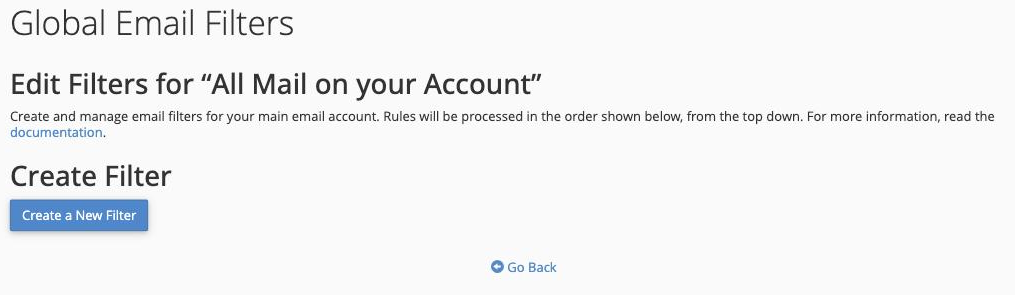
Click Create a New Filter.
-
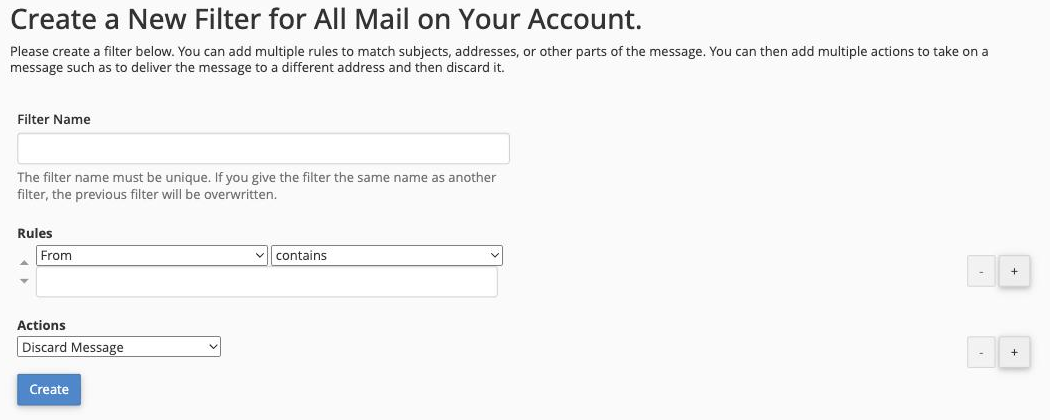
Enter a name in the Filter Name field, then build your rule: choose a message part to match (for example, To), a condition (for example, contains), and the text to match against. Finally, choose the action to take when the rule matches - for example, deliver the message to a specific folder.
-
Click Create to save the filter. It is active immediately and applies to incoming messages straight away.
Edit or delete an existing filter
From the Global Email Filters list you can click Edit next to any filter to change its rules or actions, or click Delete to remove it entirely.
If you want to filter mail for a single email account rather than your whole domain, use Email Filters (without the "Global" prefix) in cPanel and select the relevant account.