
On this page
How to add a new page
Add a new page to your ProSite website in a few steps using the built-in Site Builder tool.
Use the ProSite Site Builder to add new pages to your website, optionally duplicating the layout from an existing page to save time.
Adding a new page
-
Launch the Site Builder tool from your cPanel.
-
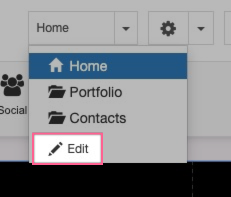
Press the dropdown next to your page name and click the Edit icon.
-
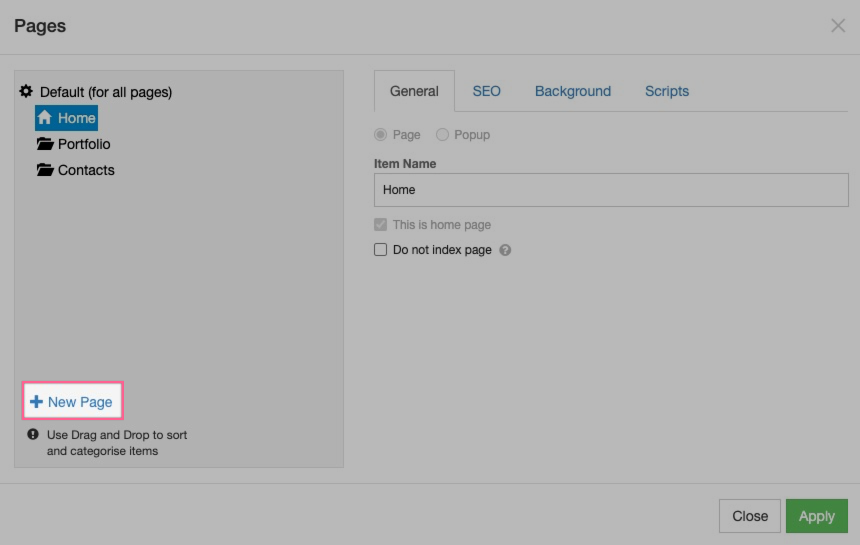
In the Pages dialog box, press New Page.
-
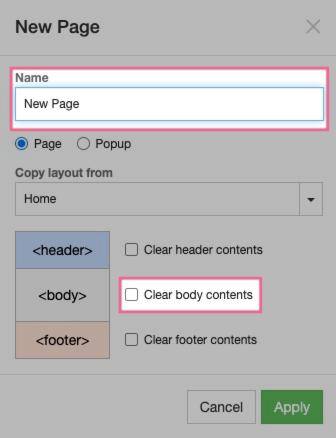
Give your page a name. You can optionally duplicate content from an existing page by leaving the Header, Body, and Footer checkboxes unchecked. If the page you are copying already looks the way you want, keeping that content saves you from having to rebuild the layout from scratch.
Before duplicating a page, check that it looks good on all devices you want to support. Sorting out the layout once - rather than on two separate pages - will save you time.
-
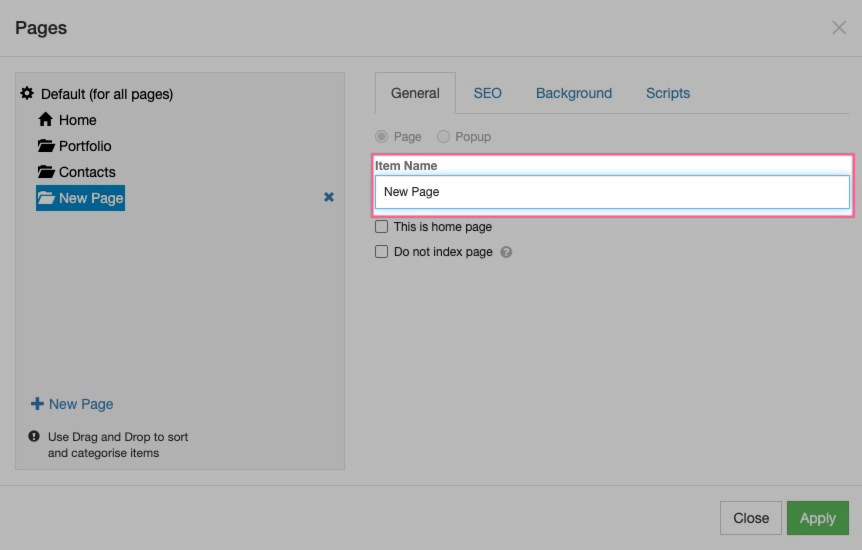
Once the page is added, you can adjust the label that appears in your site's navigation menu by editing the Item Name field.
-
Finally, set the Search Engine Optimisation options - including the page title, friendly URL, and meta description - to help search engines index your new page correctly. See our Search Engine Optimisation article for full details.