
On this page
How to insert a PayPal 'Buy Now' button
Add a PayPal Buy Now button to your ProSite website to accept payments quickly and easily.
Adding a PayPal Buy Now button to your ProSite website lets customers purchase your products or services without leaving your site, using a payment method they already trust.
Add the Commerce element
- Launch the Site Builder tool from your cPanel.
- Go to the page where you want to insert the button.
- Hover over the Commerce element, then drag and drop it onto the page in the position you want.
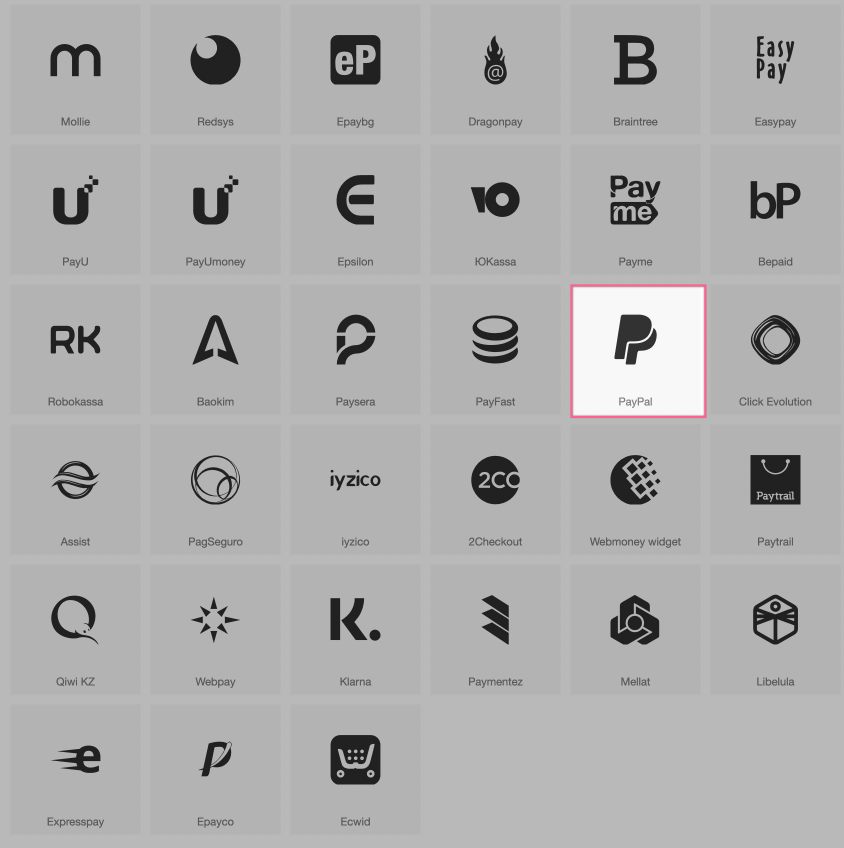
- Select PayPal from the available options.
Configure the button
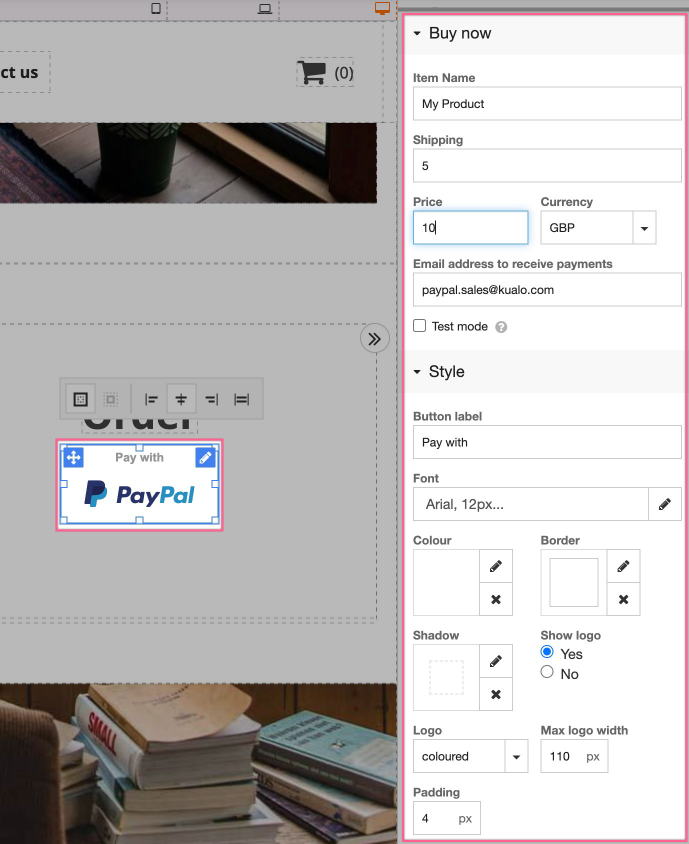
- Once the button is inserted, select it. The right-hand menu shows two configuration tabs: Buy Now and Style.
-
Under Buy Now, fill in the following details:
- Item name
- Item price
- Shipping price
- Currency
- Your PayPal email address
-
Under Style, adjust how the button looks - options include the label text, whether to show the PayPal logo, logo colour, and button width.
Use Preview mode to test the button and confirm it behaves as expected before publishing your page.
Was this helpful?
Your feedback helps us find gaps in the docs.
Thanks for the feedback!
Related articles
Widgets & elements
How to use the image gallery widget
ProSite includes a built-in image gallery widget that makes adding image galleries to your...
Widgets & elements
How to use the map widget
Add a working Google Maps widget to your ProSite website by generating a Google Maps API k...
Widgets & elements
How to use the YouTube widget
Add a YouTube video to your ProSite page - either as a playable embed using the Media widg...
Widgets & elements
How to upload a photo
Add a photo to your ProSite page by dragging in the Picture element, then choose or upload...
Still need a hand?
Real people, around the clock - start a chat or open a ticket and we'll help you put it right.