
On this page
How to use anchor or jump links in ProSite
Anchor links let visitors jump straight to a specific section of your page without scrolling.
Anchor links (sometimes called jump links) let visitors navigate directly to a specific section of your page with a single click. They are especially useful for long pages, tables of contents, and one-page sites where you want to guide users to key content like pricing or contact forms.
What is an anchor link?
An anchor link is a clickable link that scrolls the page to a named element rather than loading a new URL. You set a named anchor on the destination element, then point any link on your site at that anchor. When clicked, the browser jumps straight to that section.
Anchor links are useful in several situations:
- Long articles or documentation pages where a table of contents helps readers skip to the section they need.
- One-page websites where the navigation menu scrolls to different sections rather than loading separate pages.
- Landing pages where you want to direct visitors to a specific call to action, such as a pricing table or contact form.
How to add an anchor link in ProSite
Step 1 - Name the destination element
- Log in to ProSite and open the page you want to work on.
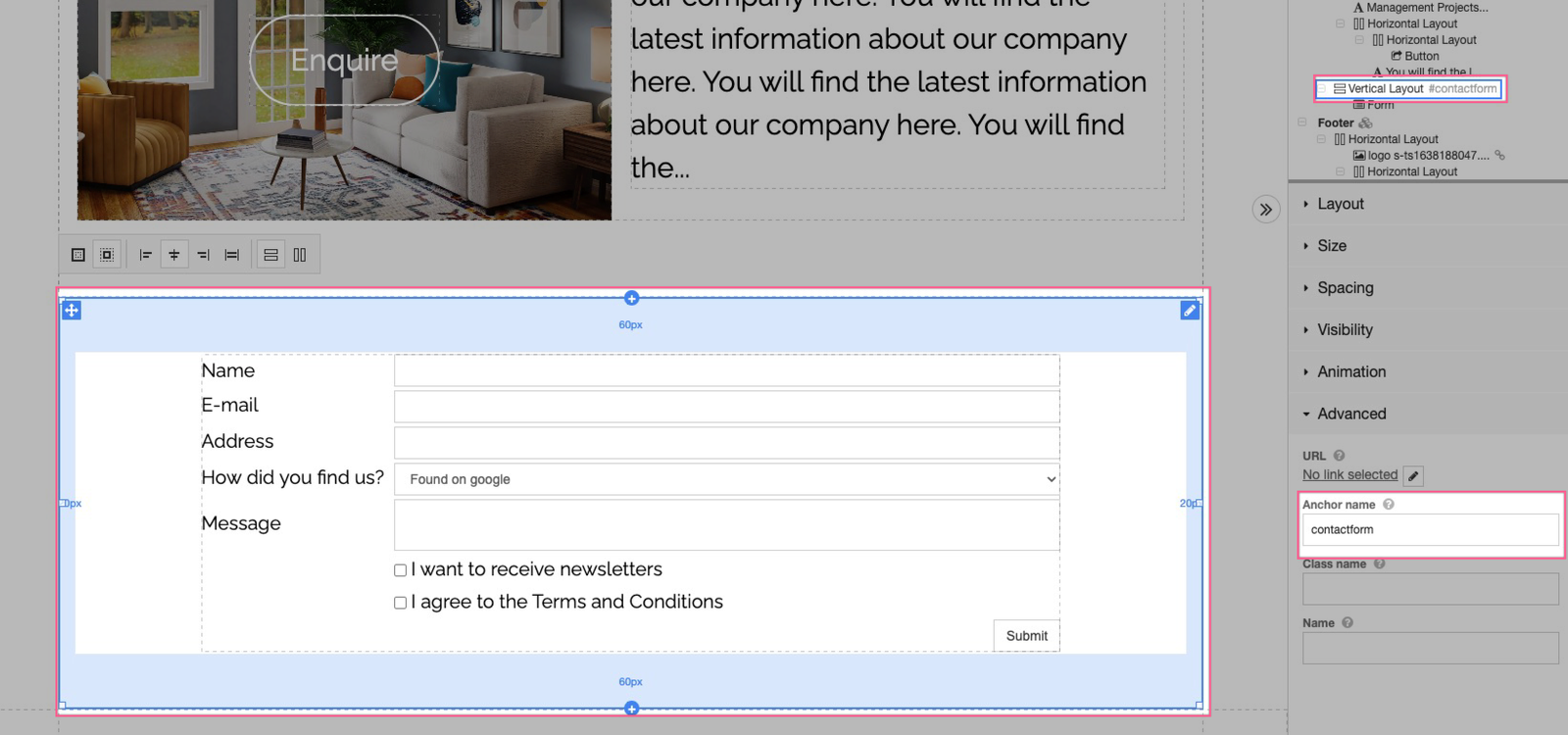
- Select the element (section, block, or item in your navigation tree) that you want visitors to jump to.
- In the Advanced configuration panel on the right, find the Anchor text box and enter a short descriptive name with no spaces, for example
contactform.
Step 2 - Add the link to a button (or any other element)
Once the anchor is saved, you can link to it from any button, text link, or navigation item on your site. The steps below use a button as an example.
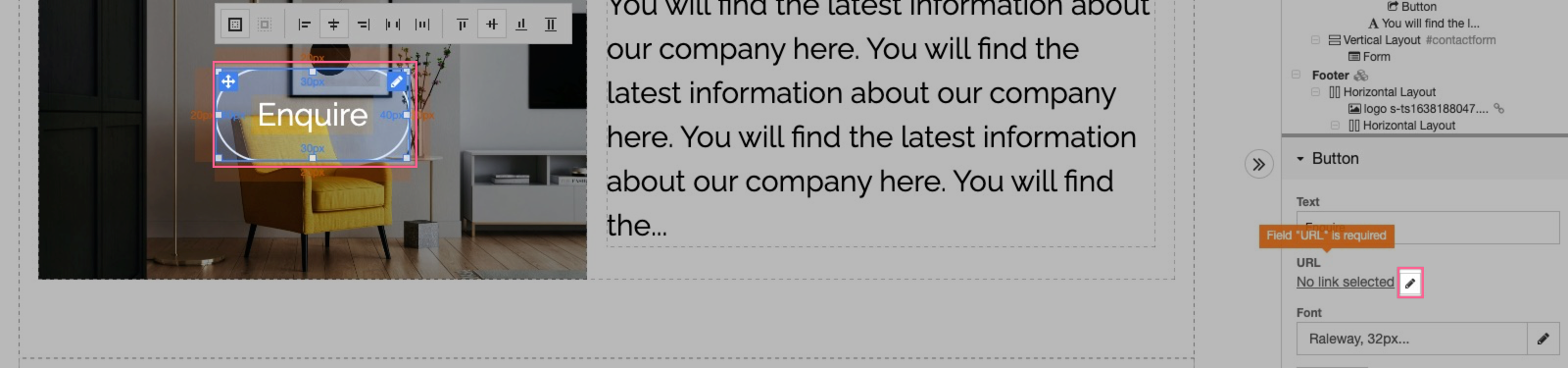
- Select the button you want to use as the link.
- In the Button configuration panel on the right, press the pencil icon next to the URL field.
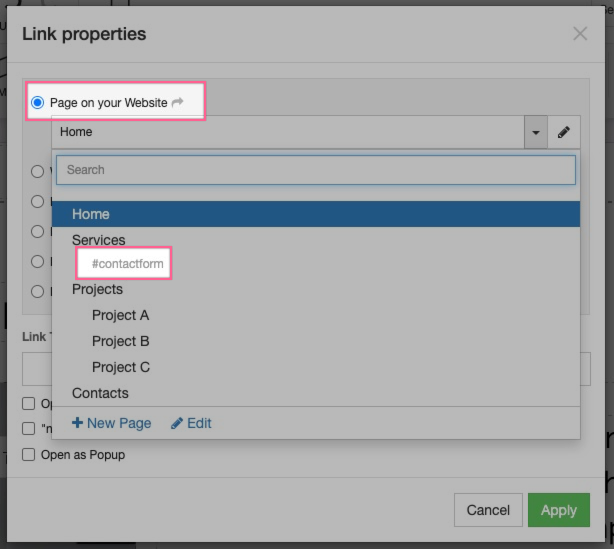
- In the Link Properties window, select Page on your website, then choose your anchor from the dropdown. It will appear with a
#symbol in front of the name you gave it.
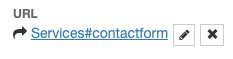
- Press Apply. The URL field will update to show the page name followed by the anchor name.
Step 3 - Test the anchor link
- Press the Preview button to open a preview of your site.
- Click the button or link you just configured. The page should scroll smoothly to the anchored element.

You can use anchor links in your site navigation to build a one-page website. Simply point each navigation item at a different anchor on the same page.