
On this page
How to add a banner to your page
Add a banner to any page in ProSite by dragging the Banner element onto your page and configuring its settings.
You can add a banner to any page in your ProSite website using the Banner element in the Site Builder. Banners can be added as an image file or as a script snippet.
Add the banner element
- Launch the Site Builder from cPanel.
- Navigate to the page where you want to insert the banner.
- Find the Banner element in the elements panel, then drag and drop it onto your page.
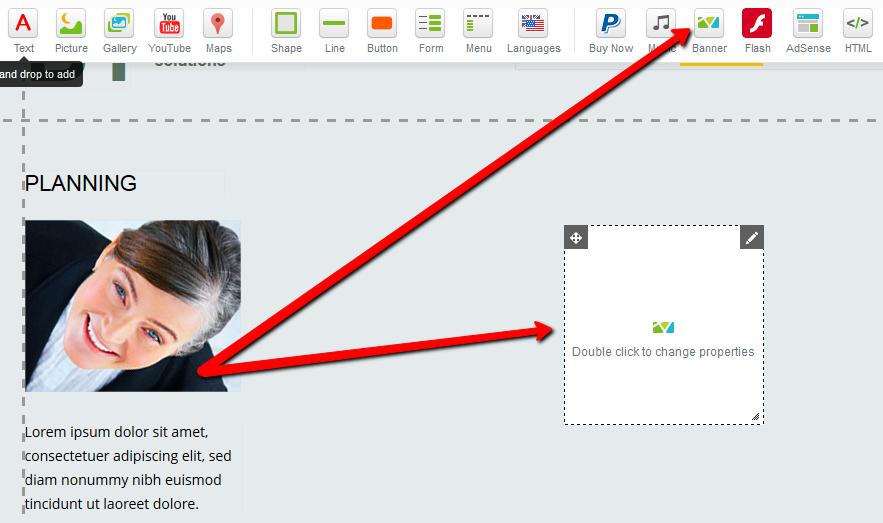
Edit the banner settings
- Double-click the newly added Banner widget, or click the Pencil icon and choose Properties.
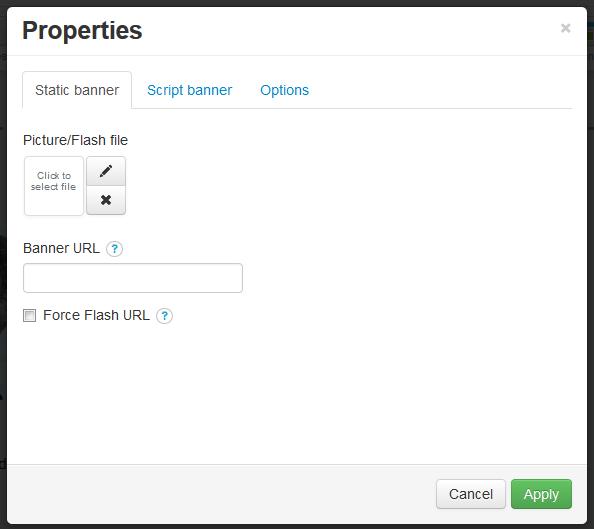
In the Properties panel you can add your banner either as an image file or as a script.
Option 1 - add a banner as an image
- Click the Pencil icon under Picture file.
- Click Upload New File to browse and upload your image.
- Once uploaded, select the file from the media gallery and click Select.
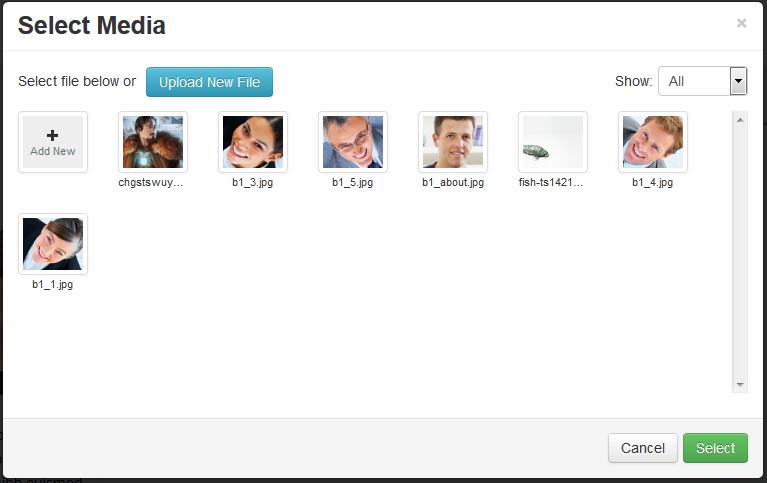
Alternatively, paste the URL of your banner image directly into the Banner URL box.
Option 2 - add a banner as a script
- Click the Script banner tab.
- Paste your banner code into the Script box.
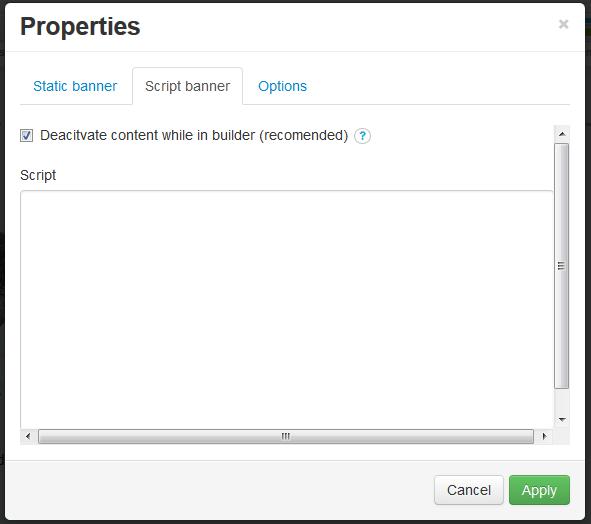
Tick Deactivate content while in builder (recommended). Some scripts can interfere with the builder, making the page inaccessible while you are editing it.
The Options tab lets you adjust the banner size, position, and choose whether it appears on all pages or specific pages of your site.
Save your changes
- Click Apply to save the banner settings.
Was this helpful?
Your feedback helps us find gaps in the docs.
Thanks for the feedback!
Related articles
Building your pages
How to add a new page
Add a new page to your ProSite website in a few steps using the built-in Site Builder tool...
Building your pages
How to add / configure your website navigation
Add and configure a navigation menu on your ProSite site - horizontal or vertical, respons...
Building your pages
How to add a sub-menu
Add a drop-down sub-menu in ProSite by nesting menu items under a parent page in the Edit...
Building your pages
How to add tabs to your website
Tabs let you organise content into clearly labelled sections, keeping your pages tidy and...
Still need a hand?
Real people, around the clock - start a chat or open a ticket and we'll help you put it right.