On this page
How to add a sub-menu
Add a drop-down sub-menu in ProSite by nesting menu items under a parent page in the Edit Menu panel.
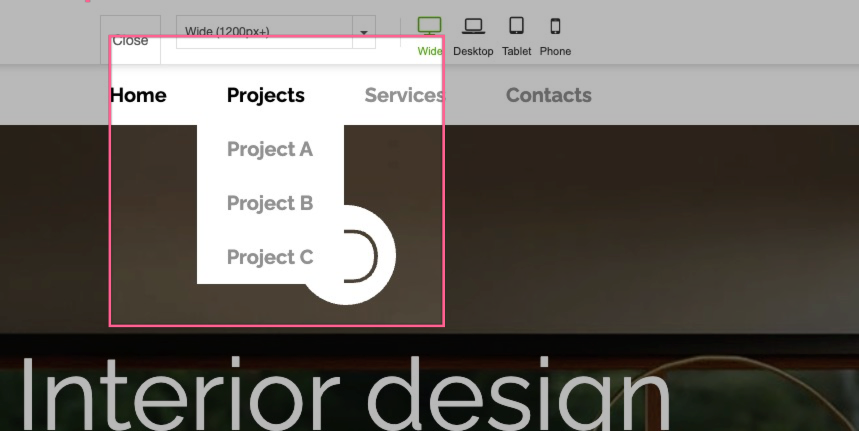
A sub-menu appears as a drop-down in your navigation bar, nested under a parent menu item. This is useful when you have a large number of pages that would make your top-level navigation unwieldy - for example:
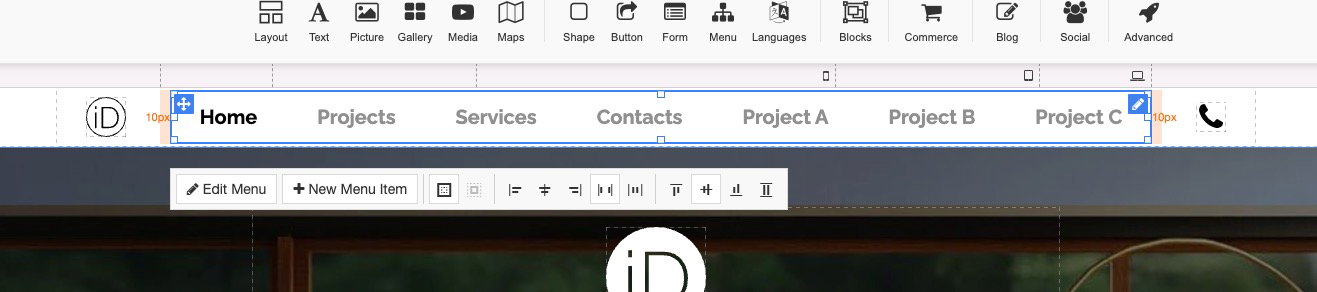
Creating a sub-menu
-
Launch the Site Builder tool from your cPanel.
-
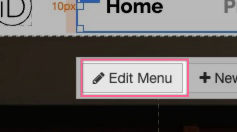
Click on your website menu, then click Edit Menu in the panel that appears below it.
-
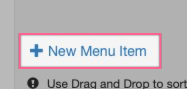
If you have not yet created the page you want as a sub-menu item, click New Menu Item. You can clone content from another page or copy selected sections.
If you have already created your pages, they will appear in the list of menu items:
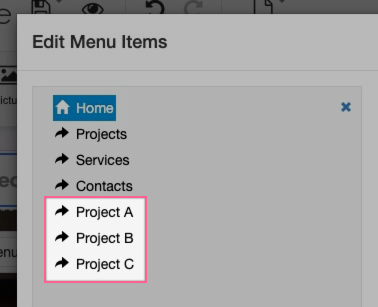
-
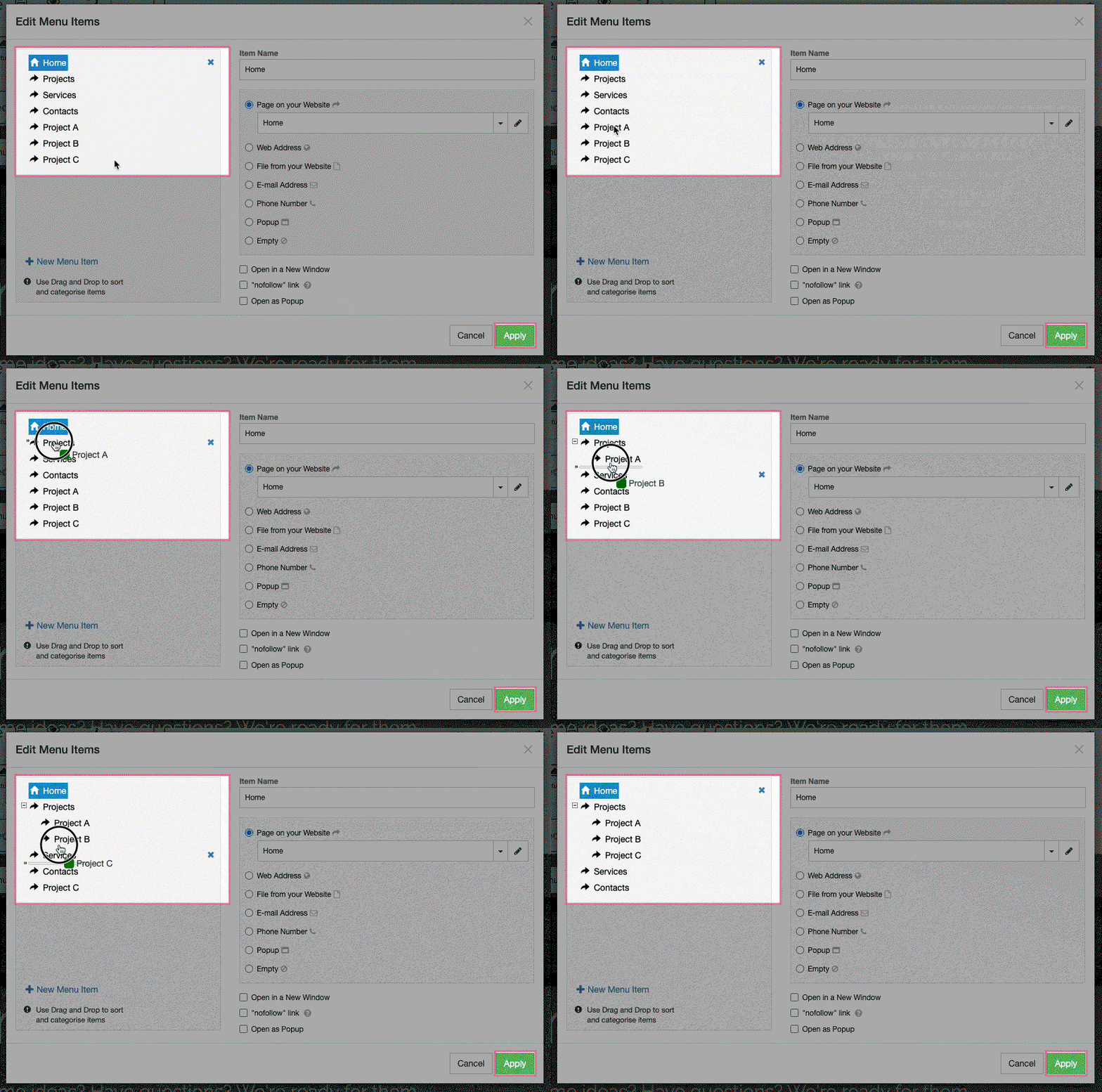
To nest a page as a sub-menu item, drag and drop it on top of the parent menu item. In the example below, the Project A, B and C items are dragged onto the Projects item. Each item becomes indented, indicating it is now a child of that parent.
-
Click Apply.
The nested items are removed from the top level of navigation:
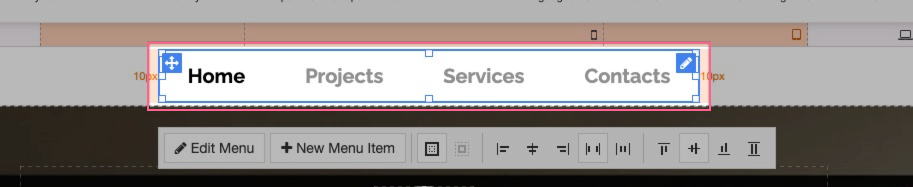
-
The drop-down does not activate inside the editor. To check how it looks, click Preview.
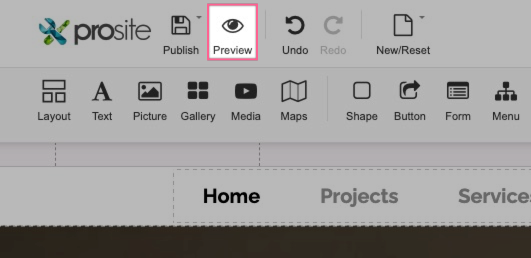
The drop-down menu should now appear in preview mode:

Adjusting sub-menu styling
If the styling does not look right, your menu may not yet be configured with sub-menu styles. To fix this:
-
Close the preview and click on your menu again.
-
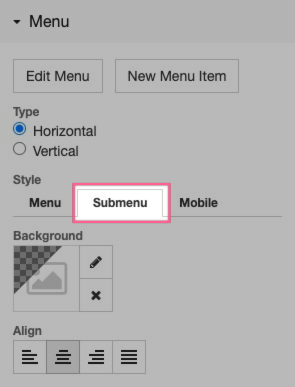
In the right-hand panel, find the menu styling options and select the Submenu tab.
-
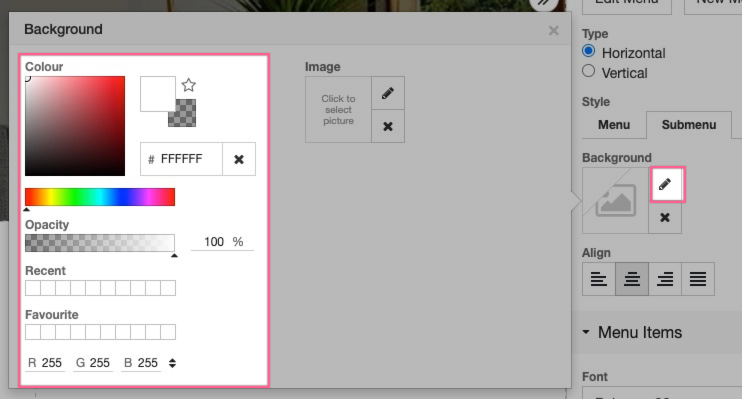
If there is no background colour set, click the Edit icon next to Background and choose your preferred colour.
-
Preview the site again to confirm the change. In the example below, a white background has been applied to the sub-menu.