
On this page
How to change your site's background
Add a background image to a layout in ProSite and configure it to fill correctly across all device sizes.
You can add a background to any page or layout in ProSite. Applying the background to a specific layout rather than the page as a whole gives you more control, and is the recommended approach.
Setting a background at the page level
To set a background for an entire page, open the Edit Page Settings area:
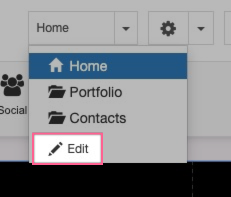
Then select the Background tab.
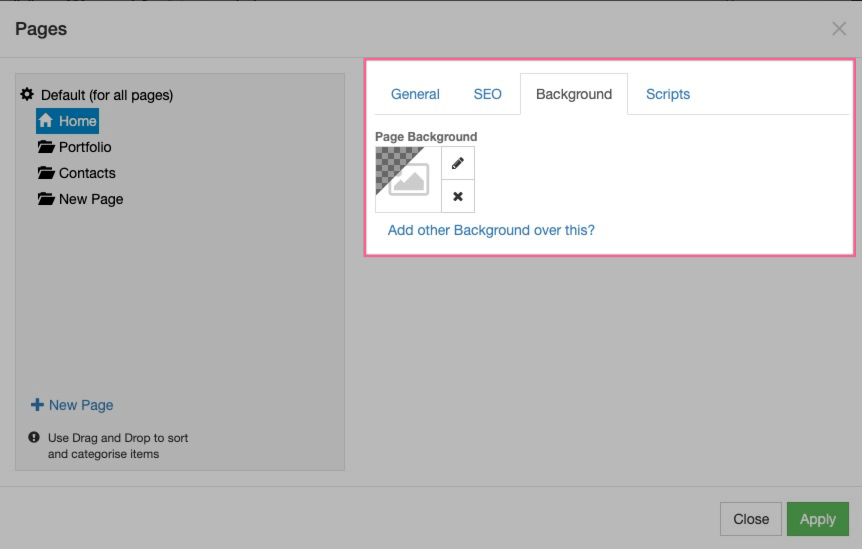
This method applies the background to the whole page. For most designs, applying a background to a specific layout (see below) gives you better results.
Setting a background on a layout (recommended)
Applying a background to a layout lets you target individual sections of your page and adjust the appearance per device.
-
Click the Layout you want to add a background to. In the Layout menu on the right, press the pencil icon to edit the background.
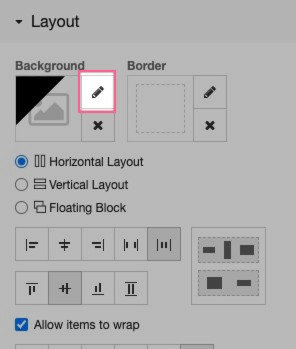
-
In the modal window, select the pencil icon to choose an image.
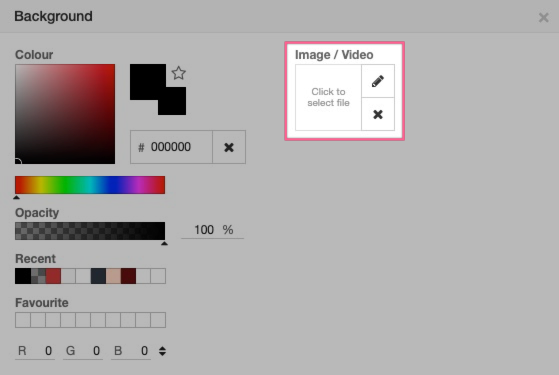
-
Select an existing image or upload a new one, then press Select.
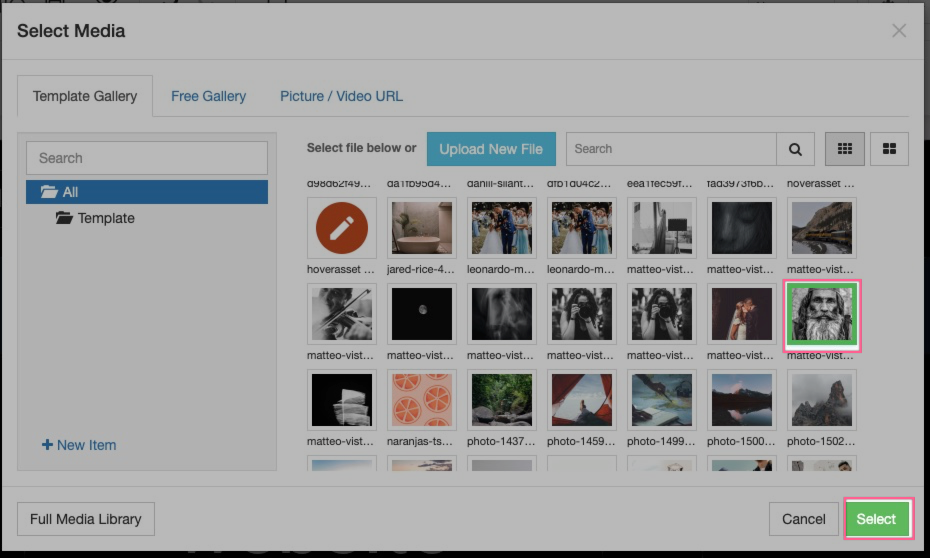
Making the background fill the layout
Once added, the image may repeat or sit off-centre. To make it fill the layout correctly, do the following:
- Turn off repeat, both vertically and horizontally.
- Set the alignment to centre.
- Turn off auto size and select the option to fill the container.
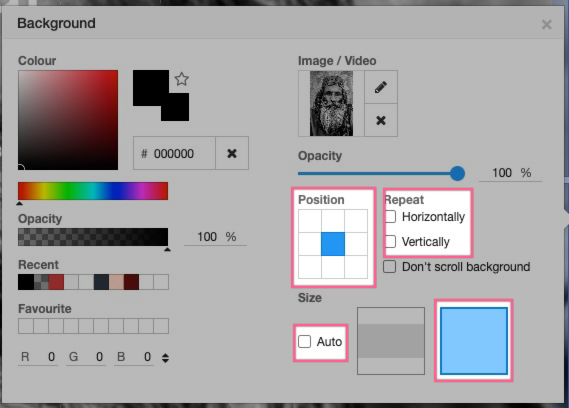
The image will now cover the full layout area.
Adjusting layout height and padding
Depending on the content inside the layout, you may need to increase its height or padding so the background is fully visible.
Option 1 - minimum height: Set a minimum height on the layout.

Option 2 - padding: Add padding to the layout instead. This approach has a useful advantage: you can reduce the padding on tablet and mobile devices separately, keeping the layout compact on smaller screens.
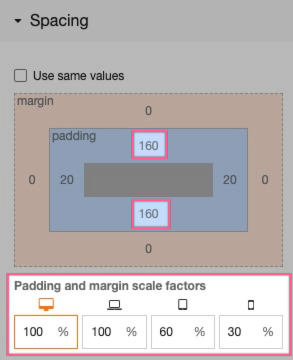
Once you have finished, the background image will fill the layout and adapt cleanly across device types.