On this page
How to link an Instagram and Facebook account to your website
Add Instagram and Facebook widgets to your ProSite website in a few steps using the built-in Social menu.
You can connect your Instagram and Facebook accounts to your ProSite website by adding social widgets through the SiteBuilder editor.
Link your Instagram account
-
Log in to cPanel and open the ProSite SiteBuilder editor.
-
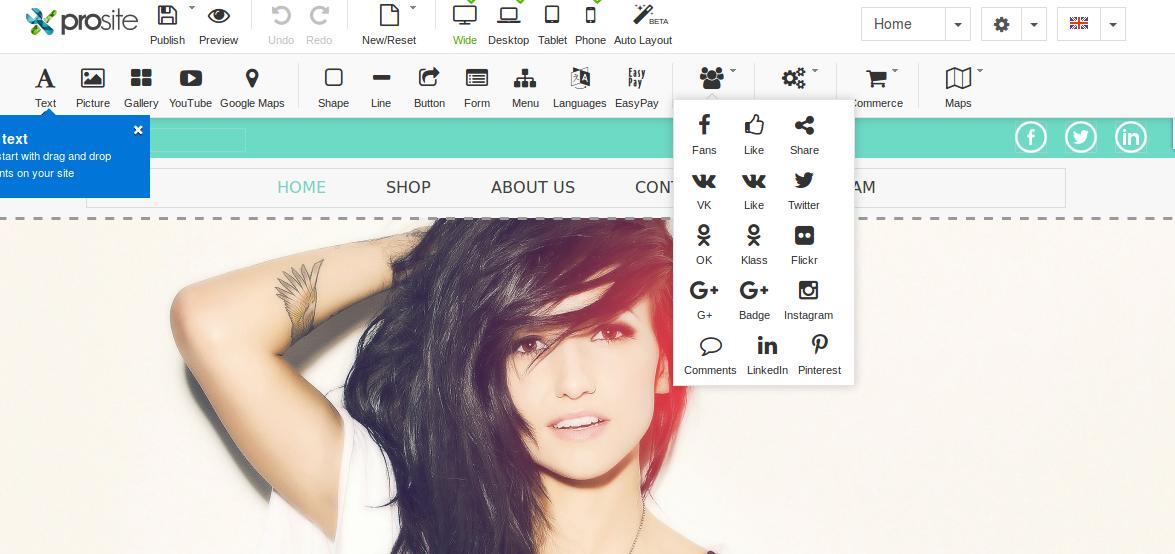
Click the Social drop-down menu.
-
Drag and drop the Instagram icon onto your page to add the widget.
-
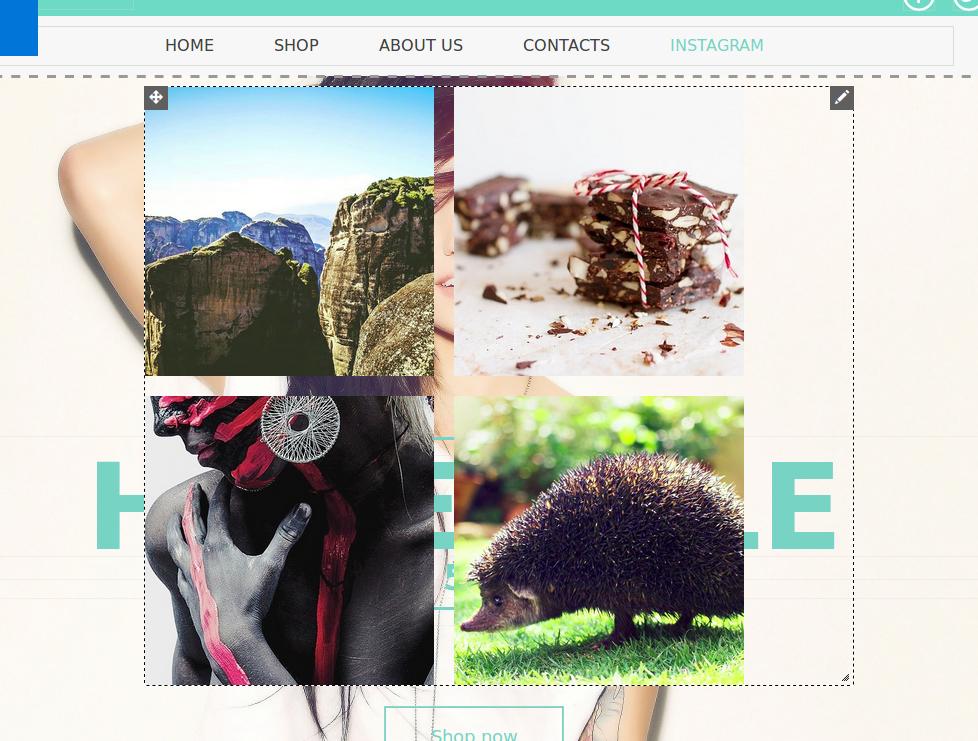
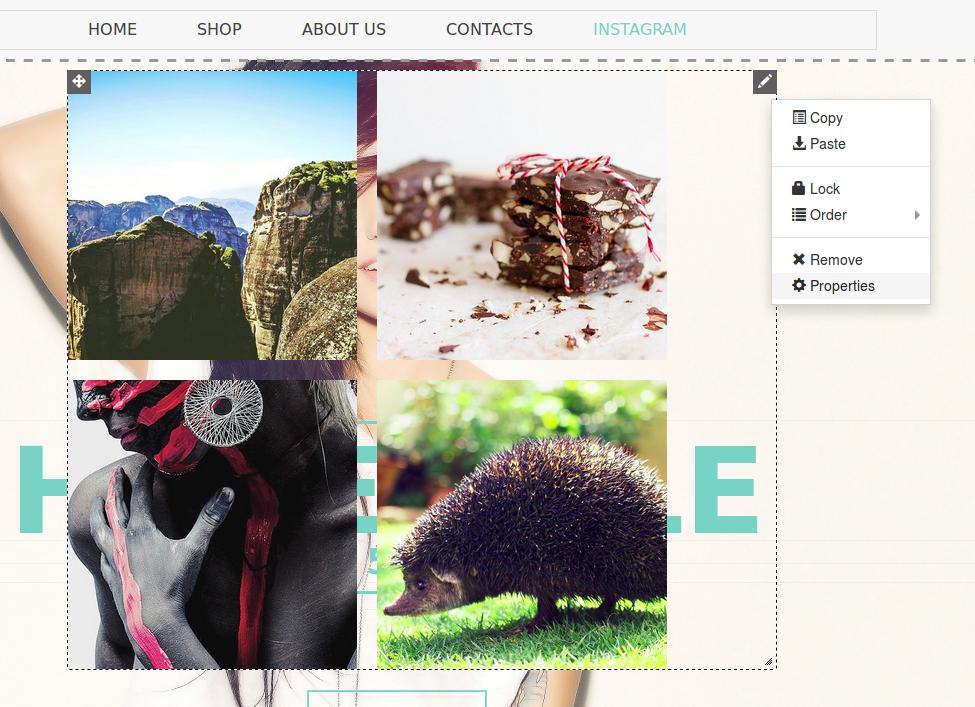
Click the pencil icon in the top-right corner of the widget, then select Properties.
-
On the General tab, enter the access token for your Instagram account. You can also set the number of displayed items, image size, and gallery padding in pixels.
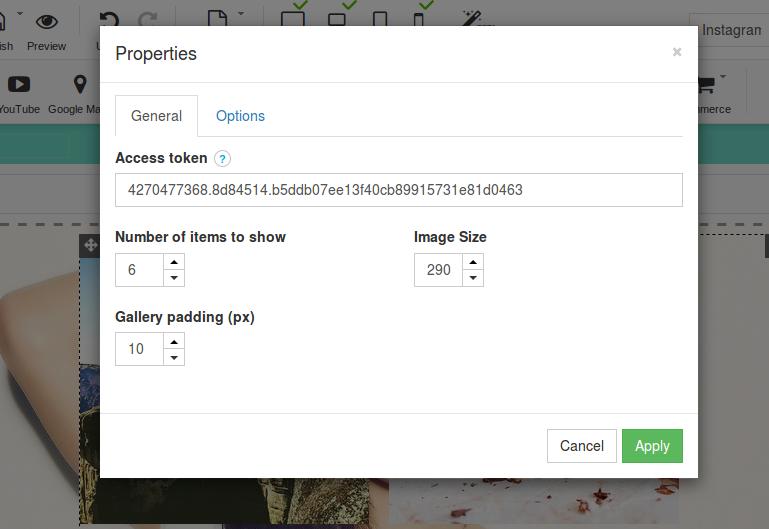
You will need an Instagram access token to connect your account. Refer to the Instagram developer documentation for guidance on obtaining one.
-
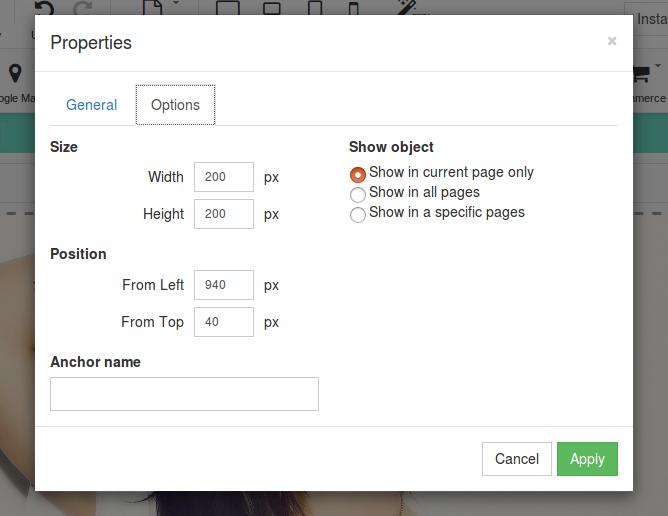
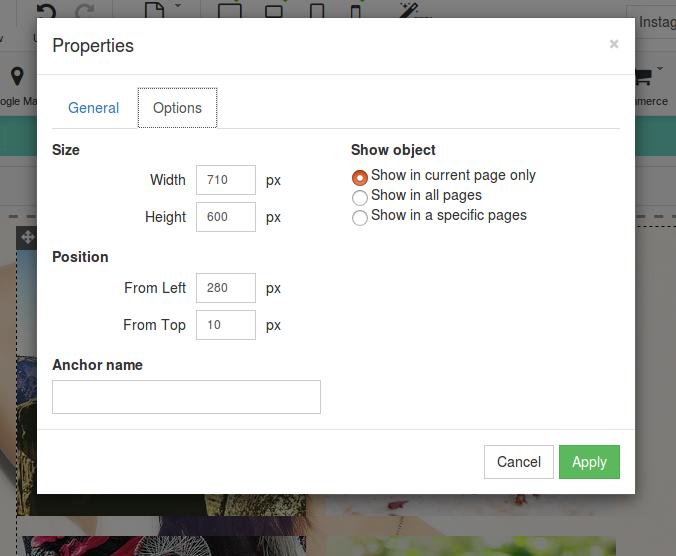
Switch to the Options tab to adjust the size and position of the widget, and to choose which pages it appears on.
Link your Facebook account
-
Log in to cPanel and open the ProSite SiteBuilder editor.
-
Click the Social drop-down menu and drag and drop the Fans icon onto your page.
-
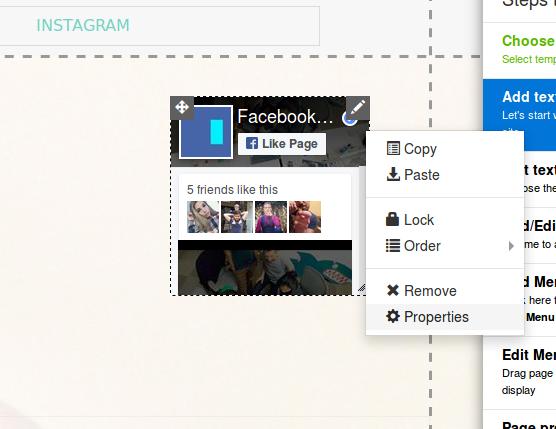
Click the pencil icon in the top-right corner of the widget and select Properties.
-
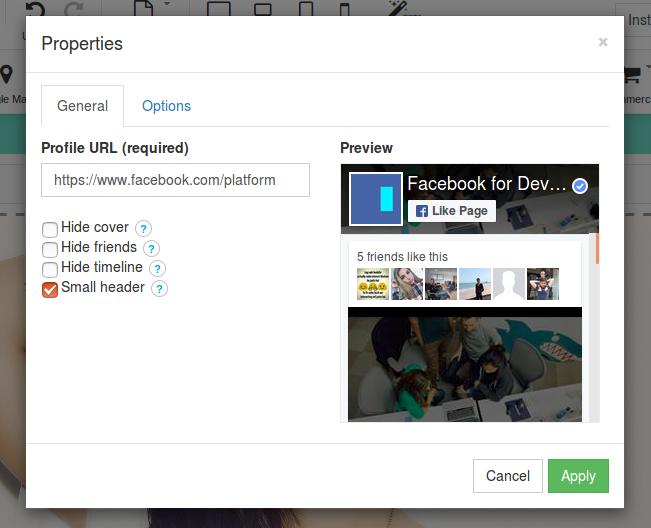
On the General tab, enter your Facebook profile or fan page URL.
-
Switch to the Options tab to adjust the size and position of the widget, and to choose which pages it appears on.