
On this page
How to add a Twitter box
Add a Twitter box to any page in ProSite by dragging the Social element onto your canvas and configuring it in the settings panel.
Add a Twitter box to any page in your ProSite website using the built-in Social element. Once placed, you can configure the URL, adjust dimensions, and style it like any other element.
Add the Twitter widget
- Launch the ProSite site builder from your cPanel.
- Navigate to the page where you want to add the Twitter box.
- In the element panel, drag the Social element onto your page and select the Twitter option.
Configure the Twitter widget
- Click the newly added Twitter widget to select it. The Twitter config panel will appear on the right side of the editor.
- Enter your Twitter URL as a minimum. You can also adjust additional settings such as width and height.
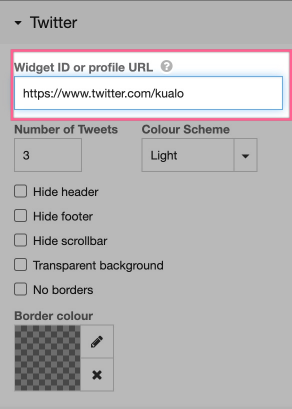
Adjust the height of the widget to control how many tweets are visible at once.
Style and layout
- Style the Twitter widget in the same way as any other element in ProSite. You can also nest it within a Layout element to create more complex page designs.

Was this helpful?
Your feedback helps us find gaps in the docs.
Thanks for the feedback!
Related articles
Widgets & elements
How to use the image gallery widget
ProSite includes a built-in image gallery widget that makes adding image galleries to your...
Widgets & elements
How to use the map widget
Add a working Google Maps widget to your ProSite website by generating a Google Maps API k...
Widgets & elements
How to use the YouTube widget
Add a YouTube video to your ProSite page - either as a playable embed using the Media widg...
Widgets & elements
How to upload a photo
Add a photo to your ProSite page by dragging in the Picture element, then choose or upload...
Still need a hand?
Real people, around the clock - start a chat or open a ticket and we'll help you put it right.