On this page
How to use the image gallery widget
ProSite includes a built-in image gallery widget that makes adding image galleries to your website straightforward.
ProSite includes a built-in image gallery widget that makes adding image galleries to your website straightforward.
Adding a gallery to your page
- Launch the Site Builder tool from your cPanel.
- Go to the page where you want to insert your image gallery.
- Hover over the Gallery element, then drag and drop it onto your page.
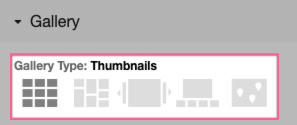
- You will be presented with a number of gallery types. Select the one you want to use.
The gallery will be added to the page and pre-populated with placeholder images.
Available gallery types
The builder offers the following image gallery types:
- Thumbnails
- Masonry
- Background
- List
- Map
- Slideshow
- Slideshow
- Slideshow with captions
Adding pictures
Each gallery type allows you to add your own pictures to the gallery.
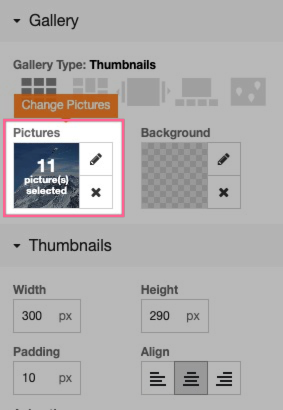
You can also adjust configuration settings depending on the gallery type. For example, a thumbnail gallery lets you set the width, height, padding, and alignment. You can add captions to images and configure their style.
How to change your gallery type
You can switch between gallery types at any time by selecting a different type from the Gallery menu. The widget will automatically update to reflect your selection.