
On this page
How to remove a widget/element
Remove any widget or content element in ProSite with a right-click or via the Page Structure view.
You can remove any widget or content element in ProSite in two ways: directly on the canvas, or through the Page Structure view.
Remove a widget using right-click
- Right-click the widget or element you want to remove.
- Choose Remove from the context menu.
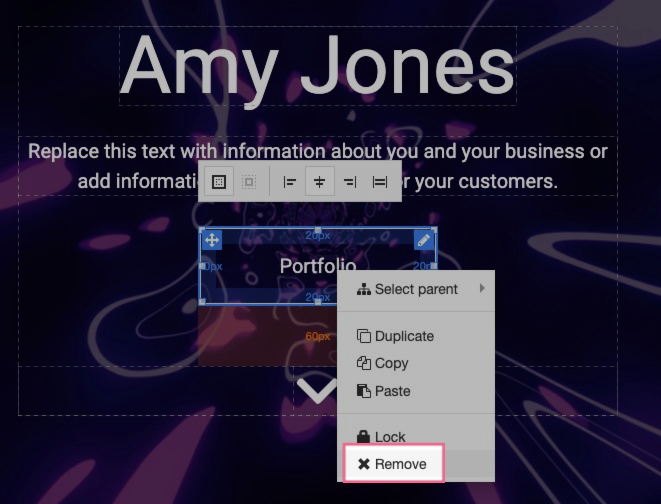
The element is removed from the page. If it contained sub-items, those are removed too.
Remove an element via Page Structure
The Page Structure view is useful when you want to remove an entire section or need to be sure you are selecting the correct parent container.
- Open the Page Structure panel.
- Locate the element you want to remove.
- Select it and choose Remove.
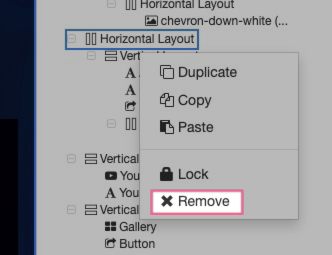
Removing a parent container will also delete all child elements nested inside it. Check the Page Structure panel first if you are unsure what is nested within a section.
Was this helpful?
Your feedback helps us find gaps in the docs.
Thanks for the feedback!
Related articles
Widgets & elements
How to use the image gallery widget
ProSite includes a built-in image gallery widget that makes adding image galleries to your...
Widgets & elements
How to use the map widget
Add a working Google Maps widget to your ProSite website by generating a Google Maps API k...
Widgets & elements
How to use the YouTube widget
Add a YouTube video to your ProSite page - either as a playable embed using the Media widg...
Widgets & elements
How to upload a photo
Add a photo to your ProSite page by dragging in the Picture element, then choose or upload...
Still need a hand?
Real people, around the clock - start a chat or open a ticket and we'll help you put it right.