
On this page
How to add custom scripts or CSS to ProSite
Add custom CSS or JavaScript to your ProSite website to extend its appearance and functionality beyond the default settings.
ProSite lets you build and launch a website without any coding knowledge, but sometimes you need to go further. Adding custom scripts or CSS gives you precise control over your site's appearance and functionality.
This is an advanced feature intended for users with developer knowledge. Incorrectly added code can break your site's layout or functionality.
Inserting code onto a page or the entire site
-
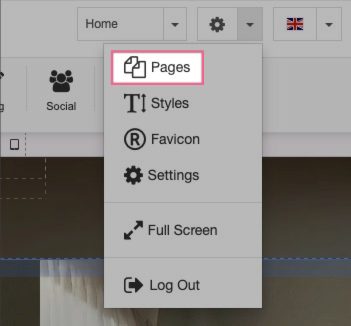
Open the Pages dialogue from the main config menu.
-
In the Pages modal, select the Scripts tab. You can insert custom code - including CSS - in one of three positions:
- Before the
</head>tag - After the
<body>tag - Before the
</body>tag
To apply the code to every page, select Default. To target specific pages only, select the relevant page from the list.
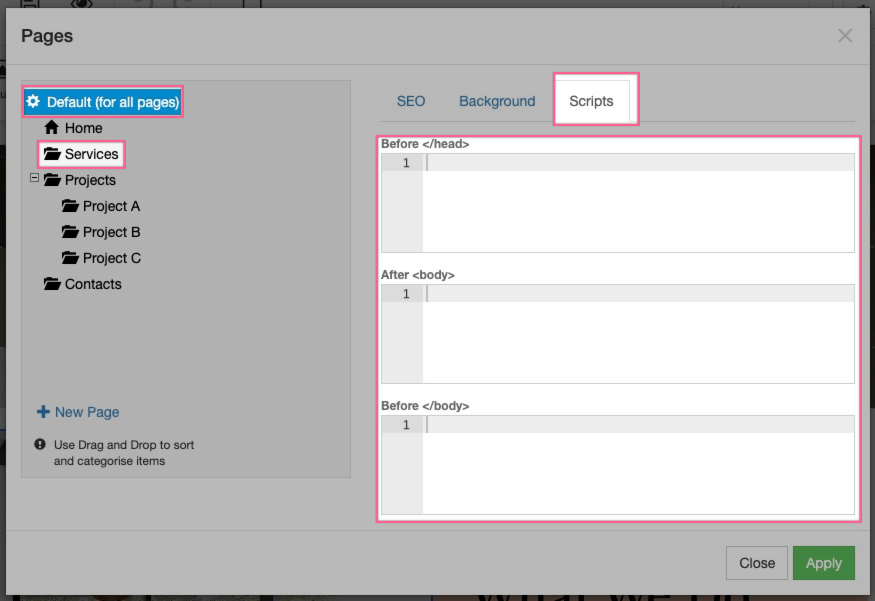
Code inserted here only runs on the published site. It will not execute inside the editor.
- Before the
-
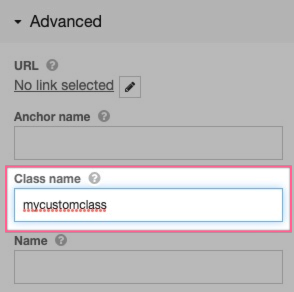
If you want to apply custom CSS to a specific element on the page, you can assign it a custom class name. Select the element on the canvas, then enter a class name in the Advanced config options on the right-hand side. You can then target that class in your CSS.
Adding custom code at a specific place on a page
If you need to embed code at a particular point in the page layout - for example, a third-party widget - use the HTML element.
-
Drag an Advanced element onto the canvas in the position where you want the HTML to appear.
-
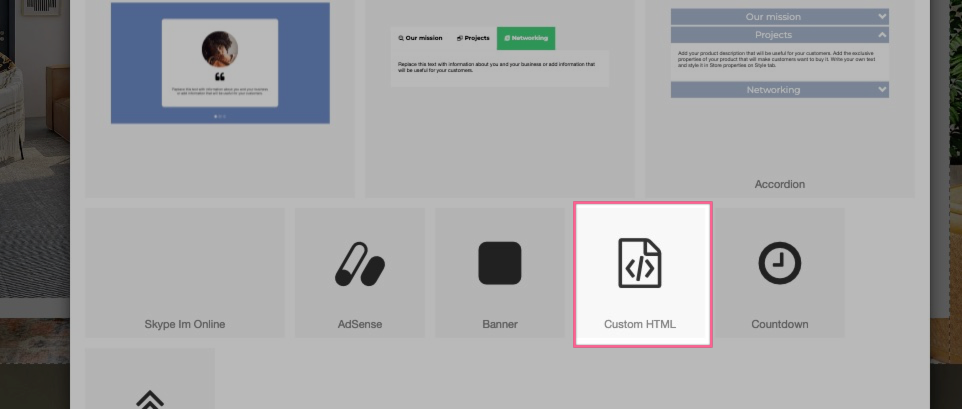
Select HTML from the list of element options.
-
With the HTML element selected, click the pencil icon in the right-hand config panel to edit its contents.
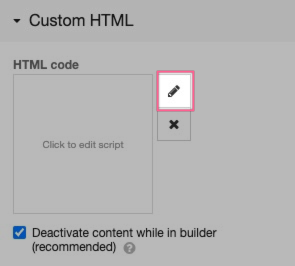
By default, HTML content is disabled in the editor to prevent scripts from interfering with the editing interface. It will run on the published or previewed site. If you are confident the code is safe, you can uncheck this option to render it inside the editor as well.