
On this page
How to lock a widget or element
Lock any widget or element in ProSite to stop it being accidentally moved or modified while you edit.
You can apply a Lock to any widget or element in ProSite to prevent it from being accidentally moved or modified. The lock applies to that specific element only - not to any nested children inside it.
Locking a single element
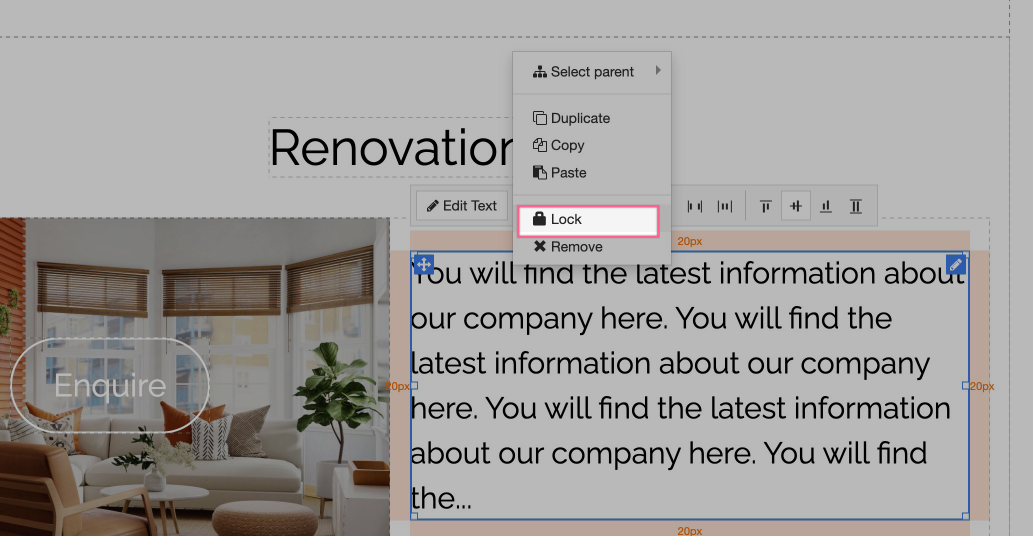
- Right-click the widget or element you want to lock.
- Choose Lock from the context menu.
The element is now protected and cannot be changed until you unlock it.
Locking multiple elements at once
- Hold Ctrl (Windows) or Command (Mac) and click each element you want to lock.
- Right-click any of the selected elements.
- Choose Lock from the context menu.
Unlocking an element
To unlock an element, right-click it and choose Unlock.
Was this helpful?
Your feedback helps us find gaps in the docs.
Thanks for the feedback!
Related articles
Widgets & elements
How to use the image gallery widget
ProSite includes a built-in image gallery widget that makes adding image galleries to your...
Widgets & elements
How to use the map widget
Add a working Google Maps widget to your ProSite website by generating a Google Maps API k...
Widgets & elements
How to use the YouTube widget
Add a YouTube video to your ProSite page - either as a playable embed using the Media widg...
Widgets & elements
How to upload a photo
Add a photo to your ProSite page by dragging in the Picture element, then choose or upload...
Still need a hand?
Real people, around the clock - start a chat or open a ticket and we'll help you put it right.