
On this page
How to insert a button
Add a clickable button to any ProSite page and link it to a page, an external URL, a file, an email address, or a phone number.
The button element lets you add a clickable button to any page and link it to an internal page, an external URL, a file, an email address, or a phone number.
Adding a button
- Launch the Site Builder tool from your cPanel.
- Go to the page where you want to insert the button.
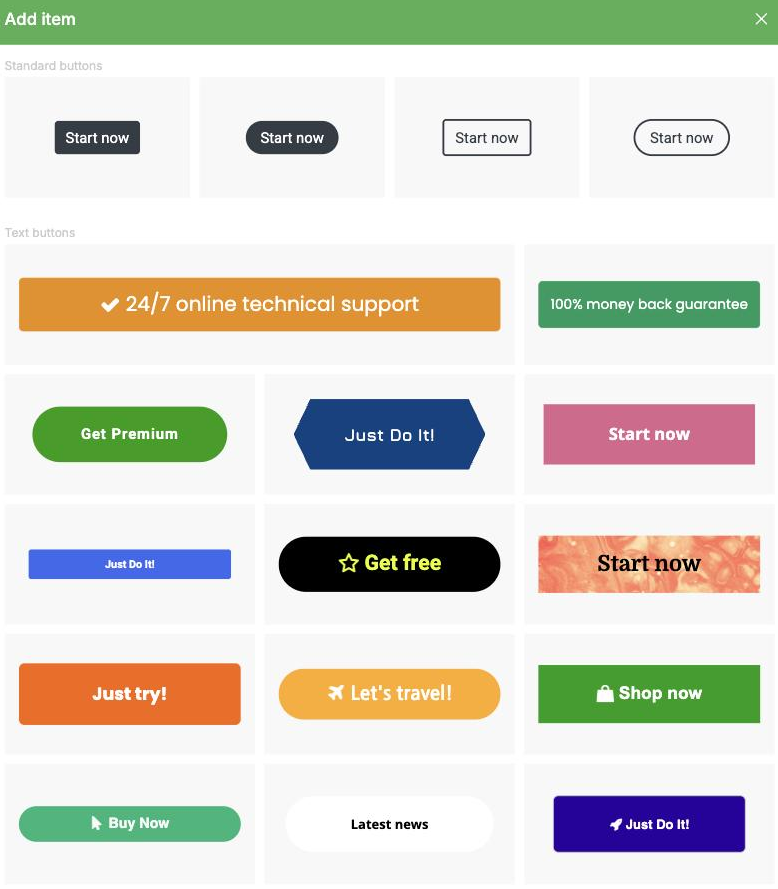
- Find the Button element in the elements panel, then drag and drop it onto your page. You can choose from a number of pre-created button styles. If none match exactly what you want, pick the closest one - you can adjust the appearance afterwards.
Editing button settings
- Hover over the newly added button and click on it. The settings panel appears on the right-hand side.
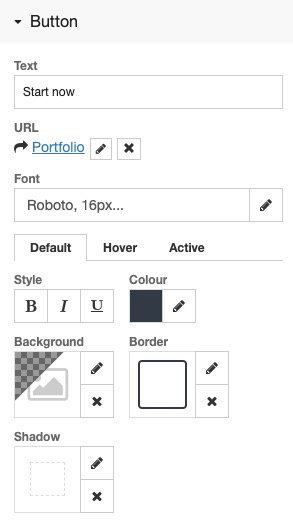
- Here you can adjust the border, colours, and other visual settings. Buttons have three states: Default, Hover, and Active. Depending on your design, you may need to adjust all three.
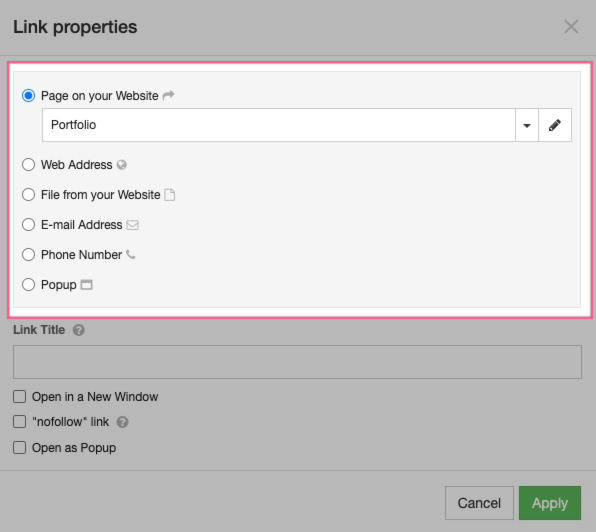
- Click the pencil icon next to URL to set where the button links to. You can link to a page on your website, an external web address, a file, an email address, or a phone number.
If you have customised the look of a button and want to reuse the same style elsewhere on the page, use the Duplicate feature to copy it rather than adding a new button from scratch. That way you only need to update the URL, not reapply all the styling.
Was this helpful?
Your feedback helps us find gaps in the docs.
Thanks for the feedback!
Related articles
Building your pages
How to add a new page
Add a new page to your ProSite website in a few steps using the built-in Site Builder tool...
Building your pages
How to add / configure your website navigation
Add and configure a navigation menu on your ProSite site - horizontal or vertical, respons...
Building your pages
How to add a sub-menu
Add a drop-down sub-menu in ProSite by nesting menu items under a parent page in the Edit...
Building your pages
How to add tabs to your website
Tabs let you organise content into clearly labelled sections, keeping your pages tidy and...
Still need a hand?
Real people, around the clock - start a chat or open a ticket and we'll help you put it right.