
On this page
How to use the YouTube widget
Add a YouTube video to your ProSite page - either as a playable embed using the Media widget, or as a background video behind your content.
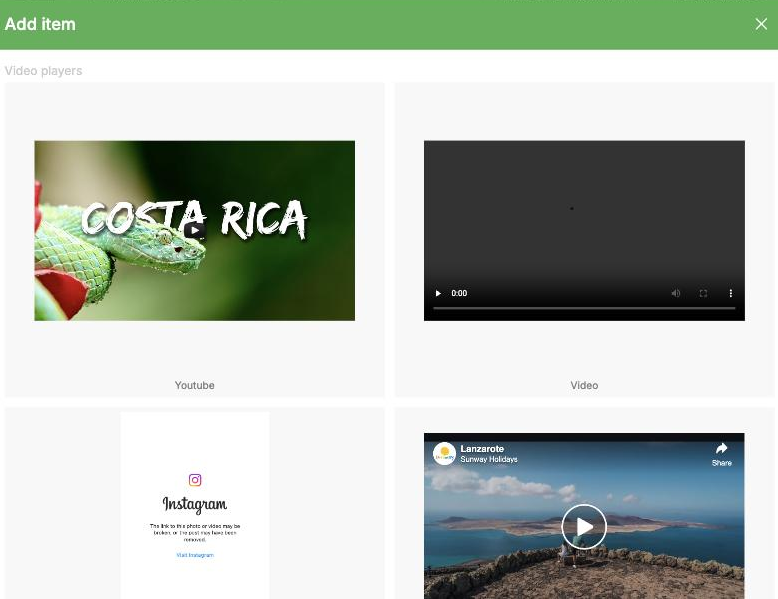
There are two ways to add YouTube videos to your ProSite page: as a playable embed using the Media widget, or as a background video behind other content on a layout.
Adding a YouTube video using the Media widget
- Launch the Site Builder tool from cPanel.
- Go to the page where you want to insert the video.
- Drag the Media widget onto the page and select YouTube from the available options.
- Paste the link to your YouTube video into the YouTube URL or ID field.
- Adjust the width or height of the video as needed.
Adding a YouTube video as a background
Background videos are controlled through the background settings of a layout, not through a widget.
- Launch the Site Builder tool from cPanel.
- Add or select a layout, then open its background settings.
- Choose the Picture / Video URL tab.
- Select Video from the options.
- Paste the link to your YouTube video into the URL field.
- If you need an overlay, select a background colour and reduce its opacity to let the video show through.
Was this helpful?
Your feedback helps us find gaps in the docs.
Thanks for the feedback!
Related articles
Widgets & elements
How to use the image gallery widget
ProSite includes a built-in image gallery widget that makes adding image galleries to your...
Widgets & elements
How to use the map widget
Add a working Google Maps widget to your ProSite website by generating a Google Maps API k...
Widgets & elements
How to upload a photo
Add a photo to your ProSite page by dragging in the Picture element, then choose or upload...
Widgets & elements
How to upload a favicon
Upload a custom favicon to your ProSite site in a few quick steps using the Site Builder t...
Still need a hand?
Real people, around the clock - start a chat or open a ticket and we'll help you put it right.