On this page
How to use the map widget
Add a working Google Maps widget to your ProSite website by generating a Google Maps API key and entering it in the builder.
To display a map on your ProSite website, you need a Google Maps API key. Google requires billing to be enabled on your Google Cloud account before you can generate one.
What you need before you start
- A Google account
- A debit or credit card to enable billing on Google Cloud
Step 1 - Set up Google Cloud billing
-
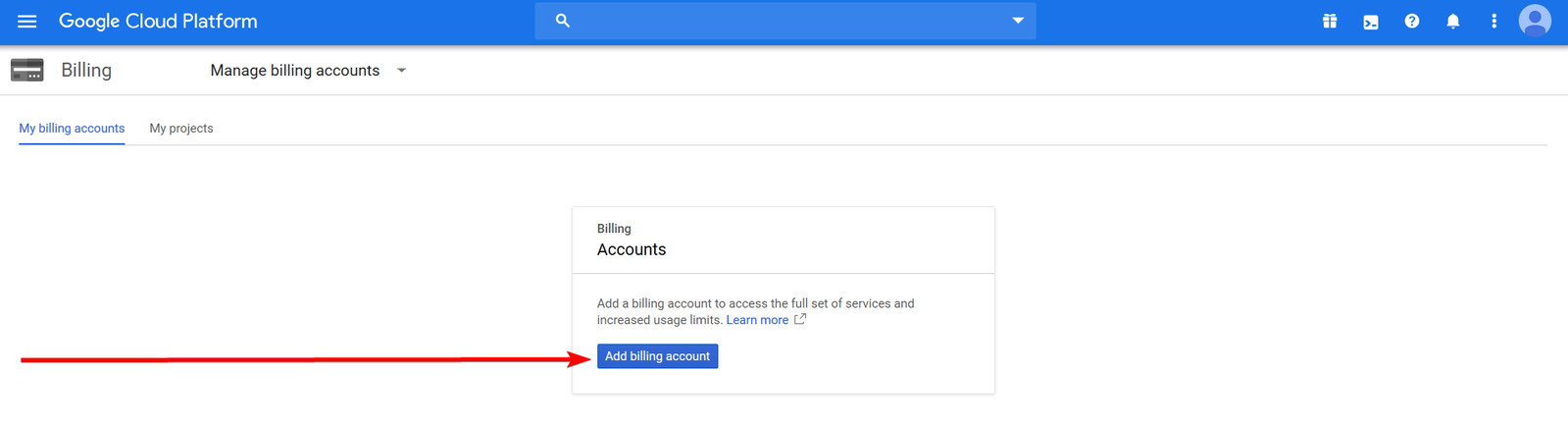
Click Add billing account.
-
Fill in your details and complete the setup.
Step 2 - Enable the Maps JavaScript API
-
Go to https://console.cloud.google.com/marketplace/details/google/maps-backend.googleapis.com.
-
Select an existing project or create a new one.
-
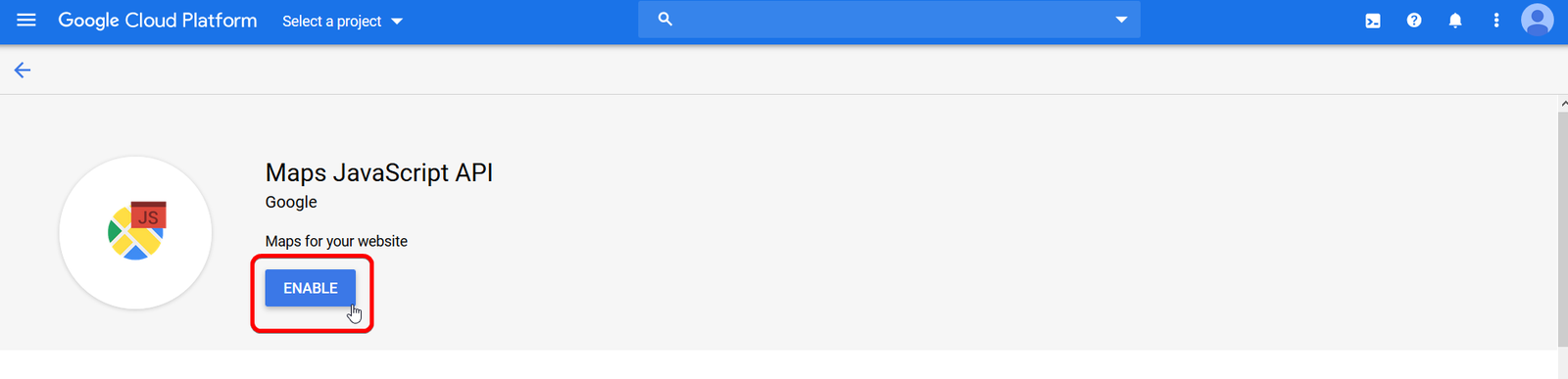
Click Enable to activate the Maps JavaScript API for your project.
Step 3 - Create an API key
-
Click Create credentials, then select API key.
-
Your new API key will appear in a dialog. Click Close.
-
The key is now listed on the Credentials page under API keys.
-
Copy the key.

Restrict your API key before using it on a live website. Unrestricted keys can be misused if exposed. You can set restrictions on the Credentials page in Google Cloud Console.
Step 4 - Add the API key in ProSite
-
Open your website in the ProSite builder.
-
Click on your map widget.
-
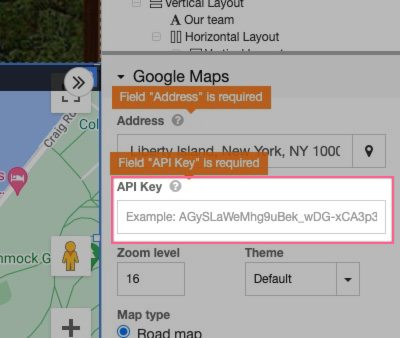
In the settings panel on the right, paste your API key into the API key field.
-
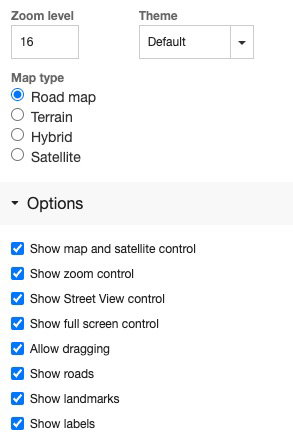
Use the additional configuration options to adjust the map's appearance and behaviour to suit your page layout.