
On this page
How to insert a form in your page
Add a contact form to any page in ProSite's Site Builder and configure fields, email delivery, and spam protection.
Add a contact form to any page in ProSite's Site Builder by dragging in the Form element and configuring it to suit your needs.
Adding the form element
- Launch the Site Builder tool from your cPanel.
- Navigate to the page where you want to insert the form.
- Hover over the Form element in the element panel, then drag and drop it onto your page.
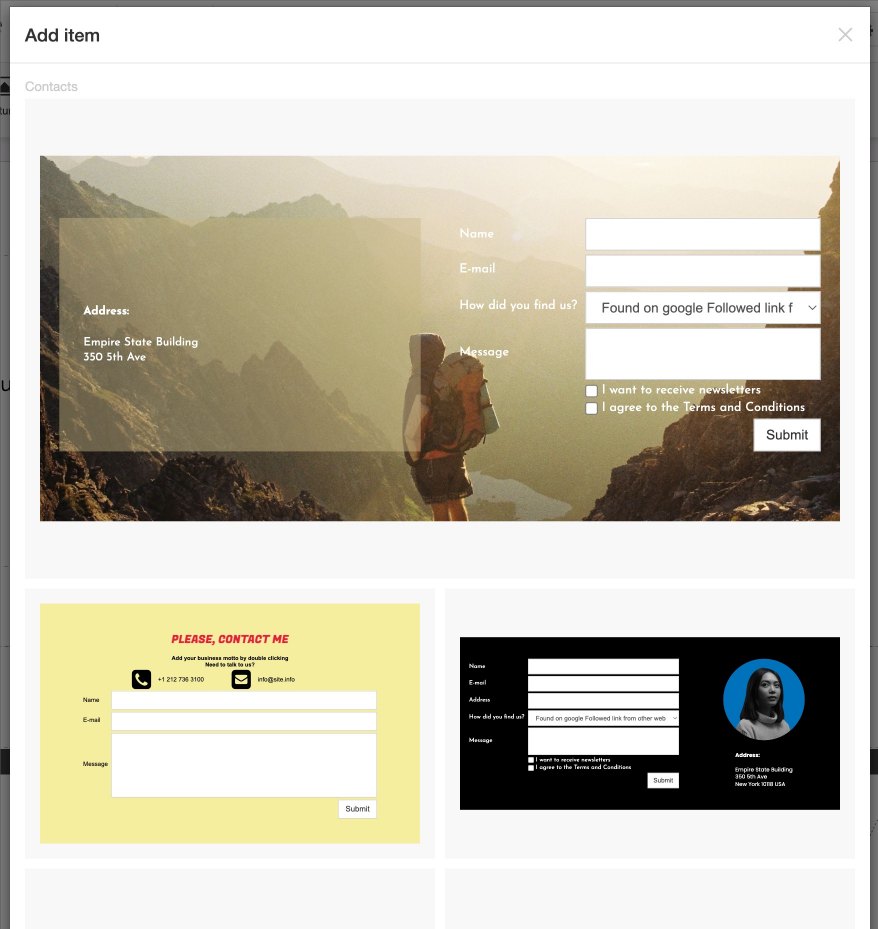
- Choose the style of form you would like to add. You can choose a simple form or a more complex form block. All aspects of the form, including fields and design, are customisable.
Configuring form fields
- Select the form element. The Fields panel on the right-hand side lets you configure the fields for your form. Use the left-side checkbox to add a field and the right-side checkbox to make it compulsory. You can add a number of simple fields, a message block, up to two option blocks, and two checkboxes. All field names can be customised.
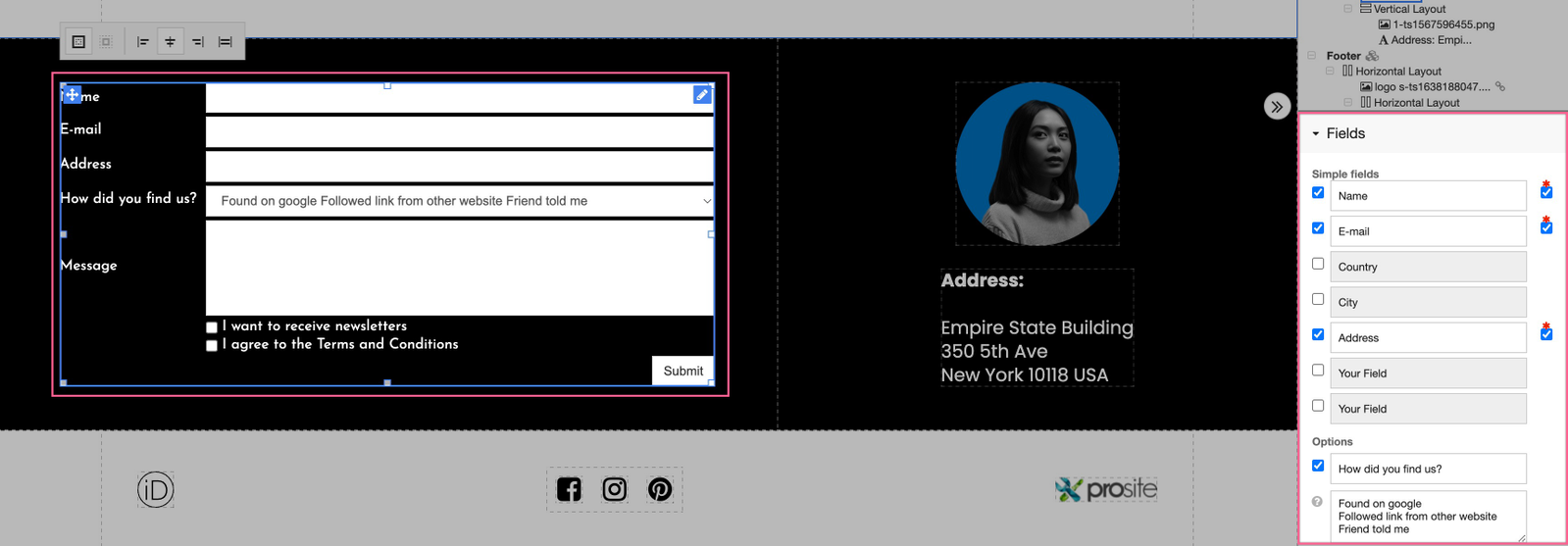
- The Labels option lets you specify the style of your labels, which you can modify in Config > Styles. You can also set a custom width for your form labels.
Setting up email delivery
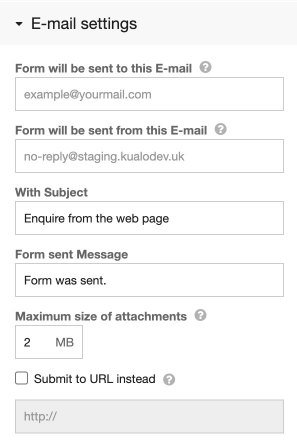
- Under Email Settings, enter the recipient email address where form submissions should be sent. Separate multiple addresses with a semicolon. You can also set the email subject line and the confirmation message shown to the user after they submit the form. Advanced users can post form data to an external endpoint if it needs to be collected and stored elsewhere.
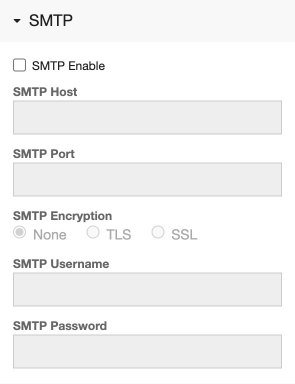
- If you want to send form emails via a specific SMTP server, tick the SMTP Enable box and fill in the SMTP host, port, username, and password. You can use a Kualo email account for this, but SMTP sending must be enabled on your account first - open a support ticket to request this.
Adding spam protection
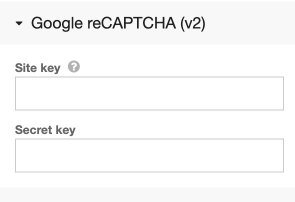
- You can enable Google reCAPTCHA to protect your form from automated bot submissions. To do this, register for a Google reCAPTCHA key and enter it in the reCAPTCHA settings.
Adding reCAPTCHA is a good idea if you start receiving junk submissions through your form.
Styling and layout
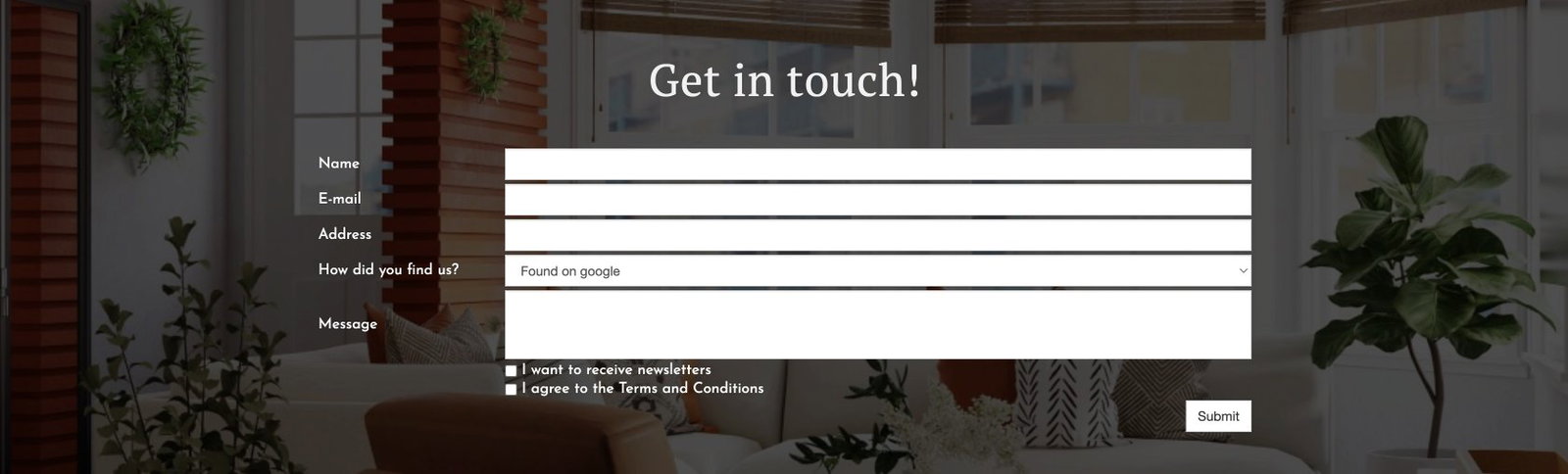
Forms can be nested inside layouts and styled to match your site design.
Using third-party or custom forms
If you need more complex forms, you can embed them using the HTML Widget. This lets you add third-party form tools such as Typeform or JotForm, as well as newsletter subscription forms from your email marketing provider.
Was this helpful?
Your feedback helps us find gaps in the docs.
Thanks for the feedback!
Related articles
Building your pages
How to add a new page
Add a new page to your ProSite website in a few steps using the built-in Site Builder tool...
Building your pages
How to add / configure your website navigation
Add and configure a navigation menu on your ProSite site - horizontal or vertical, respons...
Building your pages
How to add a sub-menu
Add a drop-down sub-menu in ProSite by nesting menu items under a parent page in the Edit...
Building your pages
How to add tabs to your website
Tabs let you organise content into clearly labelled sections, keeping your pages tidy and...
Still need a hand?
Real people, around the clock - start a chat or open a ticket and we'll help you put it right.