
On this page
How to add tabs to your website
Tabs let you organise content into clearly labelled sections, keeping your pages tidy and easy to navigate.
Tabs let you organise content into clearly labelled sections, keeping your pages tidy and easy to navigate. Rather than asking visitors to scroll through a long page, tabs let them jump straight to what they need.
Adding the tabs element
- Drag the Tabs element from the Advanced menu onto your page.
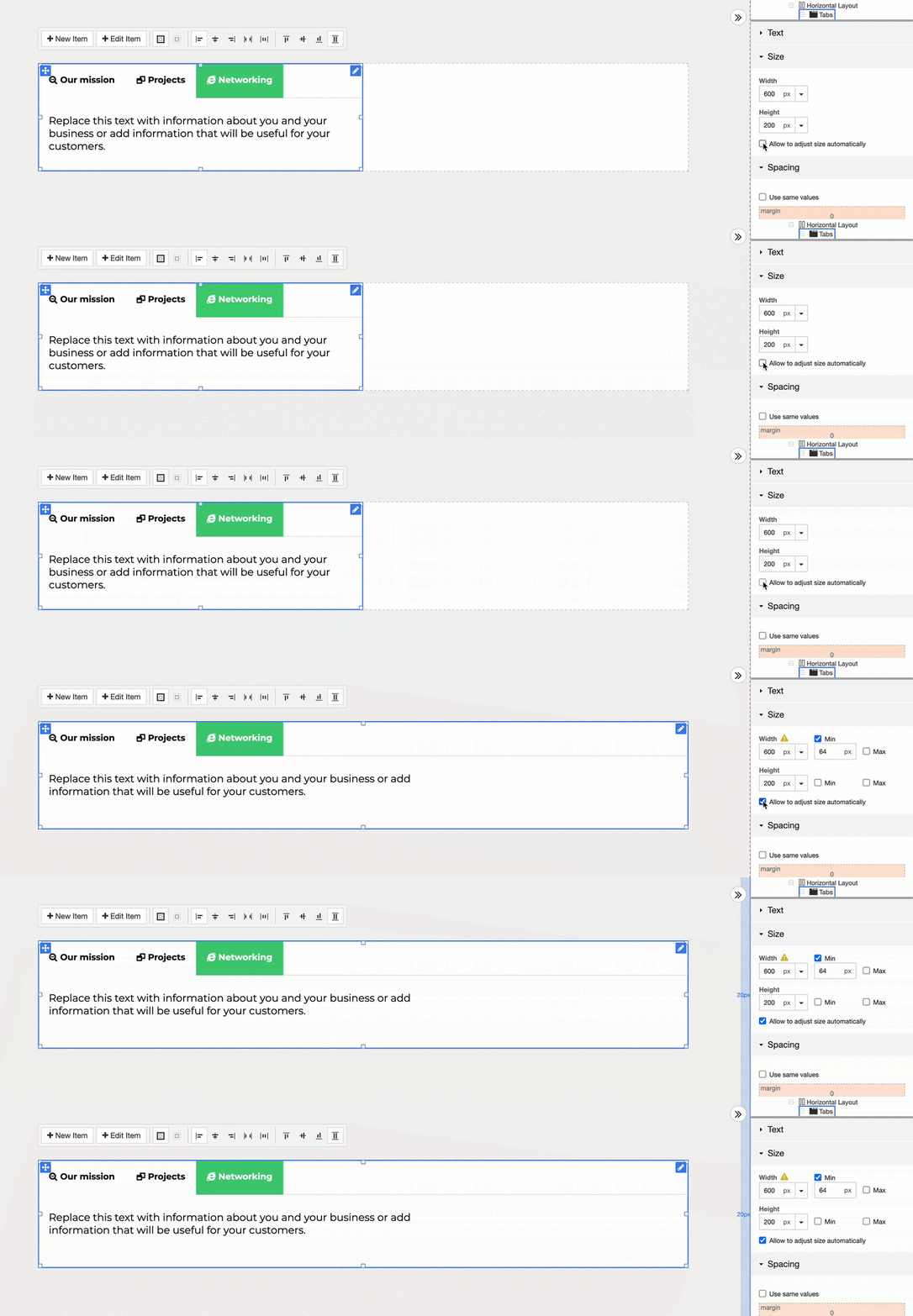
- Adjust the default width and margin, or leave the element to size itself automatically. Placing the tabs block inside an existing Layout often gives you more control over positioning.
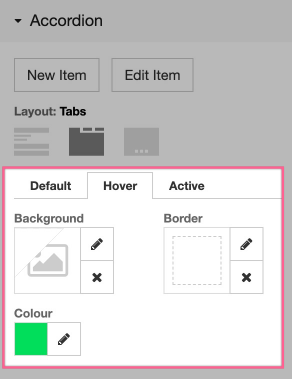
- In the configuration panel on the right, set the background colour for the tab items. Adjust the Default, Hover, and Active states separately to control how each tab looks in each situation.
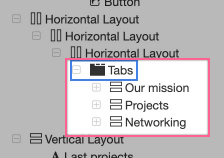
- Each tab panel appears as a separate entry in your Page Structure tree. Select a panel there to edit its contents - you can add any content you like inside a tab, including additional layouts and blocks.
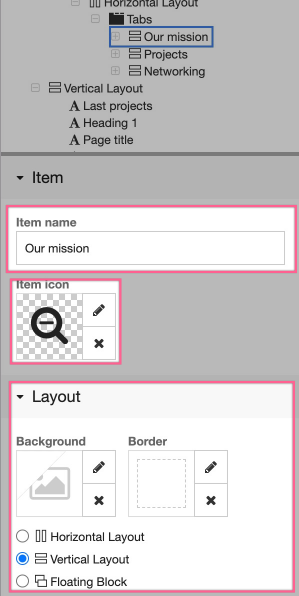
- Each tab panel can be configured in the same way as a Layout. You also have the extra option of setting a title and icon for the tab.
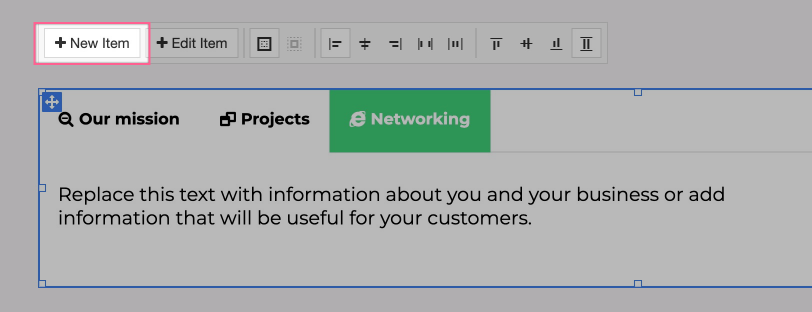
- To add more tabs, click New Item in the configuration panel. This inserts a blank tab panel that you can then populate and style.
Finished result
Once you have styled your tabs and nested content inside each panel, the result is a clean, polished tabbed section that keeps your page organised.
Was this helpful?
Your feedback helps us find gaps in the docs.
Thanks for the feedback!
Related articles
Building your pages
How to add a new page
Add a new page to your ProSite website in a few steps using the built-in Site Builder tool...
Building your pages
How to add / configure your website navigation
Add and configure a navigation menu on your ProSite site - horizontal or vertical, respons...
Building your pages
How to add a sub-menu
Add a drop-down sub-menu in ProSite by nesting menu items under a parent page in the Edit...
Building your pages
Adding text to your website
Add text to your ProSite pages by dragging on a new text element or duplicating one you ha...
Still need a hand?
Real people, around the clock - start a chat or open a ticket and we'll help you put it right.