
On this page
How to add / configure your website navigation
Add and configure a navigation menu on your ProSite site - horizontal or vertical, responsive, with sub-menus and custom styling.
Website navigation menus are an essential part of any site design, letting visitors quickly find the content they need. ProSite menus are highly configurable - horizontal or vertical, responsive across all devices, and capable of sub-menus, custom colours, alignment and much more.
If you built your site from a pre-designed template, a menu will already be in place for you to adjust. If you are building from scratch, you may need to add a menu element manually. Your site can also feature multiple menus - useful for footer links or in-page navigation.
Adding a menu element
- Launch the Site Builder tool from your cPanel.
- Go to the page where you want to insert the menu.
- Drag the Menu element to the position on your page where you want it to appear. This is typically the header area, but you can place a menu anywhere on the page.
If you want the menu to appear on every page, the menu element (or its container) must be set to display on all pages. This is the default behaviour for header and footer areas.
- Choose the pages you want to appear in the menu, or leave this and adjust it later.
- Select the menu element you have added. The right-hand panel shows two configuration sections: Menu and Menu Items.
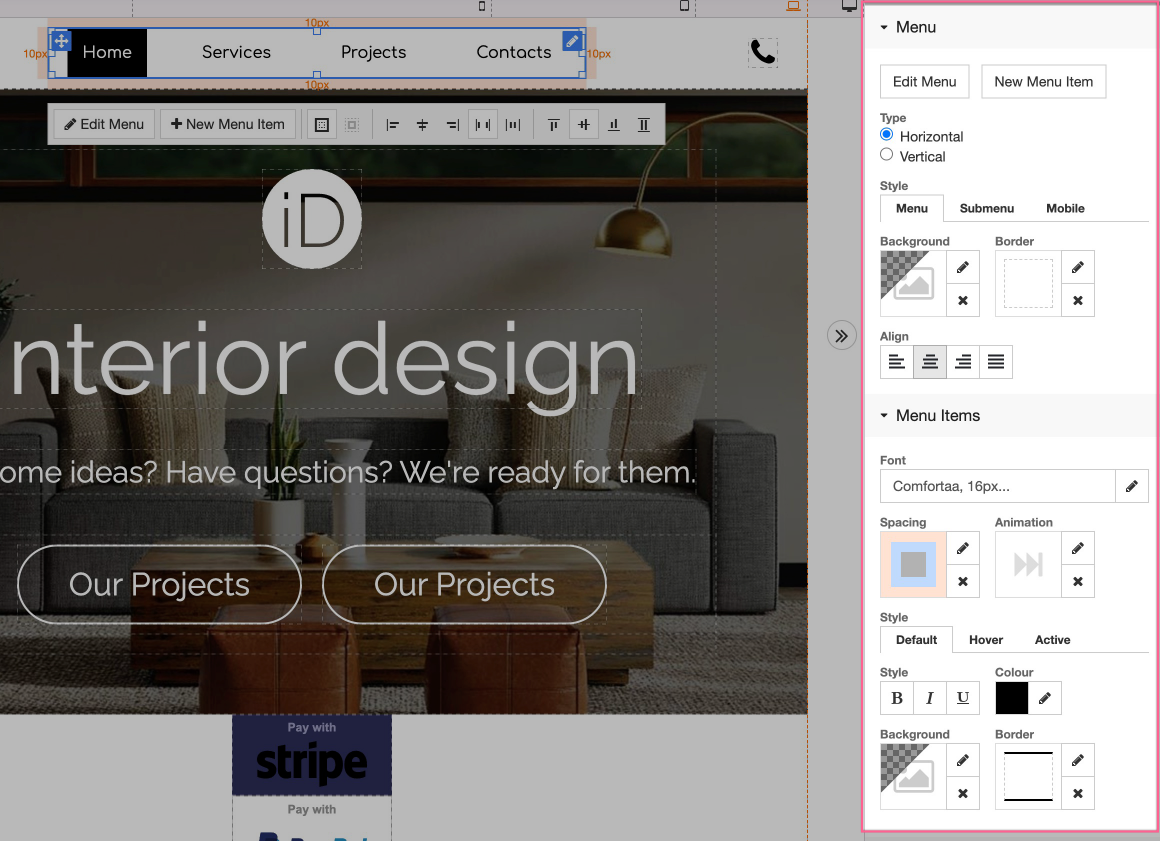
Configuring the menu element
Menu options
The Menu panel controls the menu element as a whole - think of it as the container that holds all the individual navigation items. You can adjust:
- Type (Horizontal or Vertical)
- Alignment
- Properties for the default menu, sub-menu and mobile menu
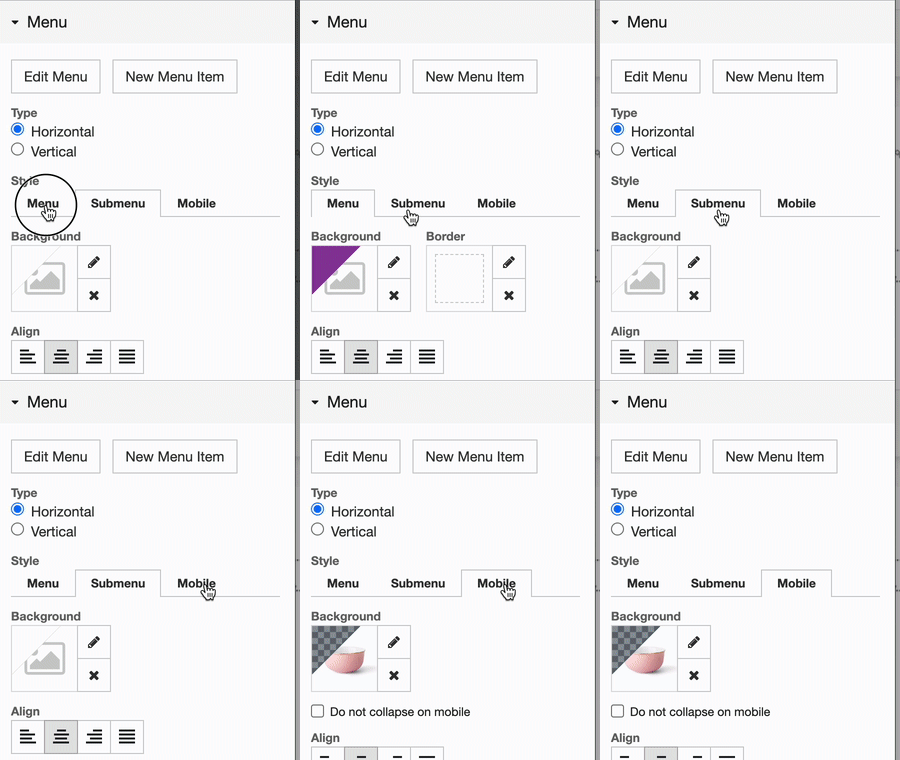
Menu Items options
The Menu Items panel is where most of the visual styling happens. You can adjust:
- Font type and styling
- Menu item spacing
- Animation
- Style, colour, background and border settings for all states (default, hover and active)
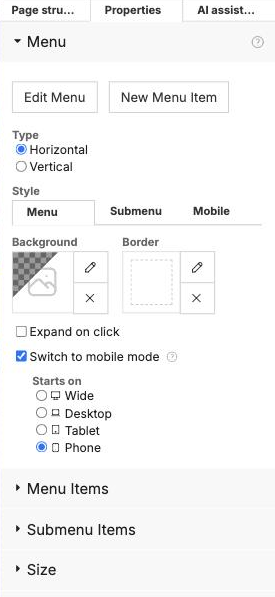
Practical tips
Changing background colours
In most cases, the menu element sits inside a parent container - typically your site's header section or a layout element. Some styling choices, such as setting a background colour, will often need to be applied to that parent container rather than to the menu element itself.
For example, suppose you have a white navigation area and want to change it to a different colour.

If you apply the background colour to the menu element itself, you get a result like this:

What you most likely want is to change the background colour of the header section that contains the menu, not the menu element itself.
