
On this page
Adding text to your website
Add text to your ProSite pages by dragging on a new text element or duplicating one you have already styled.
When building your site in ProSite, you can add text in two ways: drag on a brand-new text element, or duplicate an existing one to reuse its styling. Both approaches are covered below.
Dragging on a new text element
-
Hover over the Text element in the element panel, then drag and drop it to where you want it to appear on the page. A range of text options will appear - choose the one most appropriate.
-
The text box is inserted at the position you selected.
-
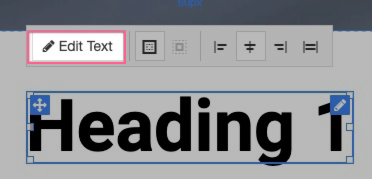
Click the Edit Text button to open the text editor.
-
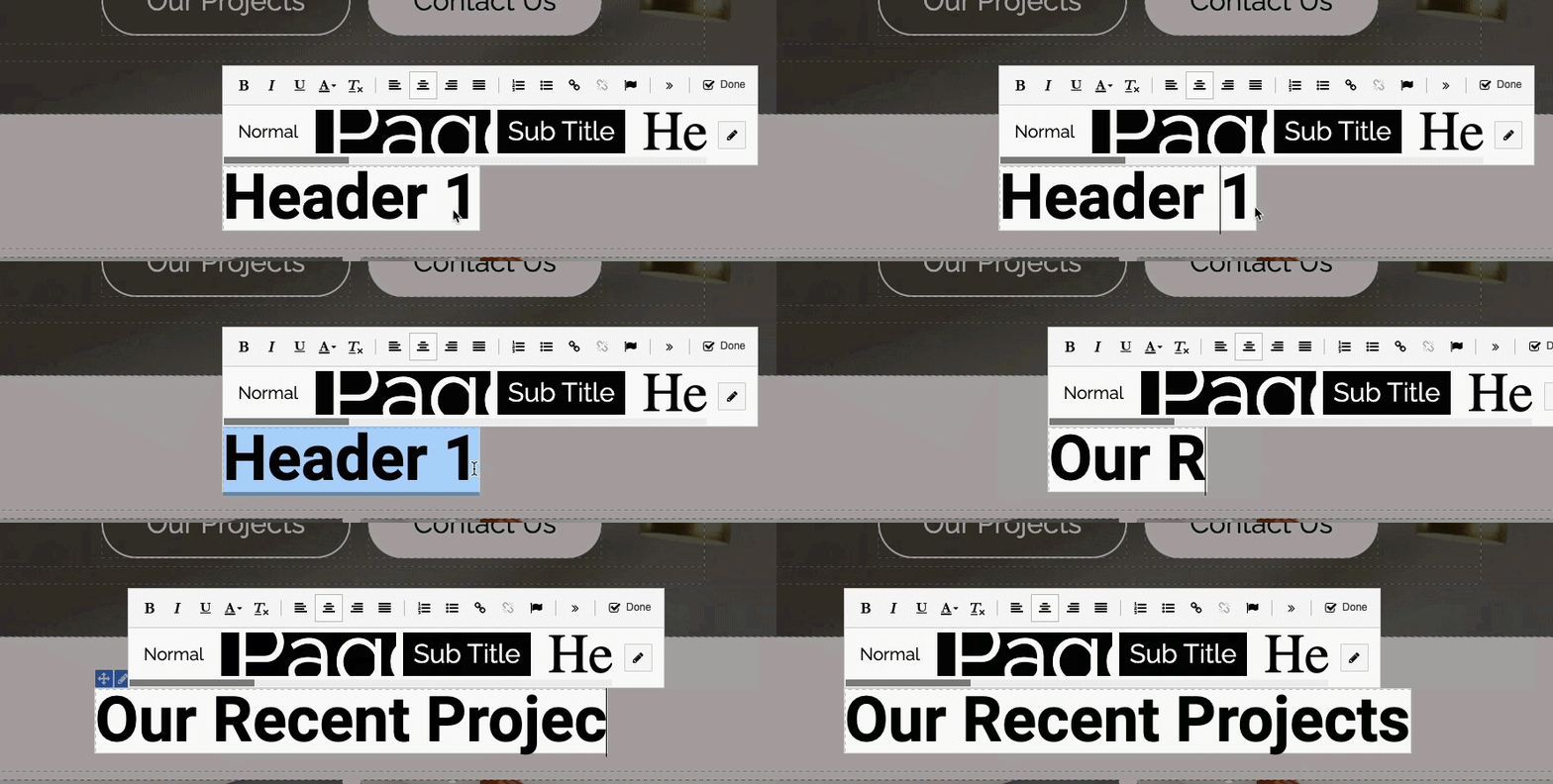
Replace the sample text with your own wording. Use the toolbar above to adjust the style, alignment, colour, and other options as needed.
-
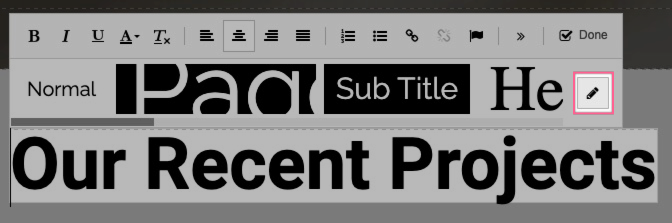
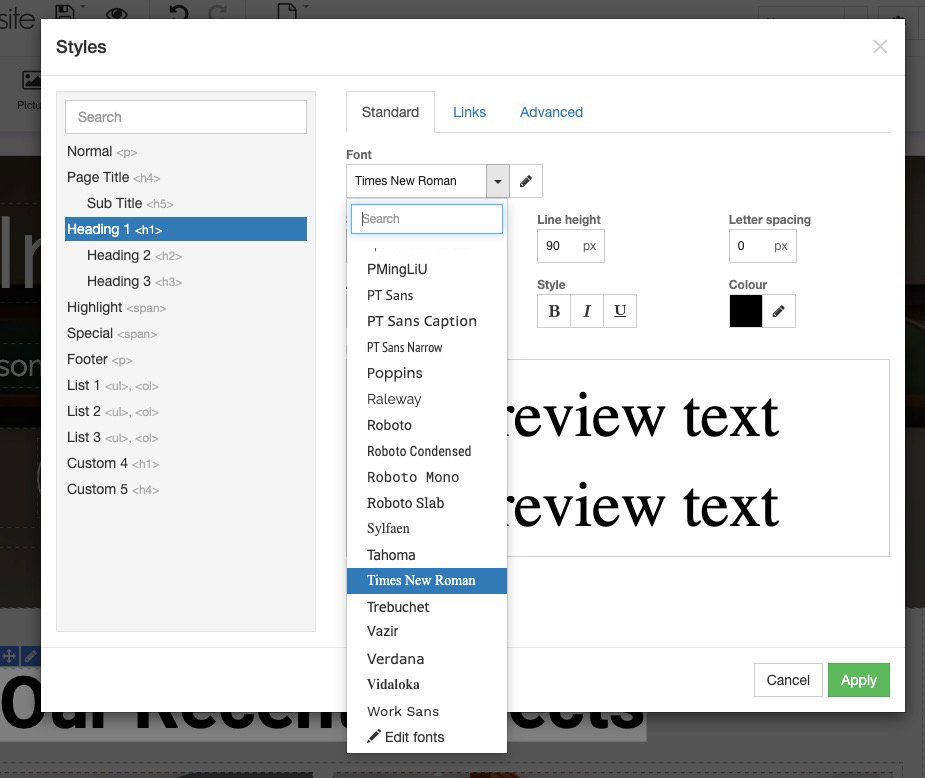
You can also apply a saved text style from the Styles list. Text styles let you enforce consistent formatting across your whole site. To use a different font, you will need to configure it in the Styles settings - click the pencil icon next to the styles list from within the Edit Text screen.
-
The Styles settings let you define text styles once and reuse them anywhere on your site. If you update a style here, every text element using that style will update automatically.
Duplicating an existing text element
If you have already styled a text element, duplicating it is often quicker than inserting a new one from scratch.
- Select the text element you want to duplicate, then right-click and choose Duplicate.
- Drag the duplicated element to the position you want it.
- Click into the element and update the wording as required.
If you want to reuse the styling of an entire section rather than a single text element, you can duplicate the parent Layout instead.