
On this page
How to set up SMTP authentication in WordPress
Configure SMTP authentication in WordPress so emails are sent from a real address and reach recipients reliably.
By default, WordPress sends emails using the server's default address (typically in the form [email protected]), which means messages can easily end up in spam folders or be delayed by recipient mail servers. Setting up SMTP authentication tells WordPress to send mail through a real, authenticated email account, which significantly improves deliverability.
Why SMTP authentication matters
When WordPress sends a password reset, a contact form submission, or a notification, it uses PHP's built-in mail function rather than a proper mail account. The result is that the "From" address often does not match the server sending the message, which is a common trigger for spam filters. SMTP authentication fixes this by routing mail through an actual email account with a verified username and password.
Install and activate a plugin
WordPress does not include native SMTP support, so you need a plugin. This guide uses Easy WP SMTP, available from the WordPress plugin directory at https://wordpress.org/plugins/easy-wp-smtp/
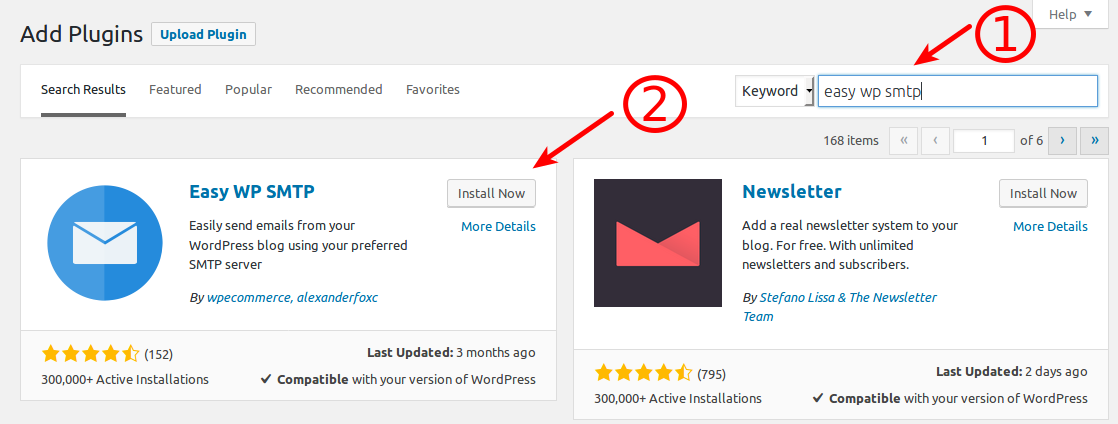
- Log in to your WordPress dashboard and go to Plugins > Add New.
- Search for Easy WP SMTP.
- Click Install Now, then click Activate.
Configure the plugin settings
- In the WordPress dashboard sidebar, go to Settings > Easy WP SMTP.
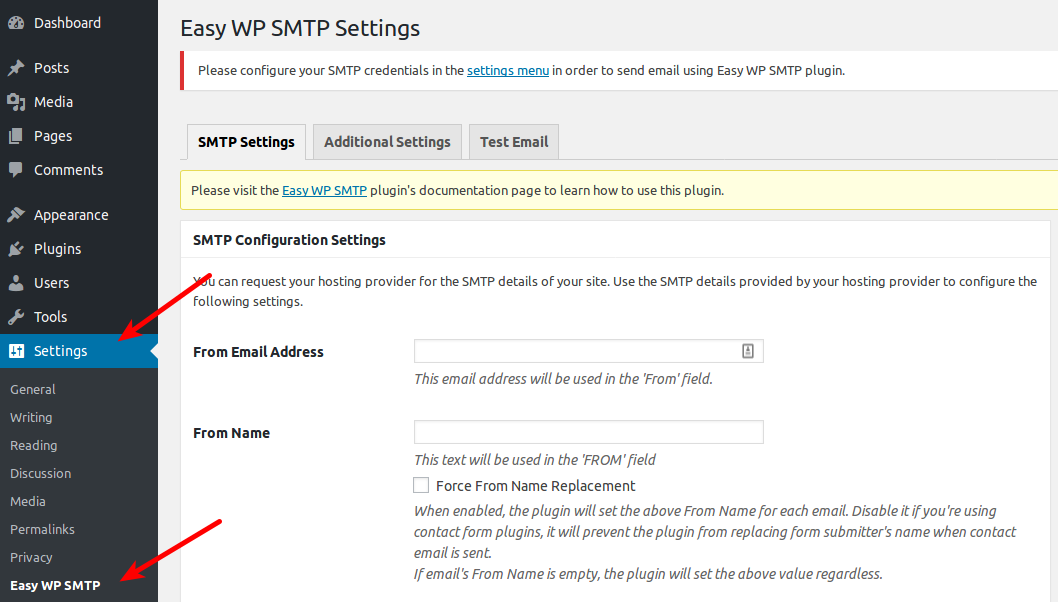
- Fill in the following fields:
| Field | What to enter |
|---|---|
| From Email Address | The address you want emails sent from, e.g. [email protected] or [email protected] |
| From Name | Your website or organisation name |
| Reply-To Email Address | Optional - leave blank or enter an address replies should go to |
| SMTP Host | For cPanel email: find this in cPanel > Email Accounts > Connect Devices > Set Up Mail Client next to "Outgoing Server". For external services (e.g. Microsoft 365, Google Workspace), check their documentation. |
| Type of Encryption | For cPanel email: SSL/TLS. For external services, check their documentation. |
| SMTP Port | For cPanel email: 465. For external services, check their documentation. |
| SMTP Authentication | Always set to Yes |
| SMTP Username | The full email address you are sending from |
| SMTP Password | The password for that email account |
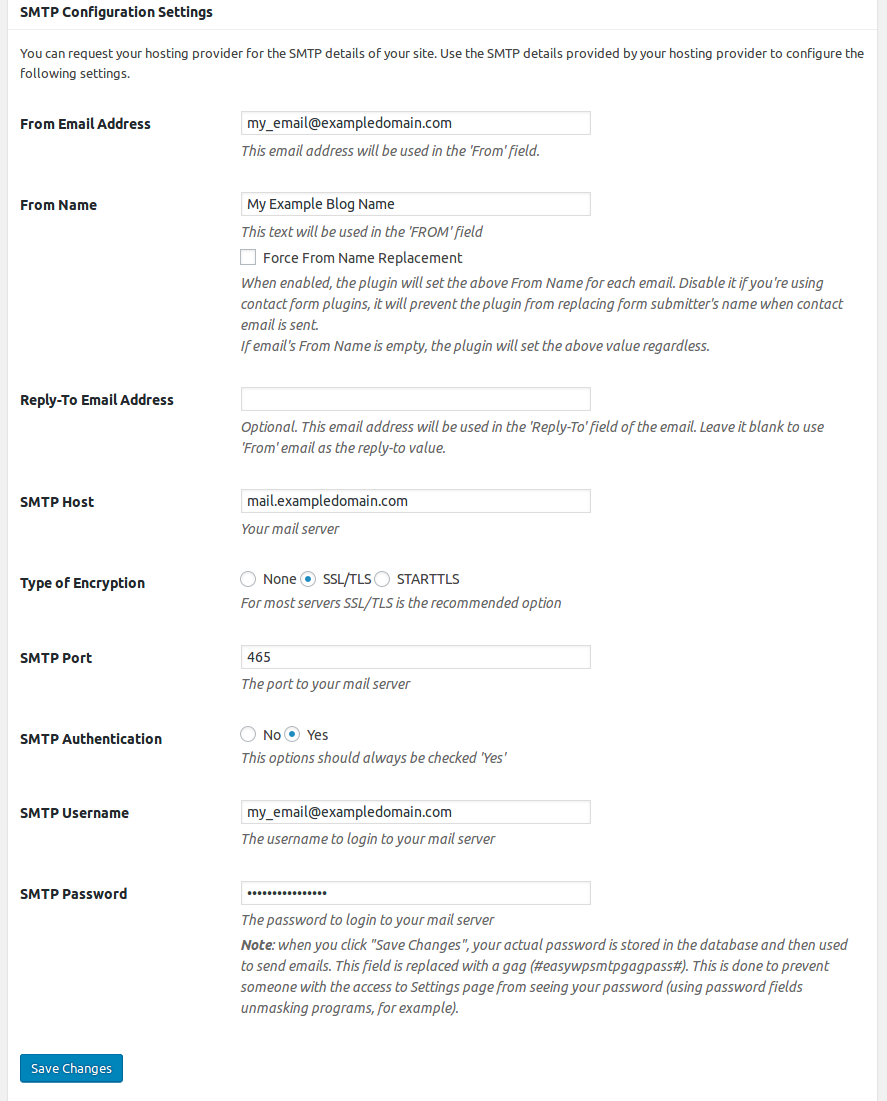
- Click Save Changes.
If you use an external email service such as Microsoft 365 or Google Workspace, the outgoing SMTP port may need to be opened on the server. Contact Kualo support if you run into connection issues.
Send a test email
- Click the Test Email tab near the top of the Easy WP SMTP settings page.
- Enter an email address you can check.
- Click Send Test Email.
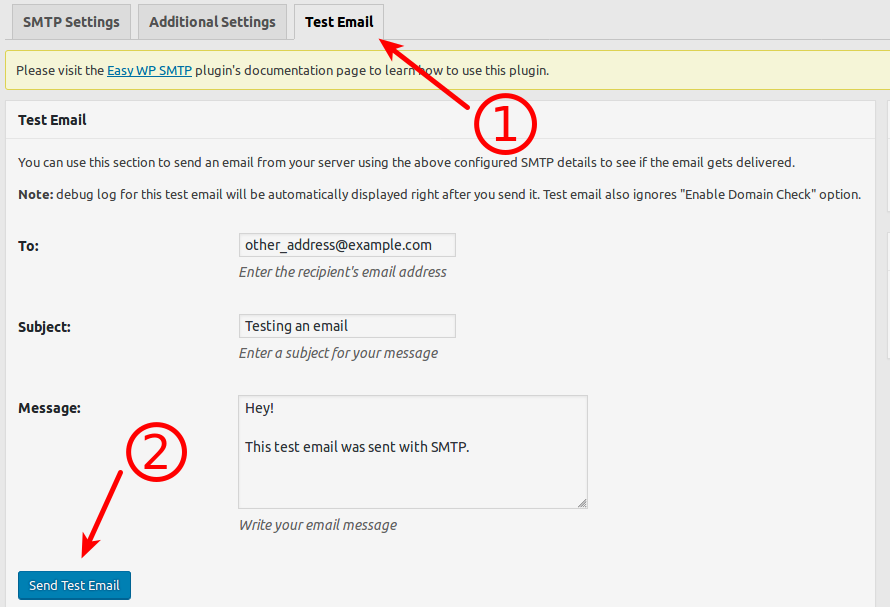
If the test email arrives, your SMTP authentication is working correctly.