
On this page
How to update your WordPress installation
Keeping WordPress up to date is one of the most important things you can do to keep your site secure. This guide covers how to run an update from the WordPress dashboard, what to check before a major version upgrade, and safer alternatives using WP Toolkit.
Keeping WordPress up to date is one of the most important things you can do to keep your site secure. WordPress includes a built-in updater in the dashboard, but running core updates directly is not always the safest approach - read the note below before you proceed.
Applying a WordPress core update directly from the dashboard gives you no safety net. If the update conflicts with a plugin or theme, your site can break immediately and in public. For any site that matters, we strongly recommend using WP Toolkit's staging environment to test the update first, or using Smart Updates, which clones your site, tests the update automatically, and only applies it to your live site if no new issues are found.
Checking your current version
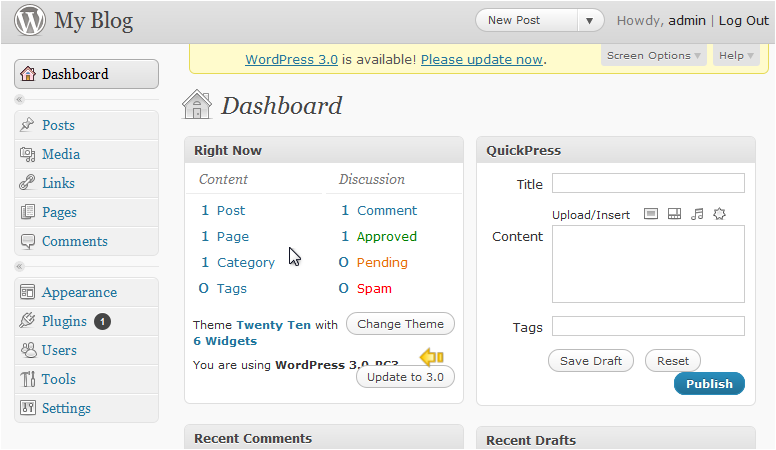
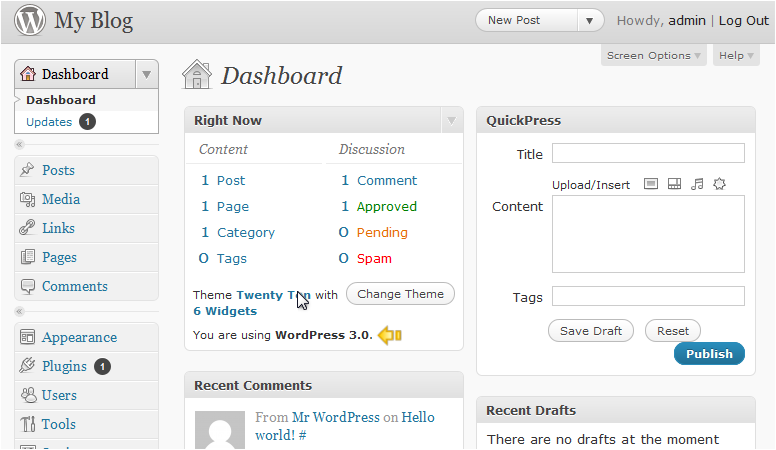
Before updating, you can confirm which version of WordPress you are running. Your current version is displayed at the bottom of the WordPress dashboard, or under Dashboard > Updates.
Checking PHP compatibility before a major version update
If you are upgrading to a new major version of WordPress (for example, from 6.x to 7.x), check the release notes for that version to confirm which PHP versions it supports. Major releases sometimes drop support for older PHP versions, and if your account is running a version that is no longer supported, the update may cause errors or a blank screen.
You can check and change your PHP version in cPanel using the Select PHP Version tool (under Software). See how to manage the PHP version in cPanel for step-by-step instructions.
This is another reason to use Smart Updates for major version changes - it tests the update on a clone of your site first, so any PHP incompatibility shows up there rather than on your live site.
Running the update
- In the WordPress admin menu, go to Dashboard > Updates.
- If a new version is available, click Update Now.
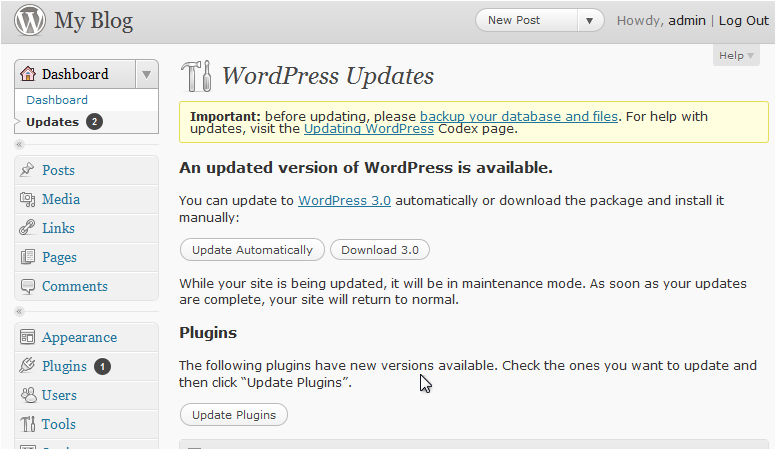
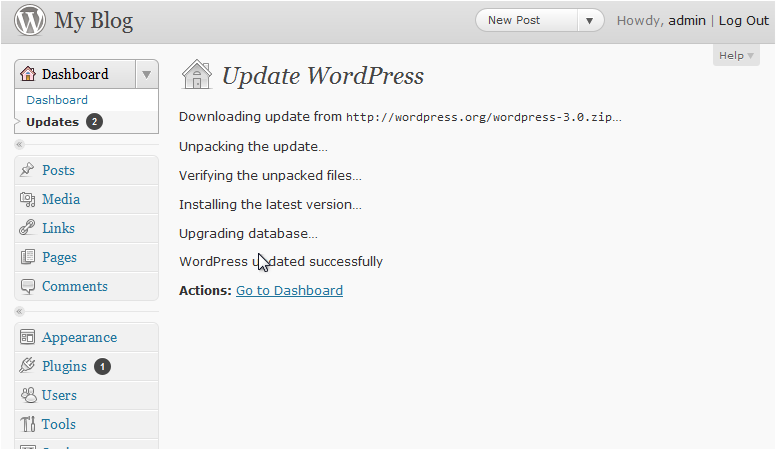
- The update process may take a minute or two to complete. Once it finishes, WordPress will display a confirmation screen. Click Go to Dashboard to return to the admin area.
Your dashboard will now show the updated version number.
If you manage multiple WordPress sites, WP Toolkit in cPanel lets you update all of them from a single screen, and can also apply updates automatically. You can configure automatic update behaviour in WordPress auto updates - how they work and best practice.
Always back up your site before updating. You can create a full account backup from cPanel before running any updates.
A safer way to update: staging and Smart Updates
Running updates directly in the WordPress dashboard is quick, but it skips any testing. Two features in WP Toolkit give you a much safer workflow:
- Staging with WP Toolkit - create a private copy of your live site, apply the update there, and check everything works before pushing the changes to production.
- Smart Updates - WP Toolkit clones your site automatically, runs the update, takes before-and-after screenshots to check for visual regressions, and only applies the update to your live site if no new issues are detected.
For most sites, Smart Updates is the easiest option. Staging is better if you want to do thorough manual testing or make other changes at the same time.
If you would rather not think about updates at all, you can configure WordPress to update itself automatically - see WordPress auto updates - how they work and best practice for guidance on setting this up safely.