
On this page
How to change your header in WordPress
Change your WordPress site header by uploading a custom image or restoring the original through the Appearance menu.
You can update your WordPress site header at any time from the Appearance settings - this lets you upload a custom image or choose from your theme's built-in options.
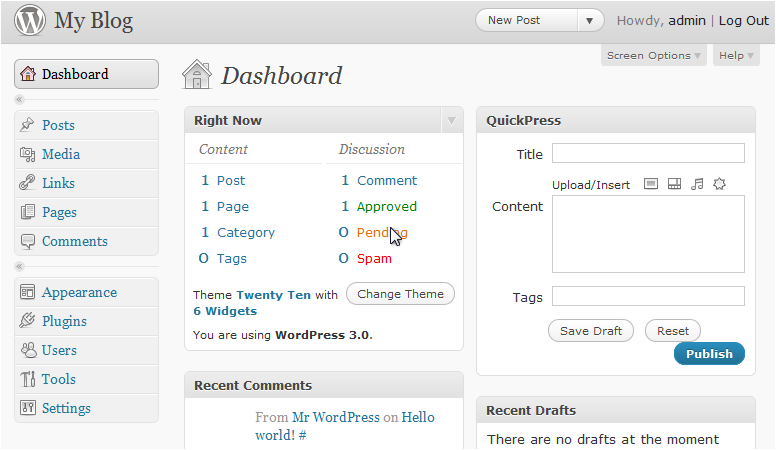
Changing your header image
-
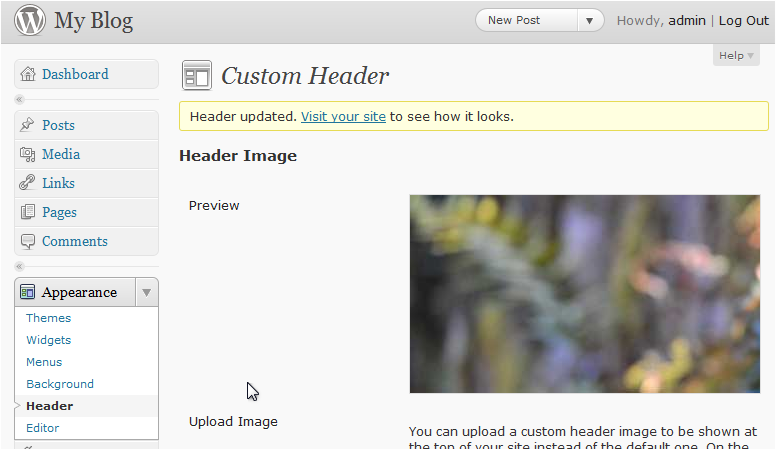
In your WordPress dashboard, click Appearance.
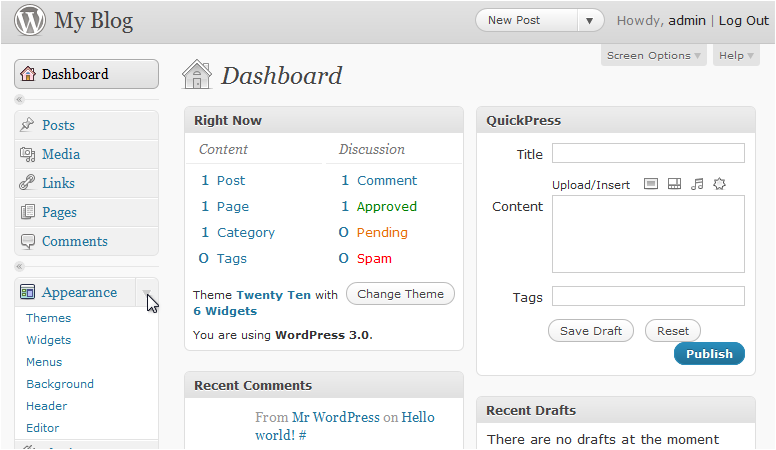
-
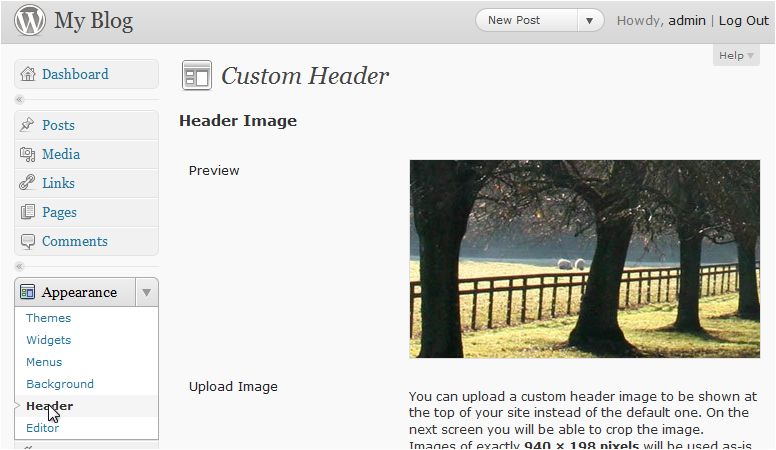
Click Header. You will see a preview of your current header image.
-
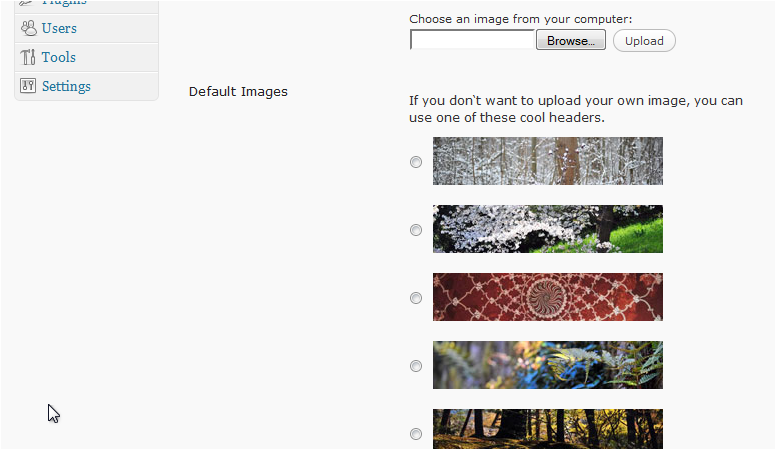
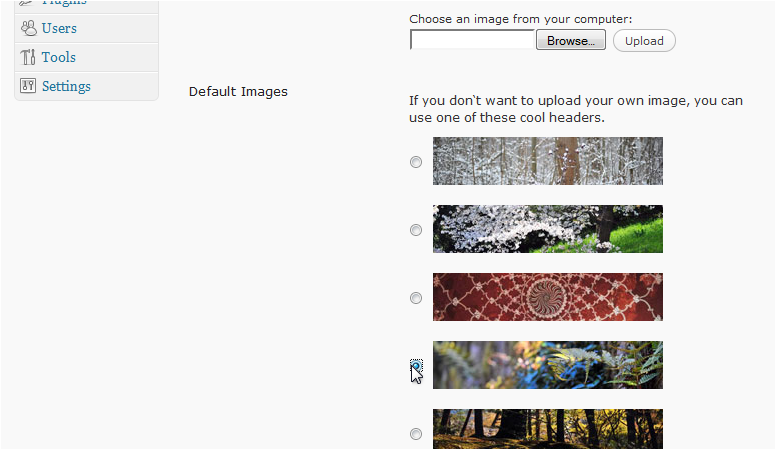
Scroll down. Click Browse to upload your own image from your computer.
-
Alternatively, select one of the pre-supplied images from the list shown below the upload option.
-
Use the Remove Header Image or Restore Original Header Image buttons if needed, then click Save Changes.
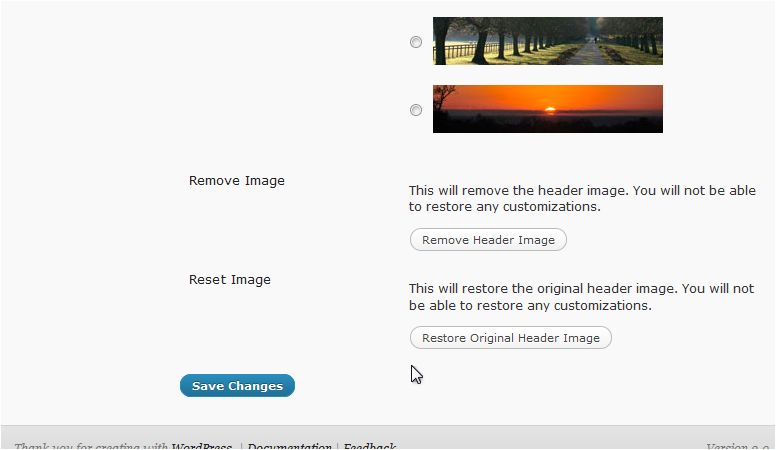
Your new header is now saved and will appear on your site.
The Appearance > Header option is available in classic themes. If your theme uses the Full Site Editor (FSE), you will find header controls under Appearance > Editor instead.