
On this page
Moving WordPress to a different domain in 5 steps without downtime
Move your WordPress site from a subdirectory or a different domain to its new home in five straightforward steps, with no downtime.
This guide walks you through moving a WordPress site from a subdirectory (e.g. http://domain1.com/wp/) to the root domain (http://domain1.com/), or from one domain to another entirely. The procedure is the same in both cases.
You will need access to your cPanel account and your WordPress dashboard.
Throughout this guide, replace http://domain1.com/wp/ and http://domain1.com/ with your actual source and destination URLs.

Step 1: update the WordPress address and site URL
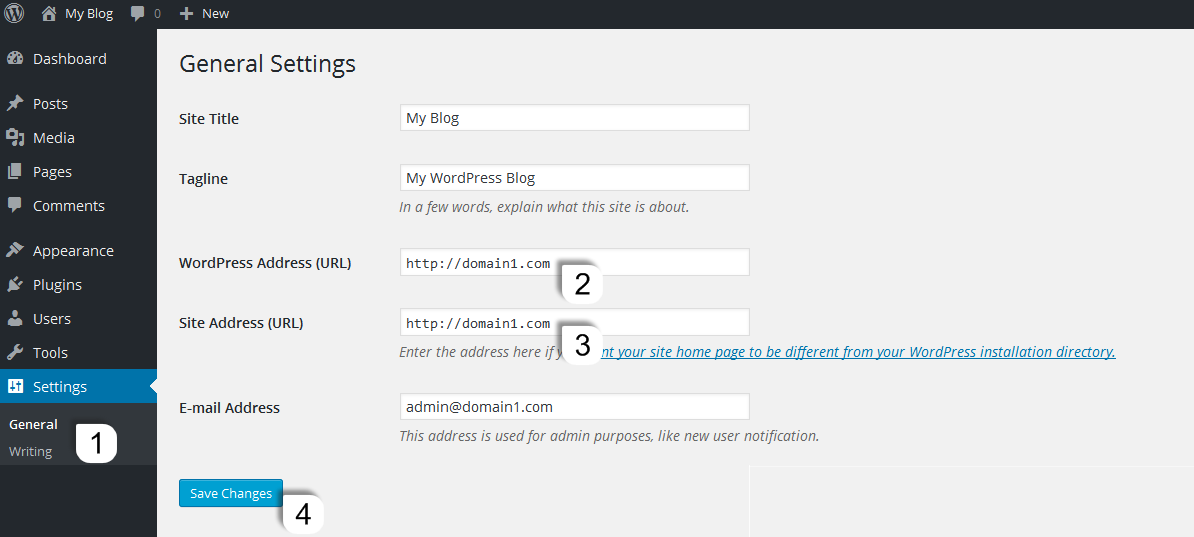
Log in to your WordPress dashboard, go to Settings > General, and update both fields:
- WordPress Address (URL):
http://domain1.com - Site Address (URL):
http://domain1.com
Click Save Changes.
Step 2: open the document root in cPanel File Manager
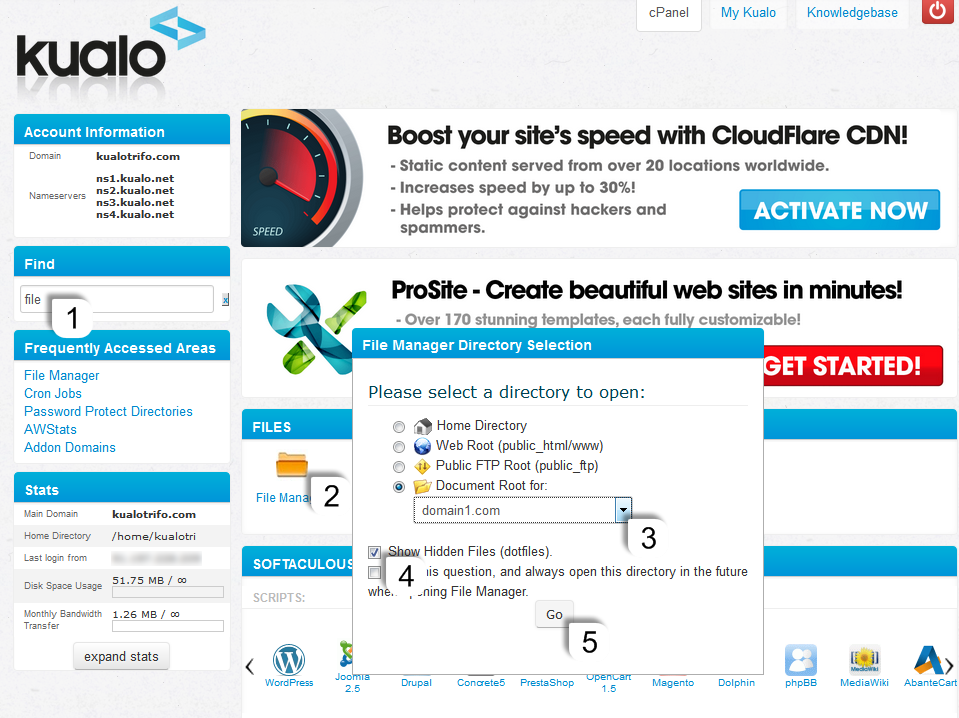
Log in to cPanel and open File Manager. Navigate to the document root of domain1.com.
Make sure Show Hidden Files is enabled in File Manager settings so that files such as .htaccess are visible.
Step 3: copy the WordPress files to the document root
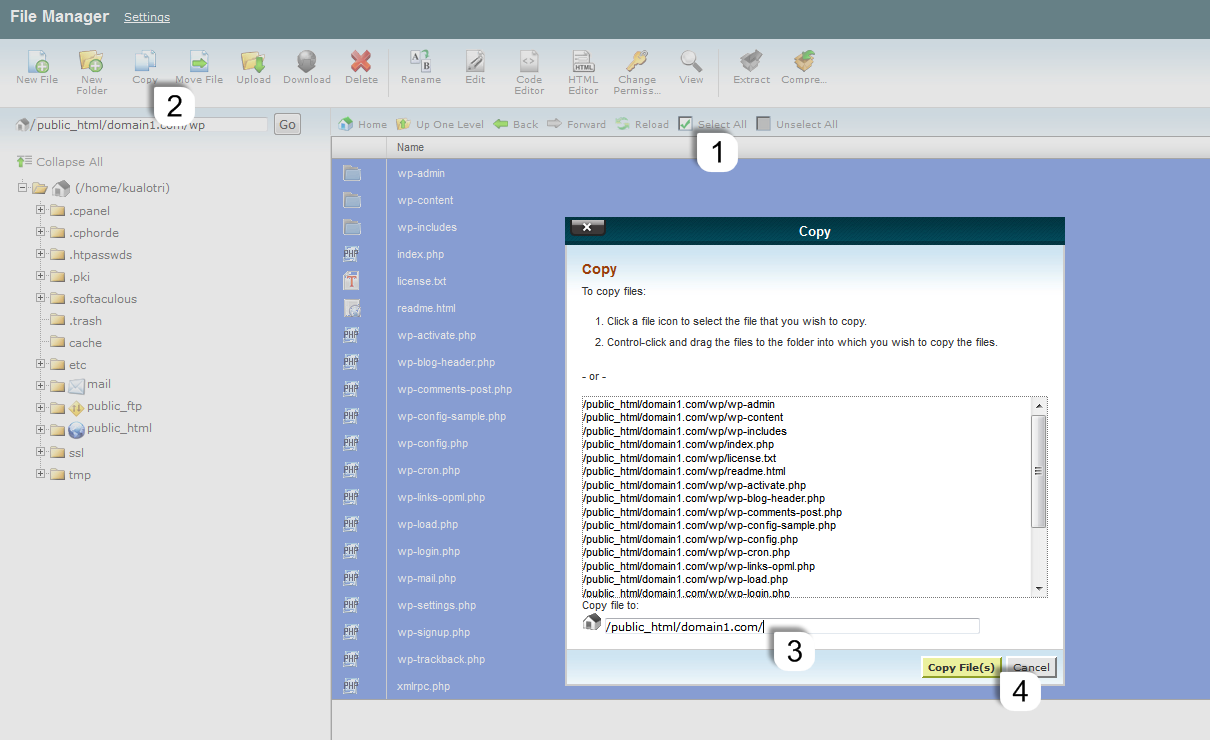
Open the /wp/ folder, select all files and folders, then copy them to the document root of domain1.com.
Step 4: search and replace the old URL in the database
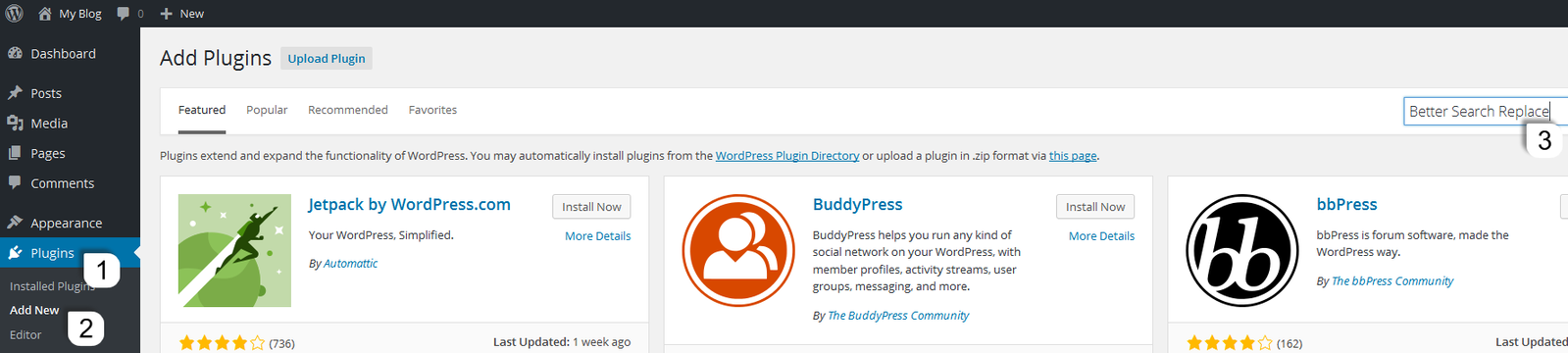
Install the free Better Search Replace plugin from the WordPress plugin directory, then activate it.
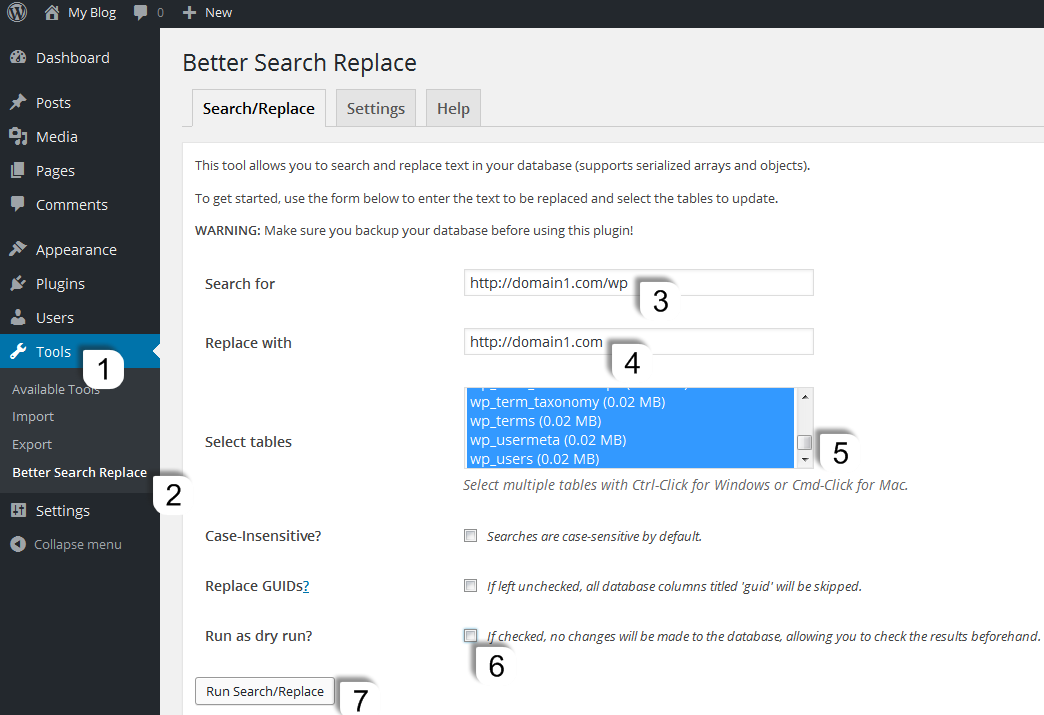
Go to Tools > Better Search Replace and fill in the fields as follows:
| Field | Value |
|---|---|
| Search for | http://domain1.com/wp |
| Replace with | http://domain1.com |
| Select tables | Select all tables |
To select all tables, click the first table, then hold Shift and click the last one. On Windows you can also use Ctrl+click; on Mac use Cmd+click.
Run a dry run first to preview the changes, then click Run Search/Replace to apply them.
Step 5: set up a 301 redirect from the old URL
In cPanel, create a 301 redirect from http://domain1.com/wp/ to http://domain1.com/. See how to set up domain redirects in cPanel for full instructions.
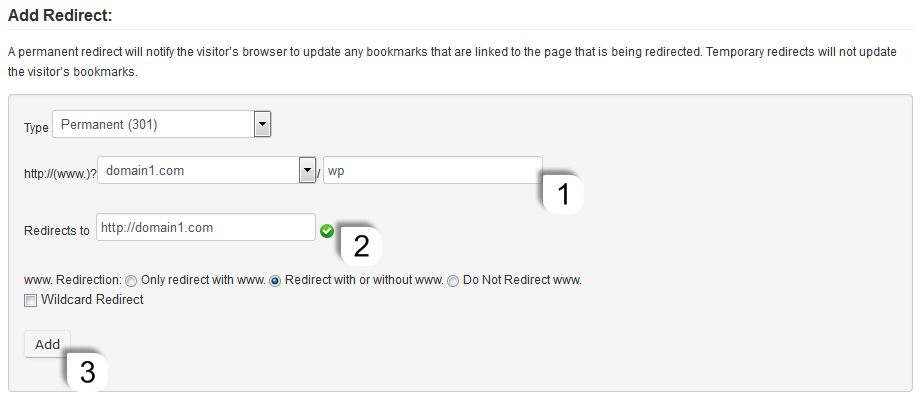
If you are moving from a directory other than /wp/, you can use a wildcard redirect to forward all files in the old directory to the same filename at the new location. This option does not work when moving from a subdirectory to the root (e.g. /wp/ to /).
Cleaning up
Once you have confirmed the move was successful and everything is working correctly, delete the old /wp/ folder from your document root in cPanel File Manager.
If you need further help, open a support ticket from within your Kualo client area.