
On this page
How to edit your profile in WordPress
Update your WordPress profile details, including your name, nickname, and bio, from the Users section of your dashboard.
You can update your WordPress profile at any time from the admin dashboard. This includes your display name, nickname, biographical info, and colour scheme preferences.
Accessing your profile
- Log in to your WordPress admin dashboard.
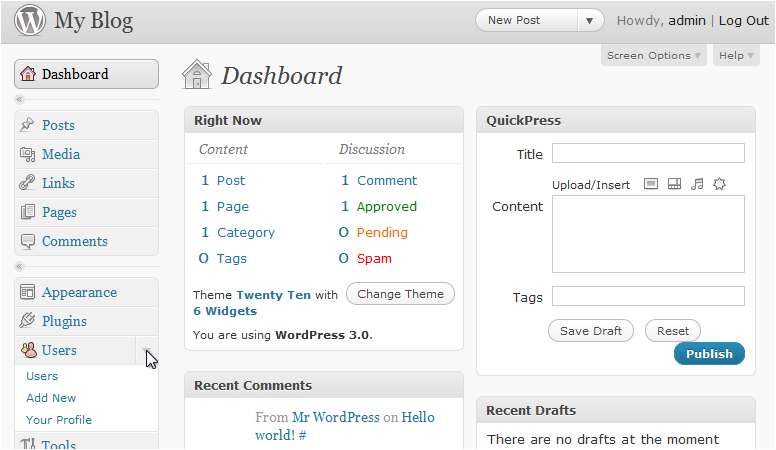
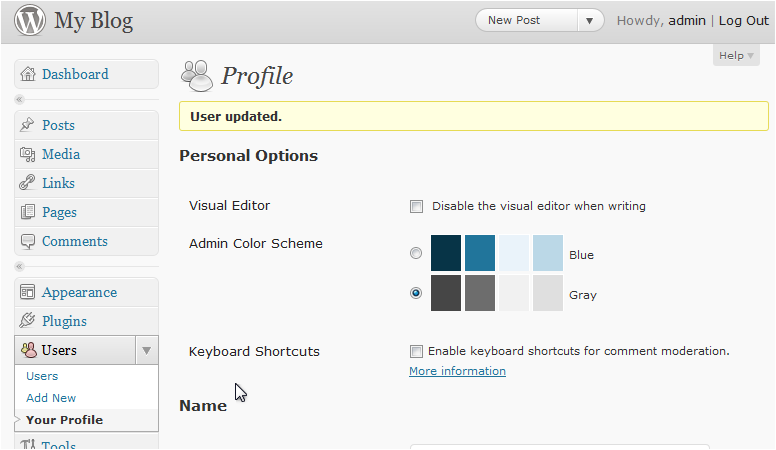
- In the left sidebar, click Users to expand the menu.
- Click Your Profile.
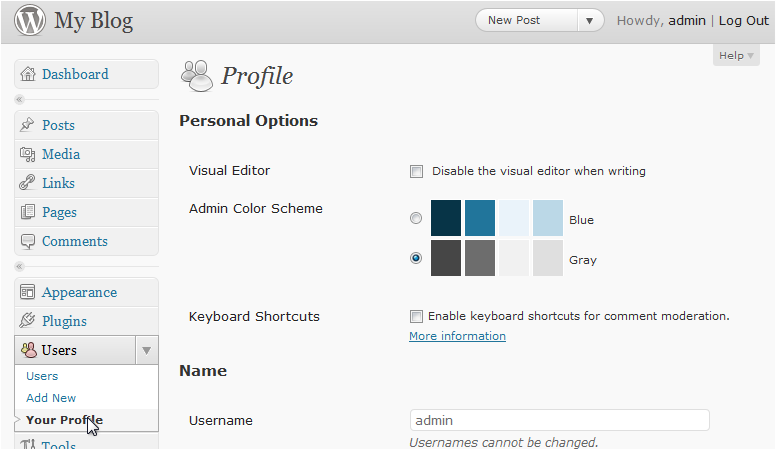
The profile screen lets you adjust settings for the visual editor and your admin colour scheme.
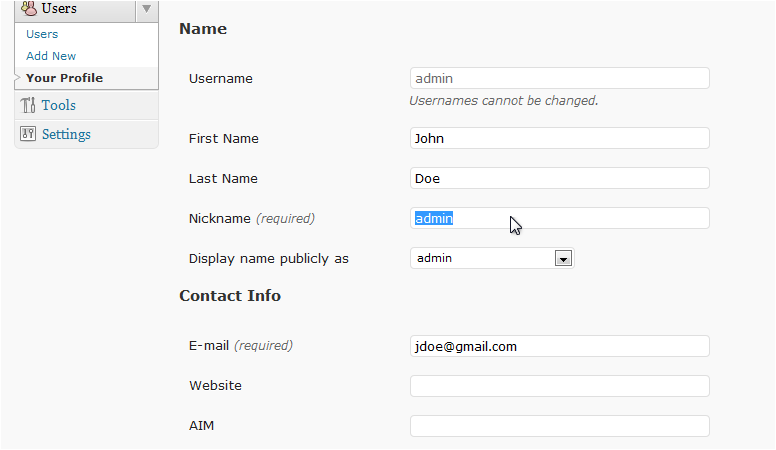
Updating your name and nickname
- Scroll down to the Name section.
- Enter your First Name.
- Enter your Last Name.
- Enter a Nickname - this is required and can differ from your username.
Adding biographical info and saving
- Scroll down to the About Yourself section.
- Enter some text in the Biographical Info field.
- Click Update Profile to save your changes.
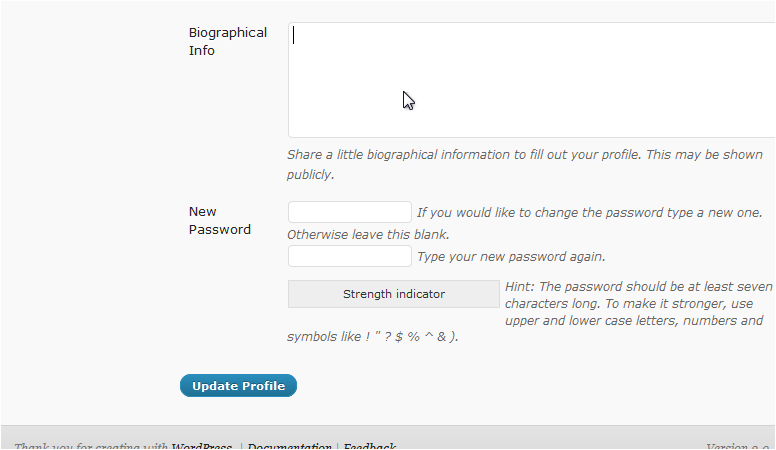
Your profile is now updated and the changes will take effect immediately.
Was this helpful?
Your feedback helps us find gaps in the docs.
Thanks for the feedback!
Related articles
Using WordPress
How to write a new post in WordPress
Create and publish a new post in WordPress in just a few steps from your admin dashboard.
Using WordPress
Using WP-CLI
WP-CLI is a command-line tool for managing WordPress installations without touching the ad...
Using WordPress
How to manage pages in WordPress
Learn how to create, view, and delete pages in your WordPress site from the admin dashboar...
Using WordPress
How to manage categories in WordPress
This guide shows you how to create, edit, and delete categories in your WordPress dashboar...
Still need a hand?
Real people, around the clock - start a chat or open a ticket and we'll help you put it right.