
On this page
Customising your pages with Spectra
Spectra is the block-based page builder used to create and edit the individual pages of your AI Starter Site.
Spectra is the block-based page builder that powers the individual pages of your AI Starter Site. While the Astra Customiser handles your global styles - colours, fonts, header layout and so on - Spectra is where you edit the actual content your visitors read and interact with.
What is Spectra?
Spectra is an extension of WordPress's native block editor. It adds a library of pre-built layouts, advanced styling controls, and extra design blocks - think sliders, tabs, testimonials, pricing tables, and more.
Every page built by the AI Starter Site uses Spectra blocks, so every page is fully editable and customisable from day one.
Editing a page with Spectra
To start editing any existing page:
- Go to your WordPress dashboard.
- Click Pages in the left sidebar.
- Hover over the page you want to edit and click Edit.
You will now see the block editor. Each section - your hero area, about section, services, testimonials - is built with Spectra blocks. Click any element to select it, then use the right-hand sidebar to adjust spacing, background, borders, shadows, animations, and more.
Don't see the header or footer? The WordPress editor only shows the content area of the page. Your header and footer, which are managed by the Astra theme, will appear as normal on the published site. Use the Preview button to view the full page with all global elements included.
Creating a new page
To add a new page to your site:
- In your dashboard, go to Pages > Add New.
- Give your page a title.
- Click the blue Design Library button at the top of the editor.
This is where Spectra really shines. The Design Library gives you access to a large collection of ready-made content blocks, page sections, and full page layouts that you can drop into your site with a single click.
You will see three tabs:
- Patterns - individual pre-styled sections such as hero areas, testimonials, and service grids. You can also save your own reusable patterns (see below).
- Pages - complete single-page layouts, useful when you need to add new pages quickly.
- Kits - full website kits grouped by industry or style. You are less likely to need these, as the AI Starter Site has already built most of your pages.
Use the sidebar to filter by type (for example, About, Features, Contact) or browse everything, then click Insert to add a layout directly to your page.
You can also switch between colour styles at the bottom left to see how layouts look with different variations of your existing palette - handy for mixing and matching sections while keeping a cohesive look.
All inserted blocks are fully editable: text, images, layout, everything.
Can I duplicate an existing page?
WordPress does not include a page duplication feature by default. If you want to recreate an existing page layout, you have a few options:
- Manually recreate it using the same Spectra blocks.
- Install a plugin such as Duplicate Page.
- Save key sections as Spectra Patterns (reusable blocks) so you can insert them across different pages.
Responsive editing
To see how your site looks on mobile or tablet, use the device icons at the top right of the editor to toggle between desktop, tablet, and mobile views.
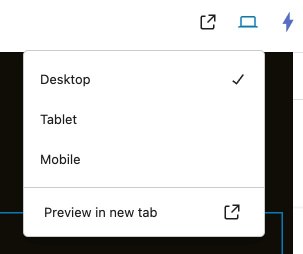
You can adjust specific settings for mobile devices - font sizes, padding, and element visibility - or use Responsive Conditions to hide or show blocks on particular devices.
This view also lets you preview your full page, including the header and footer, before saving. Click Preview in New Tab to open it.
Helpful beginner tips
Block settings are in the sidebar
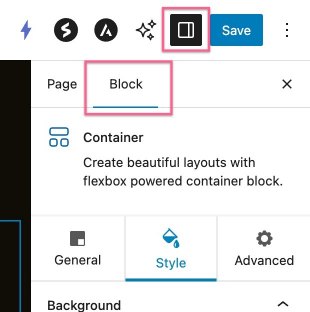
Many of Spectra's customisation options - spacing, animation, shadows, and visibility - live in the right-hand sidebar, not directly on the block itself. Make sure the Block tab is selected (not the Page tab), then click any block and explore the General, Style, and Advanced panels.
Create your own Spectra patterns (reusable blocks)
Building a beautifully styled section - contact details, testimonials, a call to action - takes time. Spectra Patterns let you save any block or group of blocks and reuse them anywhere on your site. Create it once, save it as a Pattern, and insert it whenever you need it.
Spectra's official guide to reusable blocks walks you through the steps.
Don't forget to save
Once you have made your edits, click the blue Save button in the top-right corner. To see your page with the full header, footer, and styling, click View Page to open the published site in a new tab.
Undo and revisions
You can undo changes with Ctrl+Z (or Cmd+Z on Mac). WordPress also saves page revisions automatically, so if you make a mistake and save over something, go to Pages > Revisions to restore an earlier version.
Nesting blocks with containers
Spectra Container blocks let you group other blocks together. This is useful when you want to apply spacing, a background colour, or an animation to multiple elements at once by setting it on the parent container rather than each block individually.
Adding background images to sections
If you want a background image on a full section - a hero banner or services area, for example - you need to apply it to the Container block, not to the text, heading, or image inside it.
To apply a background image to a section:
- Click near the edge of the section, or use the List View in Document Overview (on the left side of the Spectra menu, next to the Design Library button) to select the parent Container block.
- In the right-hand sidebar, switch to the Style tab.
- Under Background, choose Image and upload or select your image.
- Adjust the position, size, and overlay as needed.
Applying a background to a heading or paragraph block will not produce the same result - it must go on the container that holds those blocks.
Spectra AI - built-in help when you need it
Spectra AI is an optional assistant built into your WordPress editor. It is designed to make content creation, editing, and light coding faster - especially useful when you are not sure what to write or how to tweak something.
It can help you:
- Write or improve your website copy, from headlines to full paragraphs.
- Fix spelling and grammar.
- Translate your text into different languages.
- Generate basic HTML or CSS for custom styling.
You get 1,000 free AI credits per month just for signing up - no cost, no commitment. Paid plans are available through Spectra directly if you need more.
To enable Spectra AI, look for the star icon when editing a content block. Learn more about Spectra AI.
Want more control?
Spectra has a lot of depth. For advanced options, animations, and block-by-block walk-throughs, visit Spectra's official documentation.
For more on styling your site globally - fonts, colours, and layouts - see our Astra Customisation Guide.