
On this page
Security measures in WP Toolkit
WP Toolkit's Security Measures tab gives you a set of tools to harden your WordPress site against common vulnerabilities and unauthorised access.
WP Toolkit's Security Measures tab is like a Swiss Army knife for your WordPress site - packed with tools to strengthen your defences against common vulnerabilities, unauthorised access, and potential exploits.
There are key security measures (the must-haves, enabled by default) and recommended security measures (optional extras that add further protection, but may not suit every site). Some changes are reversible; others are permanent. Back up your site before you start, just in case.
Some security measures cannot be reverted. Always back up your site and database before applying them.
That said, WP Toolkit's security measures are one layer of a broader defence. Kualo's servers also include robust firewalls and automated vulnerability patching through Imunify360 and Patchman. These tools all work together, but you still need to stay alert to new vulnerabilities as they emerge. For more on that, see our article on vulnerability detection.
Applying security measures
- Log in to cPanel and open WP Toolkit.
- Locate your WordPress installation and click Security. If your site has current vulnerabilities, the tab may be accessible via Fix Vulnerabilities.
- Review the list of available measures. Measures marked as non-reversible require a backup before you proceed.
- Toggle the measures you want to enable. WP Toolkit applies the settings automatically.
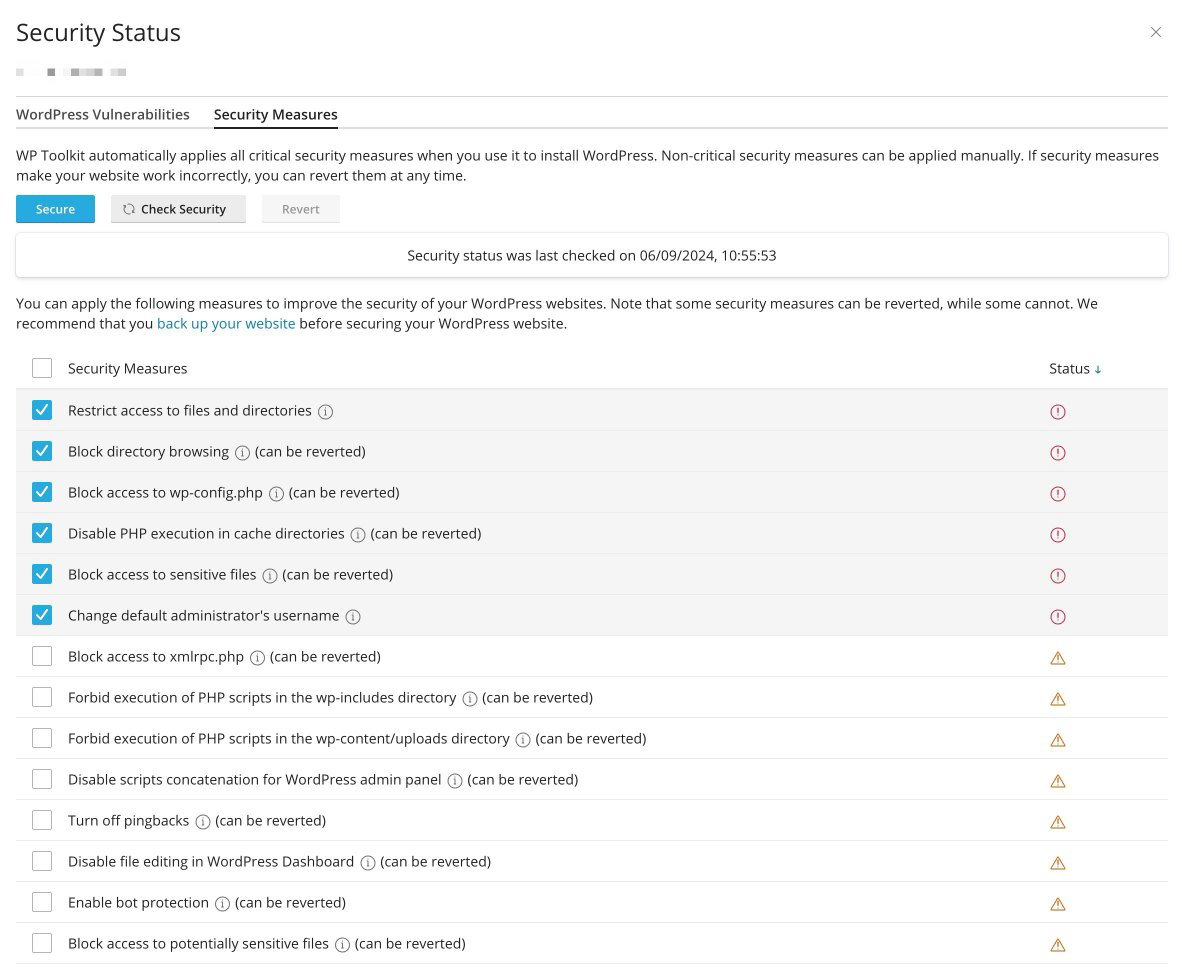
Key security measures
These measures should be enabled on all WordPress sites. They are on by default for new installations created through WP Toolkit, and we strongly recommend keeping them enabled.
Restrict access to files and directories (cannot be reverted)
This sets your WordPress files and directories to the correct permissions: 644 for files (readable by everyone, writable only by the owner) and 755 for directories (readable and executable by everyone, writable only by the owner). It also sets wp-config.php to 600, meaning only the file owner can read or write it.
Possible complications:
- If you have manually set custom file permissions, enabling this measure may overwrite them. Review your settings afterwards if you have specific requirements.
Recommendation: For most users this is a straightforward way to enforce correct permissions and protect wp-config.php, which contains your database credentials and other sensitive data.
Block directory browsing (can be reverted)
Without an index file in a directory, anyone can visit that directory's URL and see a list of its contents. For example, example.com/wp-content/uploads/2021/11 would show every file uploaded that month. This measure adds a server rule to disable directory listings.
Possible complications:
- None in most cases. Blocking directory browsing only prevents users from listing directory contents through a browser; it does not affect normal site or plugin operation.
Recommendation: Kualo's servers already block directory browsing by default, so enabling this in WP Toolkit adds a second layer of protection. There is no downside to enabling it.
Block access to wp-config.php (can be reverted)
wp-config.php contains your database credentials, security keys, and other critical settings. This measure adds rules to your Apache or nginx configuration to block any direct web access to the file - even if PHP processing stops working and the file would otherwise be served as plain text.
Possible complications:
- Custom
.htaccessdirectives could override this rule. Review any manual server configuration to make sure the protection stays in place.
Recommendation: Blocking direct access to wp-config.php is essential. Enable it on every site.
Disable PHP execution in cache directories (can be reverted)
Cache directories store static files such as HTML, CSS, and images. There should never be PHP scripts in these folders. This measure adds a rule that prevents any PHP from executing inside cache directories, reducing the risk of malicious code being run from files that were improperly placed there.
Possible complications:
- A poorly coded plugin or theme might (incorrectly) store PHP scripts in a cache directory. If that happens, this measure could break that plugin or theme.
Recommendation: Enable this for most sites. If something breaks, you can revert the rule and investigate the offending plugin or theme.
Block access to sensitive files (can be reverted)
Text editors sometimes create temporary backup files when you edit wp-config.php - for example, wp-config.php.swp or wp-config.php.bak. This measure blocks public access to those temporary files, as well as default WordPress files such as readme.html and license.txt, which can reveal information about your installation.
Possible complications:
- Minimal impact. If you use custom scripts or files with naming conventions that overlap with the blocked files, test your site after enabling.
Recommendation: Enable this. It protects backup and temporary files that could otherwise expose sensitive information.
Change default administrator username (cannot be reverted)
WordPress often creates an administrator account with the username admin during installation. This is a common target for brute-force attacks. WP Toolkit eliminates this risk by:
- Identifying any administrator account with the username
admin. - Creating a new administrator account with a randomly generated username and transferring all content to it.
- Permanently deleting the
adminaccount.
Possible complications:
- This action cannot be undone. You will need to use the new username going forward.
- Back up your site and database before proceeding.
Recommendation: Back up first, then enable. This is a simple but effective way to reduce brute-force risk.
For further login security, consider a plugin to:
- Change the login URL - moving the default login page makes it harder for attackers to find it. Plugins such as All In One Security include this feature.
- Enable two-factor authentication (2FA) - adds a second verification step at login.
Recommended security measures
These measures are strongly recommended for most WordPress sites, but may not be appropriate in every case. Review each one before enabling.
Block access to xmlrpc.php (can be reverted)
xmlrpc.php enables remote communication with your site, supporting features like remote publishing and some Jetpack functionality. It is also a common target for brute-force and DDoS attacks.
Possible complications:
- Remote publishing tools and the WordPress mobile app rely on
xmlrpc.php. Blocking it will disable those features. - Jetpack and some other plugins use
xmlrpc.php. Blocking it may break those integrations.
Recommendation: If you do not use remote publishing or any service that depends on xmlrpc.php, block it. If you are unsure, enable the measure and check whether any functionality breaks. You can revert easily through WP Toolkit.
Forbid PHP execution in the wp-includes directory (can be reverted)
The wp-includes directory contains core WordPress files and libraries. It does not need to run custom PHP scripts. Blocking PHP execution here reduces the risk of malicious code running in this critical area.
Possible complications:
- Custom scripts placed in
wp-includes(which is not recommended) will stop executing. - Poorly coded plugins that place executable scripts in
wp-includesmay break.
Recommendation: Enable this for most sites. If issues arise, check whether any custom scripts or plugins are incorrectly using this directory.
Forbid PHP execution in the wp-content/uploads directory (can be reverted)
The wp-content/uploads directory stores media files - images, videos, and documents. PHP scripts should never run from here. This measure carries the same considerations as the wp-includes rule above.
Recommendation: Enable this. There is rarely a legitimate reason for PHP to execute in the uploads directory, and blocking it significantly reduces the risk of malicious file execution.
Disable scripts concatenation for the WordPress admin panel (can be reverted)
WordPress can combine multiple JavaScript and CSS files into single files in the admin panel to reduce HTTP requests. Disabling this prevents a technique where attackers inject malicious code into concatenated scripts.
Possible complications:
- The admin panel may load slightly more slowly because more individual HTTP requests are made. Front-end performance is not affected.
Recommendation: For most sites the performance impact is negligible. Disabling concatenation adds a security benefit and can also help with debugging, since you can see each individual script and stylesheet loaded by WordPress.
Turn off pingbacks (can be reverted)
Pingbacks notify other websites when you link to their content. The feature has largely fallen out of favour and is now more commonly exploited for DDoS attacks, XML-RPC exploits, and spam than it is used legitimately.
Possible complications:
- You will no longer receive automatic notifications when other sites link to your content.
- Plugins that rely on pingbacks for specific features may not work as intended.
Recommendation: Disable pingbacks on most sites. Modern SEO tools provide better and safer ways to track backlinks, and pingbacks are primarily used by spammers in today's web environment.
Disable file editing in the WordPress dashboard (can be reverted)
WordPress includes a built-in editor that lets admin users edit theme and plugin files directly from the dashboard. Disabling this removes a potential route for malicious code injection, whether through unauthorised access or accidental changes.
Possible complications:
- You will no longer be able to edit theme or plugin files from the dashboard. Changes will need to be made via FTP or the cPanel File Manager.
- Developers who make frequent small adjustments through the dashboard will need to adjust their workflow.
Recommendation: Disable file editing on all live sites. The security benefit outweighs the inconvenience, and editing files directly through the dashboard is not considered best practice anyway.
Enable bot protection (can be reverted)
This activates rules to block malicious bots that perform automated attacks, data scraping, and other harmful activities.
Possible complications:
- Legitimate bots such as search engine crawlers may occasionally be blocked (false positives), which could affect indexing.
- The bot landscape changes frequently, so rules may not always cover the latest threats.
Kualo's servers already use ModSecurity with a comprehensive, regularly updated ruleset that covers the bots WP Toolkit targets and more. Enabling bot protection in WP Toolkit is therefore somewhat redundant on our hosting, but you can still enable it for an extra layer of protection.
Recommendation: Monitor your traffic after enabling to make sure legitimate bots are not being blocked.
Block access to potentially sensitive files (can be reverted)
This blocks public access to files that could expose sensitive information or provide a foothold for attackers - including log files, shell scripts, and other executables.
Possible complications:
- Diagnostic or configuration files that need to be accessed by legitimate processes may be blocked.
- Plugins that read or write to any of the restricted files may lose functionality.
Recommendation: Enable this for most sites. Monitor closely after enabling and make exceptions for any files that are legitimately needed.
Block access to .htaccess and .htpasswd (can be reverted)
.htaccess manages server settings such as redirects, access controls, and security rules. .htpasswd stores usernames and passwords for basic authentication. Blocking public access to both files prevents unauthorised users from reading or modifying them.
Possible complications:
- Processes that need to read or update
.htaccessmay be affected. - Plugins that modify
.htaccessto implement redirects or security rules may malfunction.
Kualo's Apache configuration already restricts direct access to these files by default, so this measure adds a second layer of protection rather than being the only line of defence.
Recommendation: Enable this. The only side effect is that access is denied twice, which causes no issues.
Block author scans (can be reverted)
Attackers can discover WordPress usernames by requesting URLs in the format ?author=1, ?author=2, and so on. This measure blocks those requests, making it harder to enumerate login names for use in brute-force attacks.
Possible complications:
- Minimal impact on site functionality. Normal author profile pages accessed through standard navigation are not affected.
- No effect on SEO.
Recommendation: Enable this. For best results, also make sure your admin username and your publicly displayed author name are different.
Configure security keys (cannot be reverted)
WordPress uses eight security keys defined in wp-config.php to encrypt and secure login session cookies. A fresh WordPress install often contains placeholder values like:
define( 'AUTH_KEY',         'put your unique phrase here' );
define( 'SECURE_AUTH_KEY',  'put your unique phrase here' );
define( 'LOGGED_IN_KEY',    'put your unique phrase here' );
define( 'NONCE_KEY',        'put your unique phrase here' );
define( 'AUTH_SALT',        'put your unique phrase here' );
define( 'SECURE_AUTH_SALT', 'put your unique phrase here' );
define( 'LOGGED_IN_SALT',   'put your unique phrase here' );
define( 'NONCE_SALT',       'put your unique phrase here' );
WP Toolkit generates unique random values and inserts them into wp-config.php automatically.
Possible complications:
- All currently logged-in users will be logged out when keys are regenerated, because their cookies will no longer match. This is an inconvenience rather than a security risk.
- If you have manually configured these keys, WP Toolkit will overwrite them.
Recommendation: If the green tick is already showing next to this option, your keys are set and you do not need to act. If not, enable this measure - strong, unique security keys are a basic best practice.
Change database prefix (cannot be reverted)
By default, WordPress uses the table prefix wp_, resulting in table names like wp_posts and wp_users. Automated attack scripts often assume this default prefix. Changing it to a random string can make those scripts less effective.
WP Toolkit generates a random prefix, updates the $table_prefix variable in wp-config.php, and renames all associated database tables.
Possible complications:
- Renaming database tables is a significant operation. Some plugins or themes that hardcode the
wp_prefix may break. - The security benefit is limited - a determined attacker with database access can still list all tables using
SHOW TABLES;.
Recommendation: Back up your database before proceeding. If the green tick is already showing, your database uses a random prefix and you do not need to act again.