On this page
How to manage users in WordPress
A step-by-step guide to adding and deleting users in your WordPress dashboard.
WordPress lets you create multiple user accounts and assign each one a role that controls what they can do on your site. Here is how to add a new user and delete an existing one.
Adding a new user
-
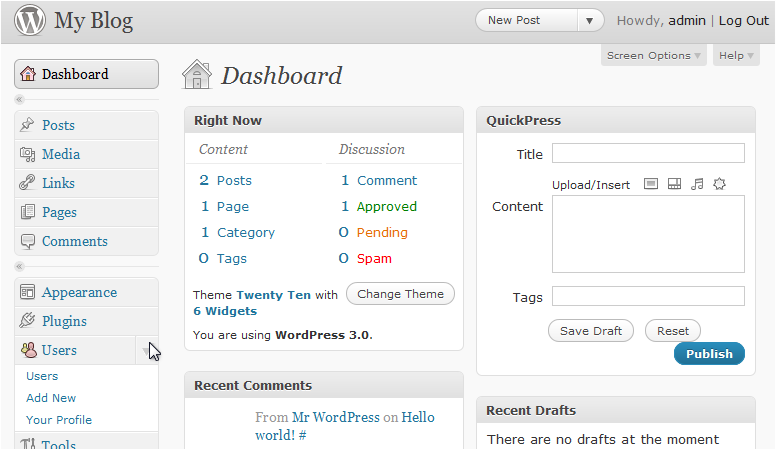
In the left sidebar of your WordPress dashboard, click Users to expand the menu.
-
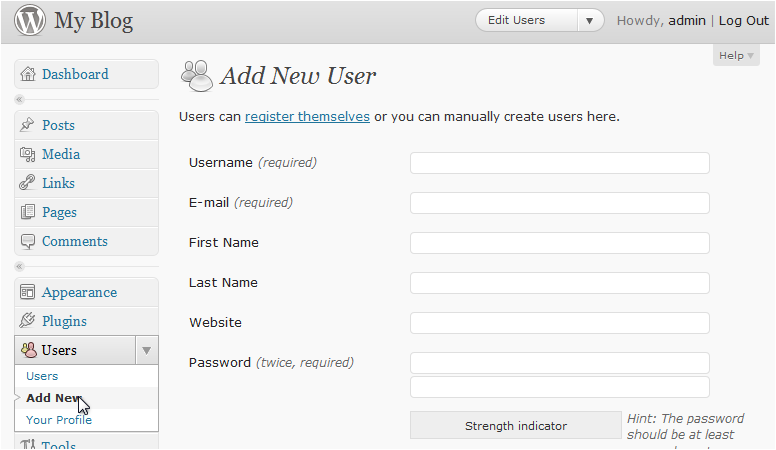
Click Add New.
-
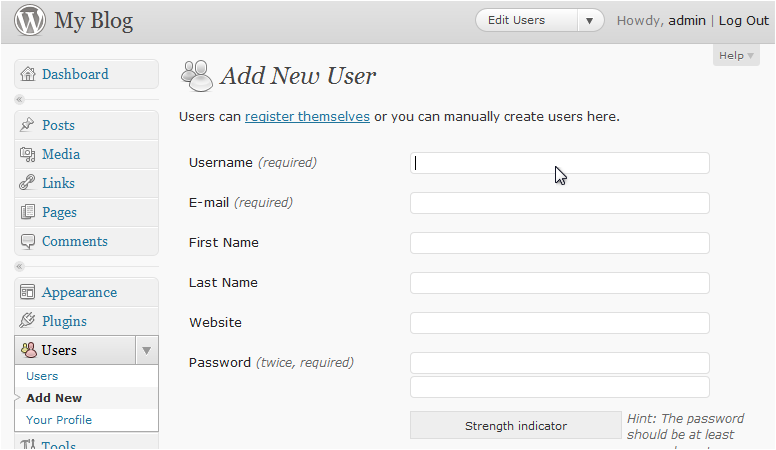
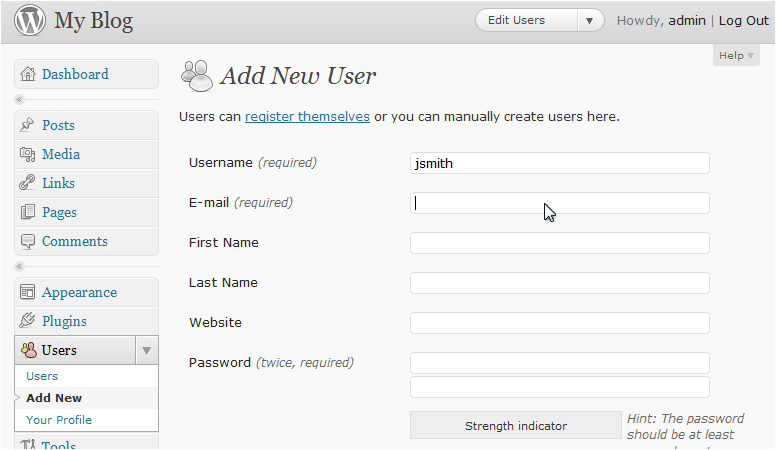
Enter a Username for the new account.
-
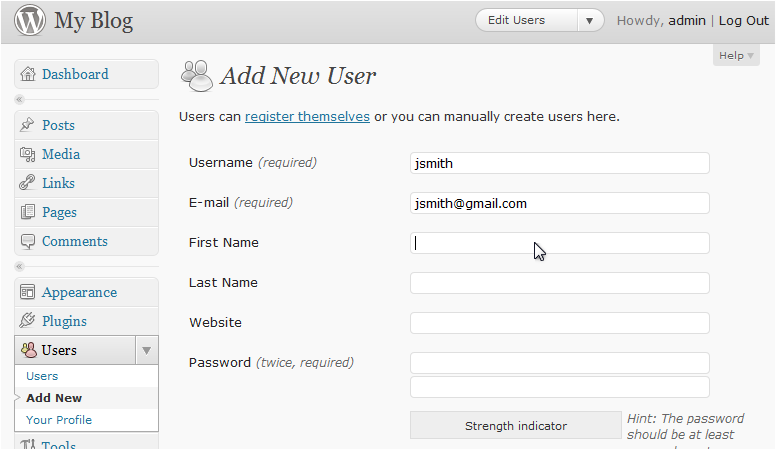
Enter the user's Email address.
-
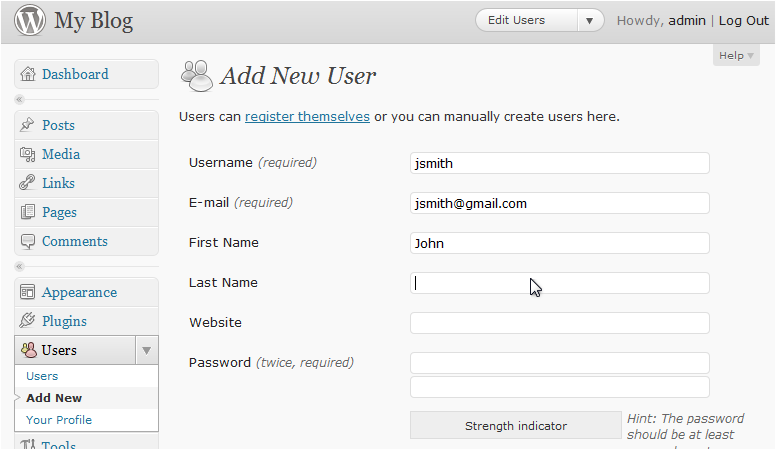
Enter the user's First Name.
-
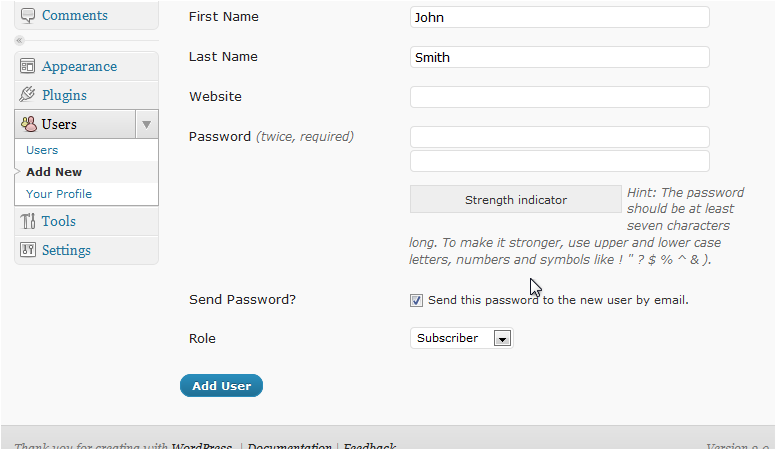
Enter the user's Last Name.
-
Scroll down to the Password section. WordPress will generate a strong password automatically; you can replace it with one of your own if you prefer.
-
Select a Role for the user (for example, Editor, Author, or Subscriber), then click Add New User.
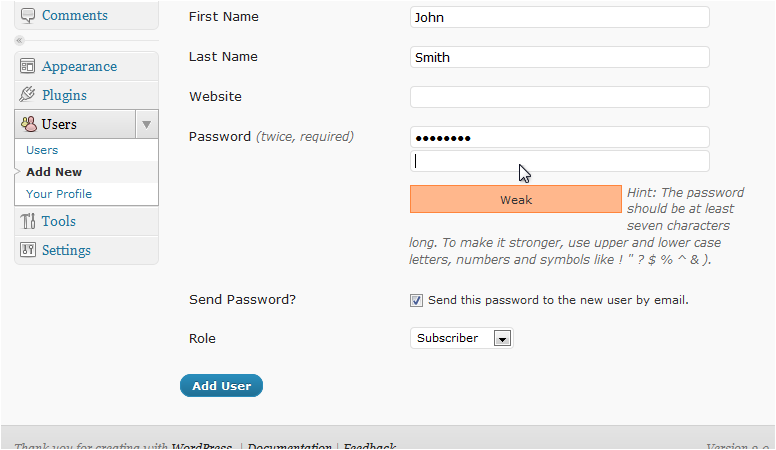
WordPress will send the new user an email with a link to set their password if you leave the Send User Notification box ticked.
Deleting a user
-
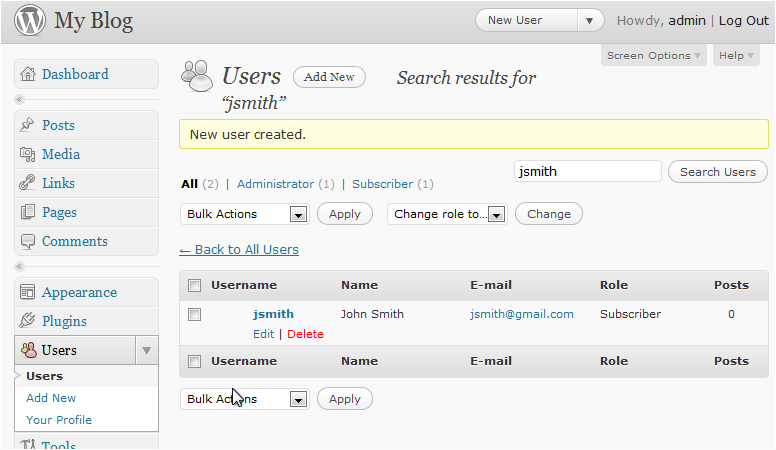
Go to Users > All Users in the left sidebar.
-
Hover over the user you want to remove and click the Delete link that appears beneath their name.
-
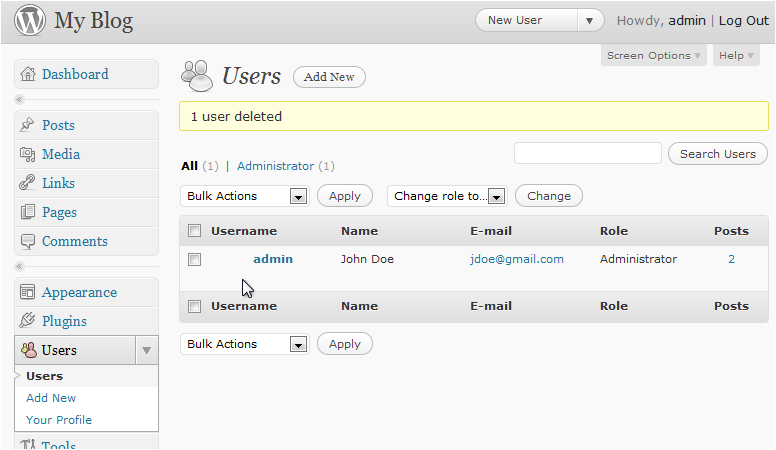
Choose what to do with the content that user created - you can attribute it to another user or delete it entirely - then click Confirm Deletion.
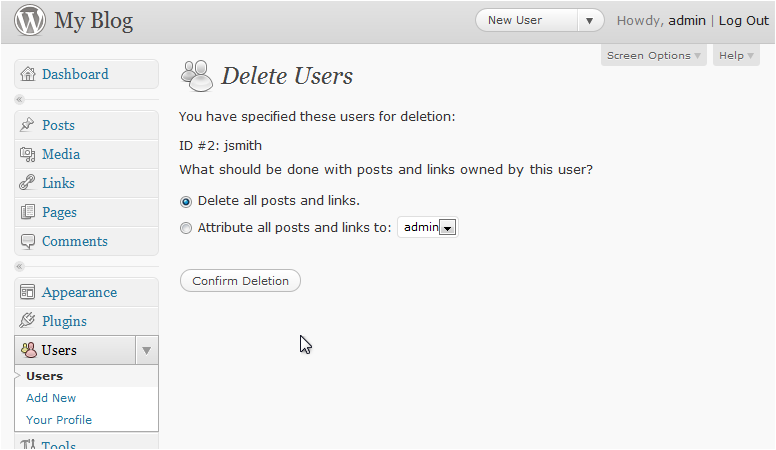
The user account is now removed from your site.