
On this page
Checking WordPress integrity with WP Toolkit
WP Toolkit's integrity check lets you verify your WordPress core files are exactly as they should be and fix any issues in a few clicks.
WP Toolkit's integrity check is a quick and reliable way to confirm your WordPress core files are exactly as the official release intends - and to spot anything unexpected that needs your attention. Whether you're troubleshooting errors or taking a proactive look at your site's security, this tool helps you get things back on track in just a few clicks.
Benefits
- Security: detect unauthorised changes to WordPress core files and identify injected files.
- Repair functionality: restore missing or corrupted files to fix broken behaviour.
- Proactive maintenance: regular checks keep your WordPress installation secure and consistent with the official release.
Common use cases
Hacked website
Detect and remove maliciously injected files or unauthorised changes to core files.
Broken website
Identify and restore missing core files to resolve functionality issues.
Routine checks
Run periodic scans to verify your installation matches the official WordPress release.
How to run the integrity check
- Log in to your cPanel account and open WP Toolkit from the Software section.
- Locate the WordPress installation you want to scan and click Manage.
- Under the Security tab or the Integrity section, click Check WordPress Integrity.
- Wait for the scan to complete, then review the results.
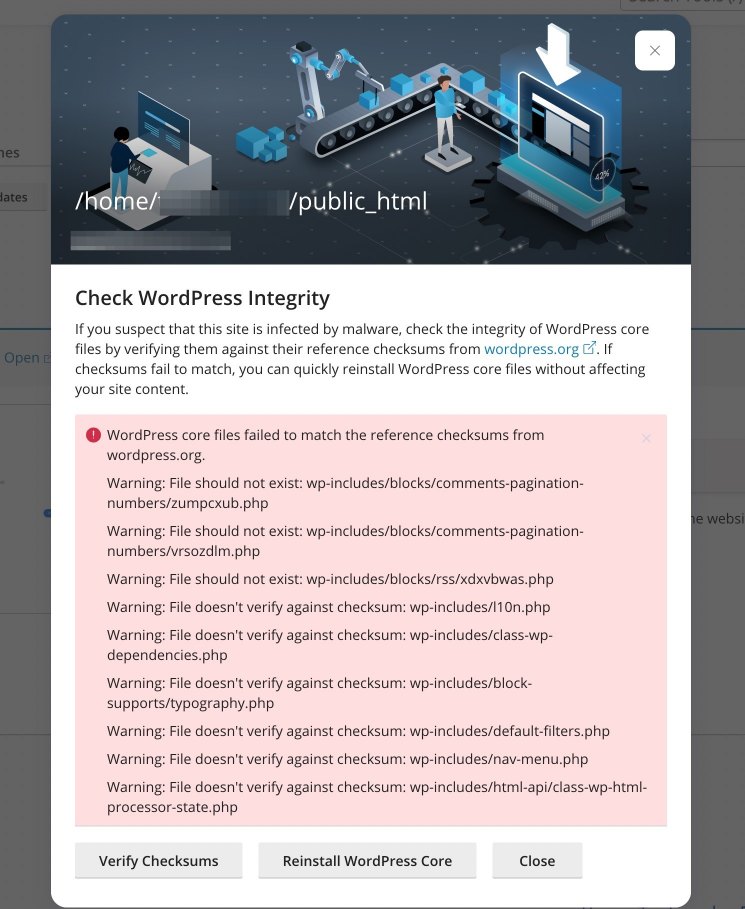
What to do if issues are found
Take a backup first
Before making any changes, create a backup of your WordPress installation so you can restore it if something goes wrong. Use the backup tools available in cPanel to save both your files and your database.
Reinstall WordPress core
- In WP Toolkit, click Reinstall WordPress Core.
- WP Toolkit will replace all core files with fresh copies from the WordPress repository.
- Missing or altered files are replaced automatically, and unexpected files in core directories are removed.
Any customisations made directly to core files will be overwritten. Reapply them carefully after the reinstall if required - though editing core files directly is not recommended practice.
Additional steps if you suspect a compromise
Reinstalling core files is an important step, but attackers often leave traces in non-core areas. If you suspect your site has been compromised, work through the following checks as well.
1. Manually inspect non-core files
- Check your document root (e.g.
public_html) and directories such aswp-content/pluginsandwp-content/themes. - Look for recently added or modified files you do not recognise, files with suspicious names, unexpected extensions, or unfamiliar content.
2. Review installed plugins and themes
- Ensure all plugins and themes are from trusted sources.
- Remove anything unused, outdated, or suspicious.
- Update all plugins and themes to their latest versions to patch known vulnerabilities.
3. Audit admin users
- In your WordPress dashboard, review the list of admin users.
- Remove any accounts you do not recognise or that no longer need administrative access.
- Make sure all remaining admin accounts have strong, unique passwords.
4. Search for backdoor files
- Pay particular attention to writable directories such as
wp-content/uploadsandwp-includes. - Use Imunify360 in cPanel to scan for backdoors, and manually review any files with unusual permissions or names.
5. Review file permissions
Restrict permissions to the recommended levels:
| Item | Permission |
|---|---|
| Files | 644 |
| Directories | 755 |
You can use WP Toolkit's security measures to enforce these permissions and block malicious script execution.
6. Change critical passwords
- cPanel password: update to a strong, unique password.
- WordPress admin passwords: change all admin account passwords in the WordPress dashboard.
- MySQL password: update the database user password, then update the new password in your
wp-config.phpfile.
7. Enable WP Toolkit security measures
WP Toolkit includes a range of security features to harden your site, including blocking script execution in wp-content/uploads, enforcing correct file permissions, and disabling file editing from the WordPress dashboard.
For full details, see Security Measures in WP Toolkit.