
On this page
How to change your password in WordPress
You can change your WordPress password from the admin dashboard or directly from cPanel using WP Toolkit. This guide covers both methods.
You can change your WordPress password from the admin dashboard at any time. If you cannot log in to WordPress, you can also reset it directly from cPanel using WP Toolkit - no access to the WordPress admin is needed.
Changing your password from the WordPress dashboard
-
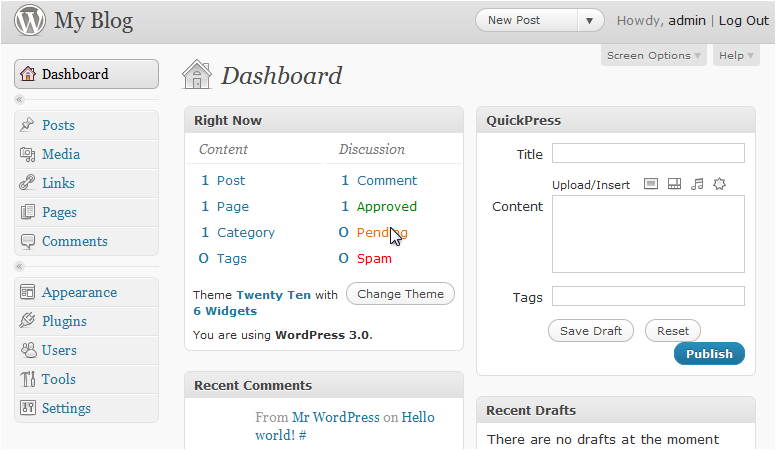
Log in to your WordPress admin dashboard.
-
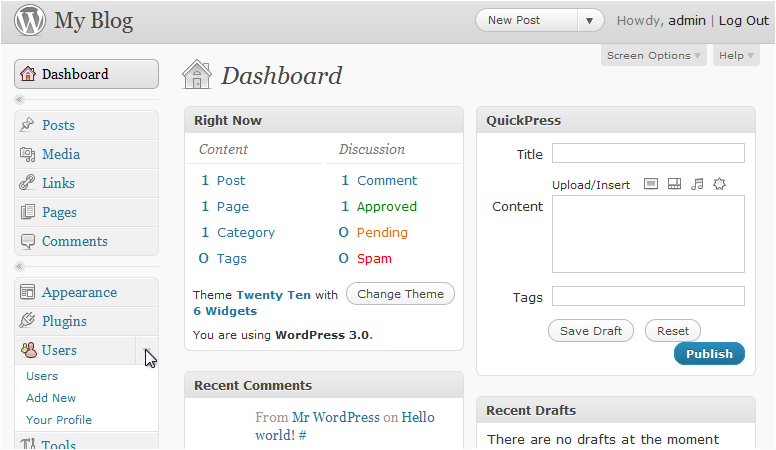
In the left sidebar, click Users to expand the menu.
-
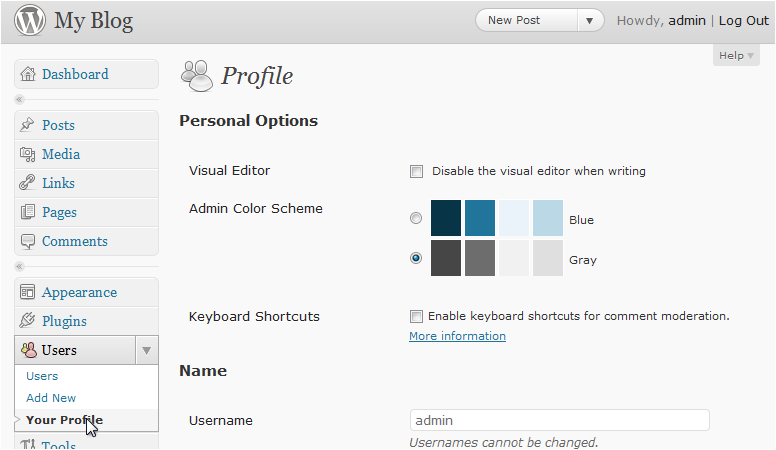
Click Your Profile.
-
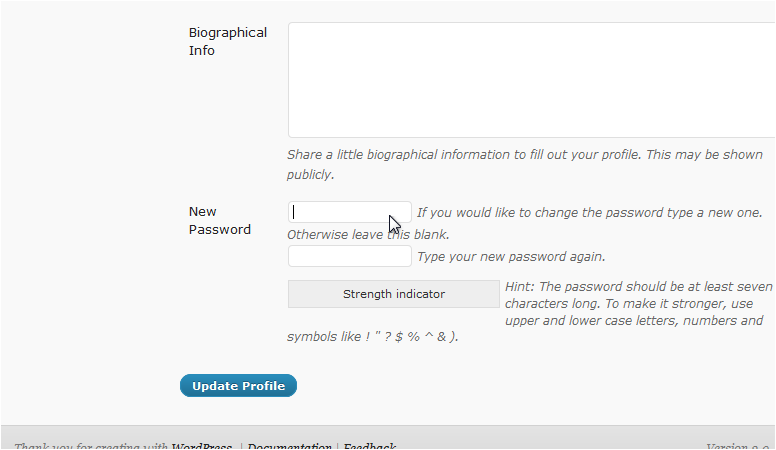
Scroll down to the Account Management section and click Generate Password, or clear the field and type your new password.
-
Check the password strength indicator and make sure your password is rated at least Strong.
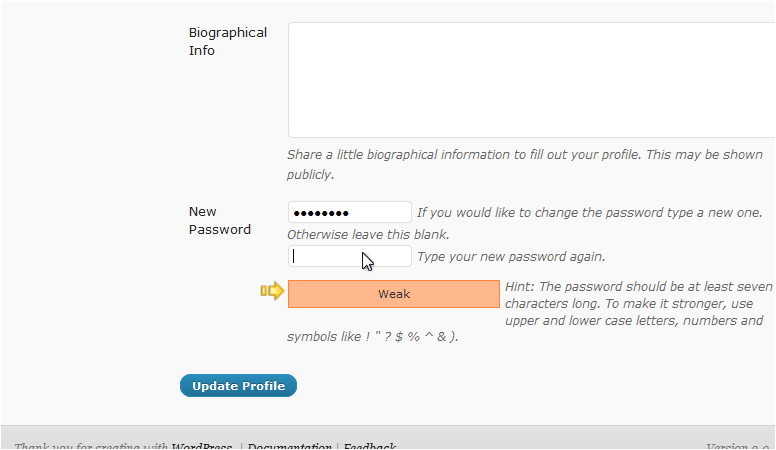
-
Click Update Profile to save your changes.
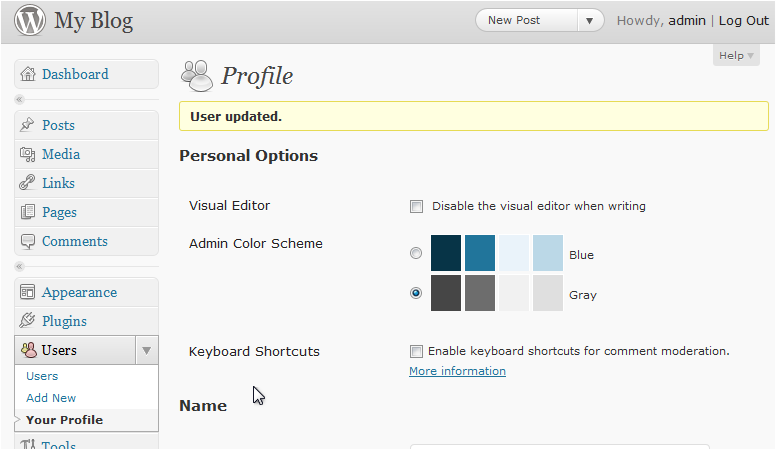
Your password is now updated. You will need to use the new password the next time you log in.
Use a long, random password and store it in a password manager. WordPress will generate a strong one for you if you click Generate Password.
Changing your password from cPanel using WP Toolkit
If you cannot access the WordPress admin dashboard, you can reset the password for any admin user directly from cPanel using WP Toolkit.
See our companion article: Resetting WordPress admin passwords via WP Toolkit.