
On this page
Resetting WordPress admin passwords via WP Toolkit
Reset your WordPress admin password from cPanel using WP Toolkit, without needing access to the admin email account.
If you have lost access to your WordPress admin area, you can set a new password directly from cPanel using WP Toolkit - no need to use the WordPress "Lost password" link or have access to the admin email account.
This guide assumes you can already log into cPanel. If you cannot, reset your cPanel password first - see How to reset your cPanel password.
Step 1 - Log into cPanel
Sign in to cPanel using your cPanel username and password. You can also access cPanel via your MyKualo account.
Step 2 - Open WP Toolkit
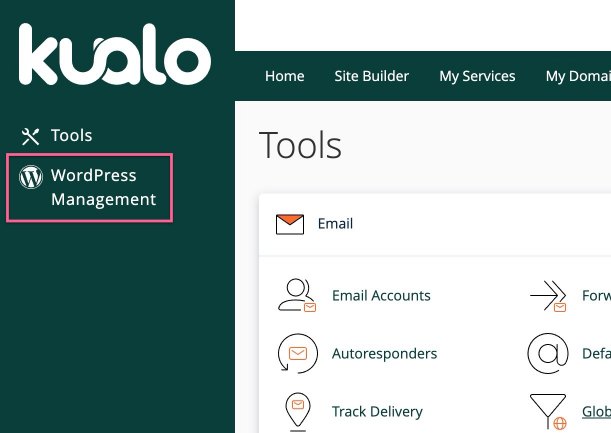
In cPanel, click the WordPress Management link in the left-hand navigation.
Step 3 - Find your WordPress installation
WP Toolkit lists every WordPress installation on your hosting account. Find the one you want to update. If you have several installs and are not sure which is which, the domain associated with each install is shown alongside its name.
Step 4 - Open the installation settings
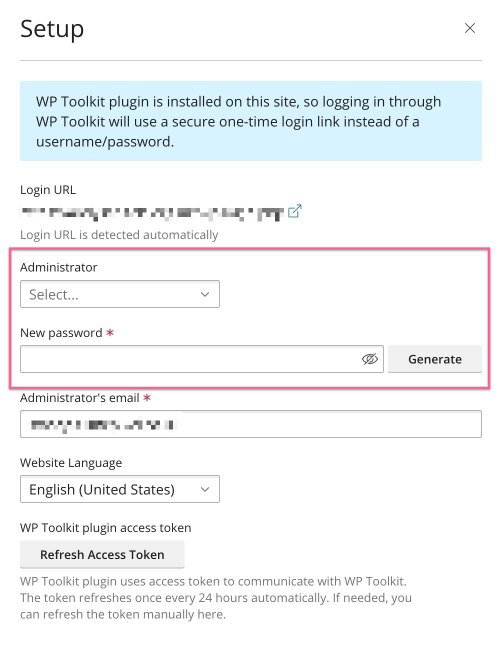
Click the expand arrow on the installation to open its dashboard, then click the Setup button.

This opens a panel where you can view and modify the existing WordPress users.
Step 5 - Select the admin account
You will see a list of administrator accounts for the site. Select the one you want to update.
Step 6 - Set a new password
Enter a new password in the form that appears and save your changes. You can also use the Generate password option to create a strong random password.
Step 7 - Log in to WordPress
You can now log in to WordPress at yourdomain.com/wp-admin using the admin username and your new password.
Troubleshooting
- If WP Toolkit does not show your installation, click Scan to refresh the list.
- If you have multiple admin accounts and are not sure which to update, choose the one whose email address matches yours.