
On this page
How to write a new post in WordPress
Create and publish a new post in WordPress in just a few steps from your admin dashboard.
Creating and publishing a new post in WordPress takes just a few steps from your admin dashboard.
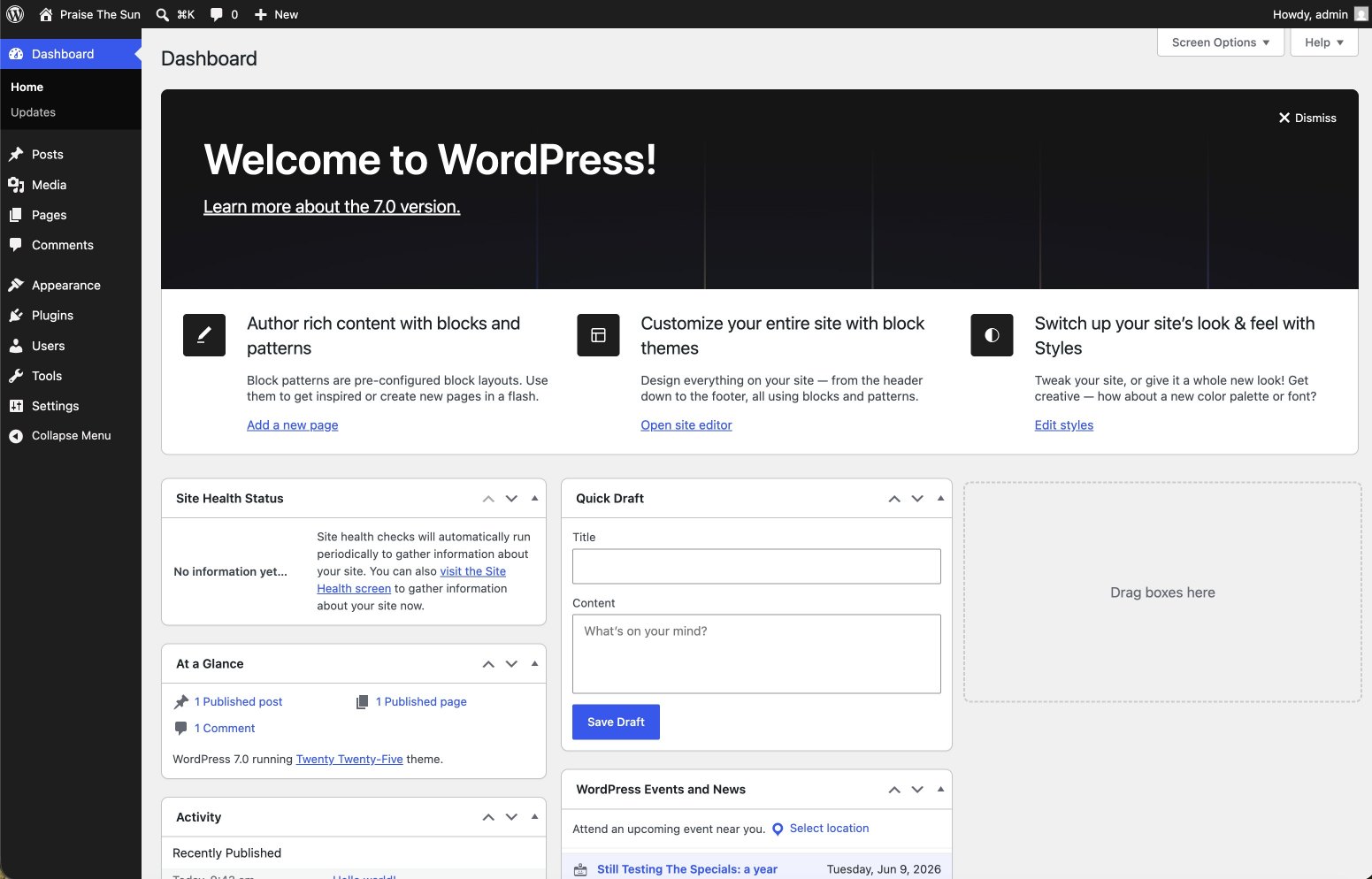
Writing and publishing a new post
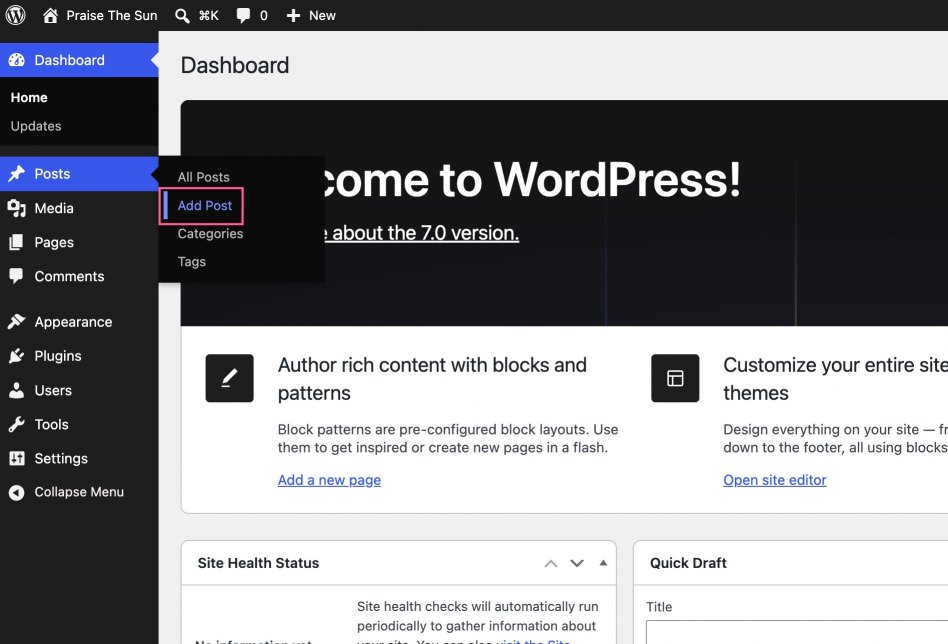
- In the left sidebar, hover over Posts and click Add Post
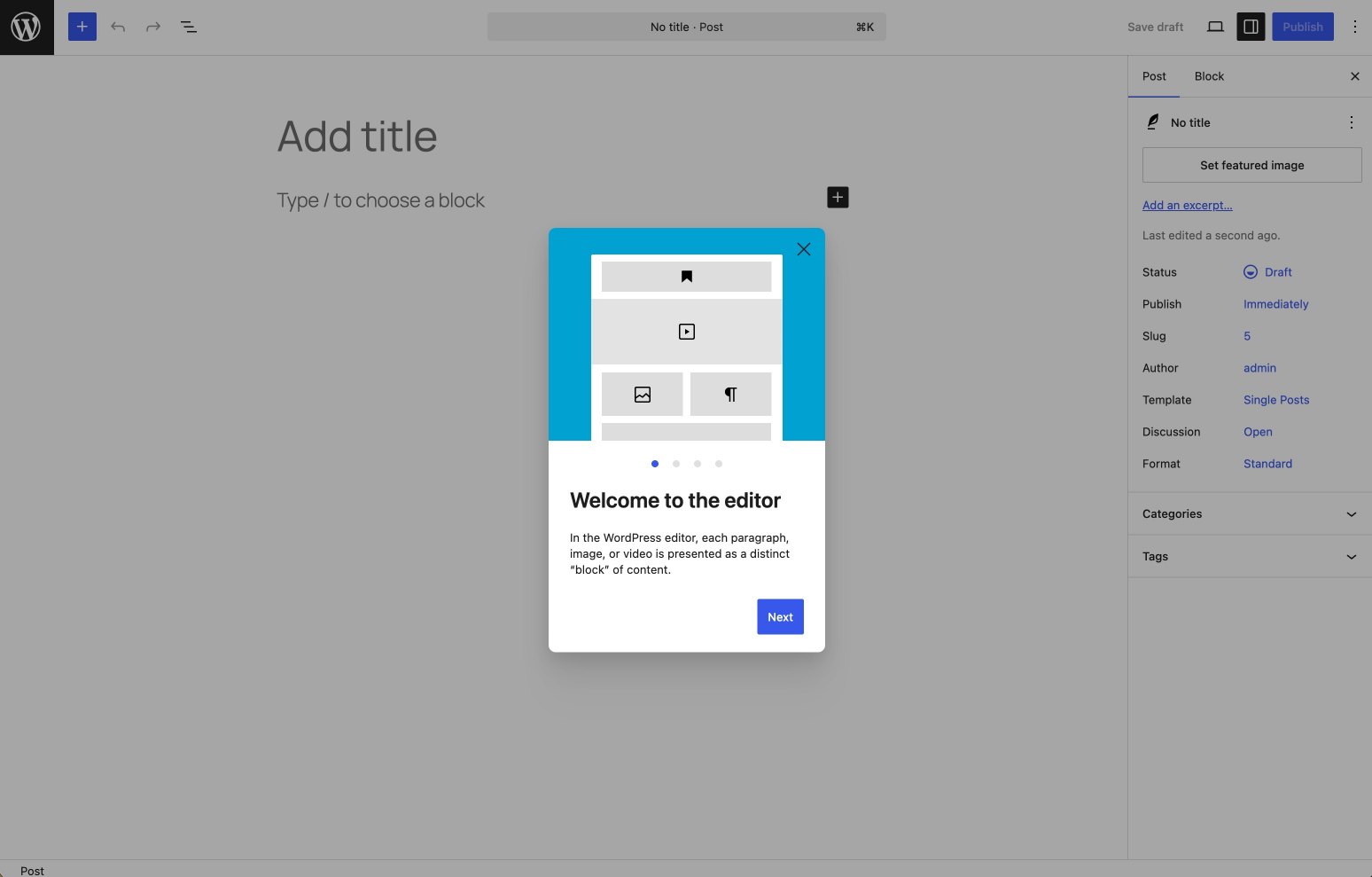
You will enter the post editor. If this is your first time, you'll be able to take a quick interactive demo of the UI.
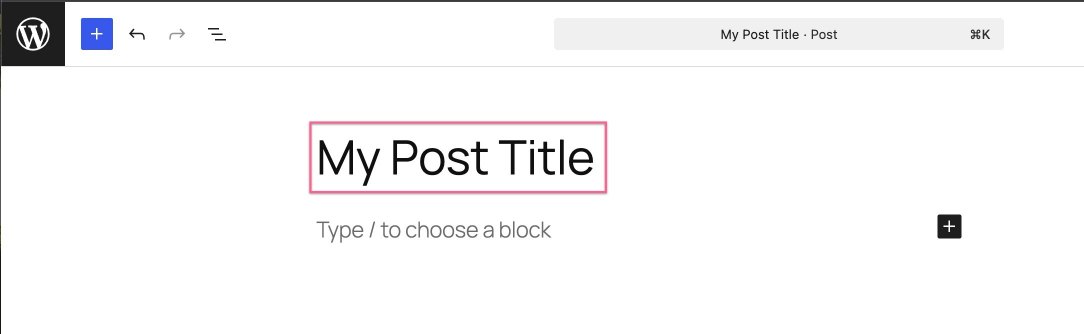
- Replace the existing title with your own.
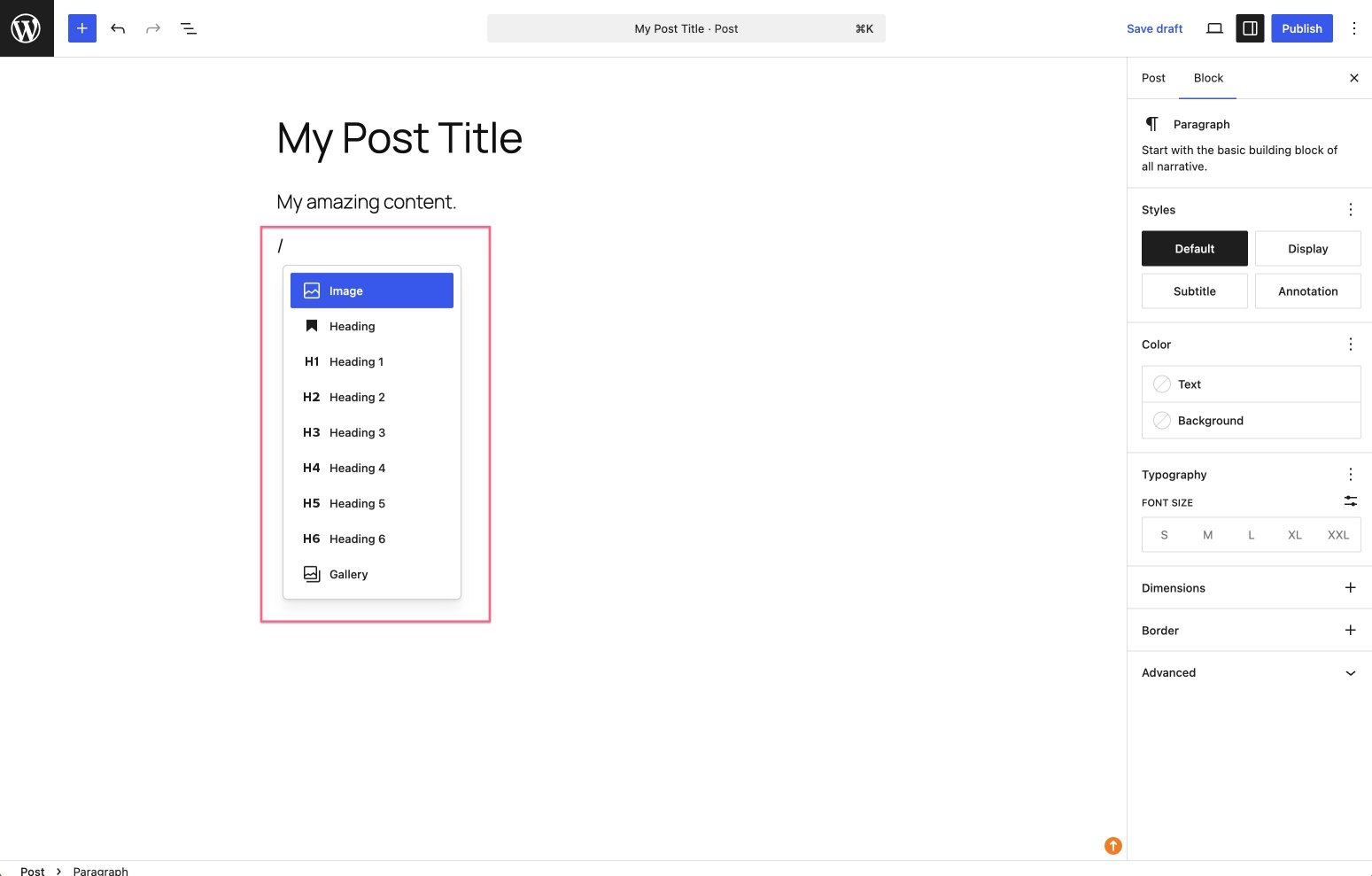
- Enter your post content in the editor area below the title. You can type
/to choose different types of blocks to include, such as headings or image galleries.
- Optionally, assign the post to one or more categories using the Categories panel on the right.
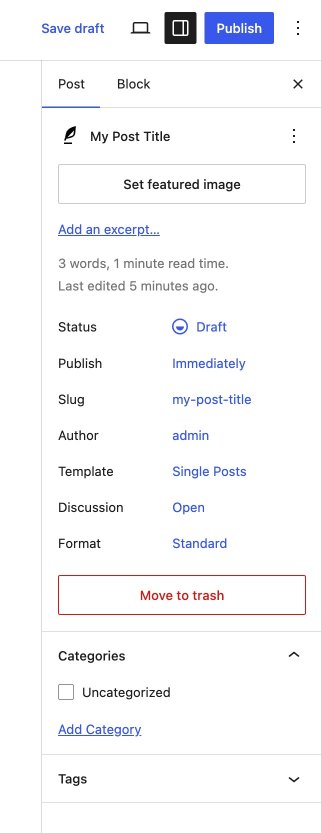
- When you are ready, click Publish.

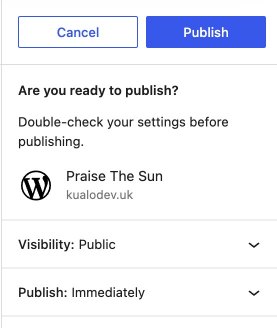
- You will need to confirm the publish action a second time. Click Publish again.
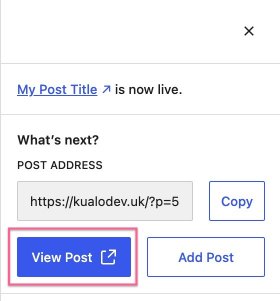
- Click the View post link that appears at the top of the screen to see your post on the site.
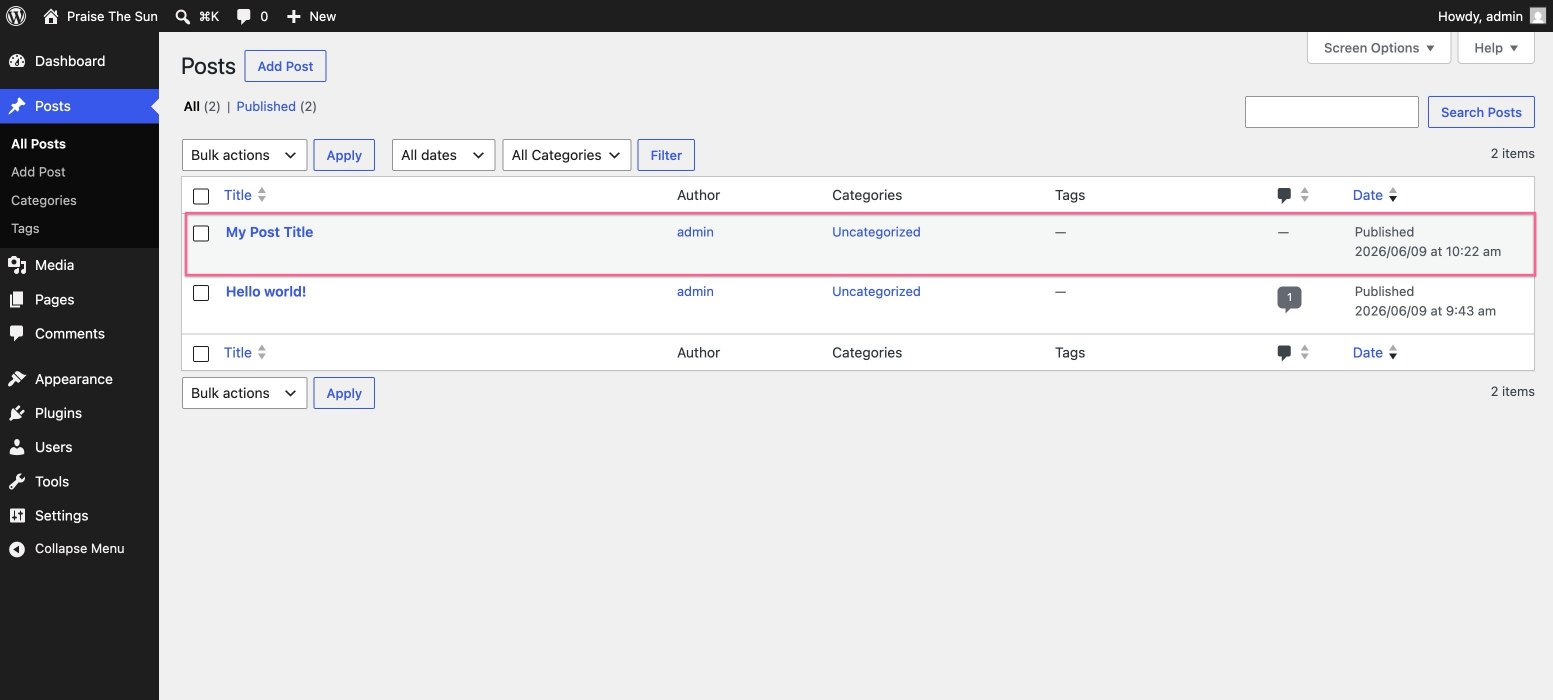
- Return to the admin area and go to Posts in the left sidebar. Your new post appears in the list, where you can edit or delete it at any time.
If you are not ready to publish straight away, click Save Draft instead and return to the post later.
Was this helpful?
Your feedback helps us find gaps in the docs.
Thanks for the feedback!
Related articles
Using WordPress
Using WP-CLI
WP-CLI is a command-line tool for managing WordPress installations without touching the ad...
Using WordPress
How to manage pages in WordPress
Learn how to create, view, and delete pages in your WordPress site from the admin dashboar...
Using WordPress
How to manage categories in WordPress
This guide shows you how to create, edit, and delete categories in your WordPress dashboar...
Using WordPress
How to manage users in WordPress
A step-by-step guide to adding and deleting users in your WordPress dashboard.
Still need a hand?
Real people, around the clock - start a chat or open a ticket and we'll help you put it right.