
On this page
Diagnosing critical errors in WordPress: a survival guide
If WordPress is showing a critical error, this guide walks you through diagnosing and fixing it without losing your site.
So, you woke up, stretched, grabbed your coffee, and went to check your website - only to be greeted by the digital equivalent of a brick wall: the dreaded "There has been a critical error on this website." Don't panic. Your site isn't gone forever, but you'll need to do some detective work to bring it back to life.
Step 1: The error log - your digital crime scene
If your WordPress site has crashed, the first place to investigate is the PHP error log. Think of it as security camera footage of what happened just before your site decided to take a nap.
Finding the error log
-
In cPanel: Go to File Manager and open your public_html folder (or the root folder for an addon domain or subdomain). Look for a file named
error_log. If the file is very large, viewing it in cPanel can be difficult - using SSH is recommended instead. -
Over SSH: Run this command from inside the site's directory:
tail -n 50 error_log
This shows the last 50 lines of the log. The most recent errors appear at the end, which is usually where the useful information is. A very large log often indicates a recurring issue.
If you want to scroll through the output, use:
less error_log
Press q to exit.
- Ninja move: If you need more context without loading the entire file, combine the two:
tail -n 200 error_log | less
This pipes the last 200 lines into less, giving you more to work with while keeping things manageable.
Step 2: Who (or what) is the culprit?
Once you have the error log open, look for messages that mention:
- A specific plugin - for example,
plugins/cool-plugin/cool-plugin.php on line 87 - A theme file - for example,
themes/fancy-theme/functions.php - A PHP version mismatch - for example,
Fatal error: Uncaught Error: Call to undefined function xyz_function(), which often means your PHP version is too old or too new for the plugin or theme in question
The key is to identify what was being called just before the site crashed. If the error log points to a plugin or theme file, that is a strong indicator of where the problem lies.
Step 3: "But I didn't change anything!"
Ah, the classic line. Many site owners swear they didn't touch a thing before everything fell apart.
Here's the secret: WordPress can break itself.
Plugins and themes can be set to auto-update. Even if you didn't log in and change anything, a plugin may have upgraded itself overnight and introduced a compatibility issue that crashed the site.
Checking auto-update status
Even if you can't access your WordPress dashboard, you can use WP Toolkit in cPanel to check which plugins and themes have auto-updates enabled:
- Open cPanel.
- Navigate to WP Toolkit.
- Select your WordPress site.
- Click Plugins or Themes and check the auto-update column.
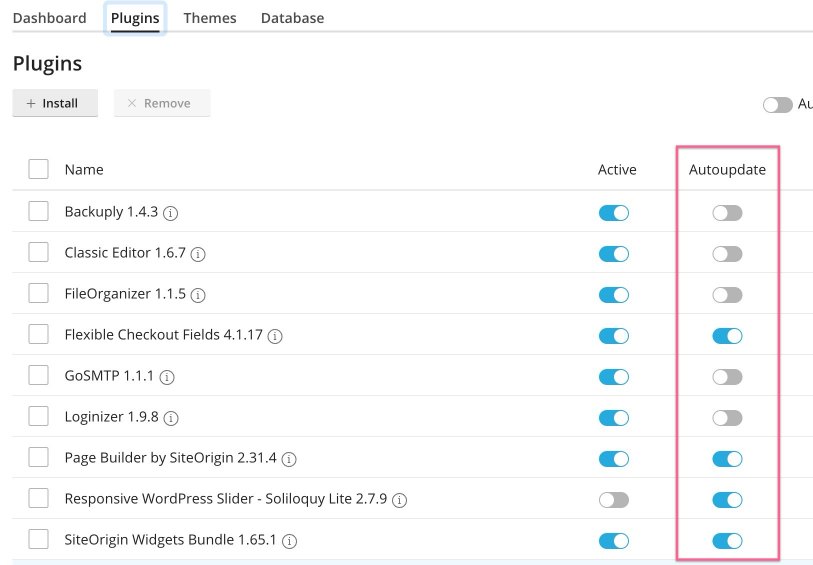
If a plugin or theme updated just before the crash, you have likely found the culprit.
Step 4: Disabling the suspect plugin
If the error log points to a specific plugin, the next move is to disable it - without needing to log into WordPress, since your site is currently down.
- Open WP Toolkit in cPanel.
- Select your website.
- Click Plugins.
- Find the suspect plugin and disable it.
Check whether your site loads again after disabling it.
Step 5: Restoring order
Disabling the problematic plugin got your site back - but now what?
- If WordPress core is outdated - update it in WP Toolkit.
- If your theme is outdated - update it via WP Toolkit or manually.
- If PHP is the issue - you may need to change PHP versions. Here's how to manage the PHP version in cPanel using the Select PHP Version tool.
- If the plugin is the issue - check whether an update is available, or replace it with an alternative.
Step 6: When all else fails - restore from backup
If your site is still down, restoring from a backup may be necessary - but let's not go nuclear just yet. A full account restore is rarely a good idea, unless you want to roll back every email, every website on your account, and everything else along with it. A more surgical approach is almost always better:
- Use JetBackup in cPanel to selectively restore only the affected plugin or files.
- Check whether you have a WP Toolkit backup you can restore from.
- If you use a backup plugin, see whether you can restore from there.
- If you're unsure, contact our support team - we can help diagnose the issue and restore only what's necessary, rather than rolling everything back to the digital Stone Age.
If the crash was caused by an auto-update, consider disabling auto-updates for that plugin once you're back up. Otherwise you may find yourself here again tomorrow, wondering why you didn't listen to your past self.
Step 7: Avoiding future catastrophes
If you want to keep auto-updates enabled, consider using Smart Updates instead. This runs a test update in a staging environment first, so you can verify everything works before rolling it out to your live site.
See the guide on using Smart Updates in WP Toolkit.
Step 8: Still stuck? We've got your back
If you've tried everything and your site is still down, our team is here to help. Sometimes diagnosing these errors requires an extra set of eyes (and a strong cup of coffee).
Open a ticket in MyKualo and we'll get your site back up and running.
WordPress critical errors can be alarming, but once you know where to look, fixing them is like solving a mystery. With a bit of log-reading, some detective work, and a few smart preventive measures, you can keep your site running smoothly.