
On this page
Create and send a campaign
Create, design, preview, test and send an email campaign in MailMachine using templates or your own design.
An email campaign is a single email sent to many people at once with a goal in mind - a newsletter, an announcement, a promotion. Most people check their email several times a day, which makes it one of the most direct and cost-effective ways to reach your audience. You can use text, images, videos and more to get your message across, and MailMachine tracks the results - opens, clicks, spam complaints - so you can see what's working. This guide covers the ways to start a campaign, how to preview it, and how to test and send.
If you've branded your account by uploading your logo and brand colours, you'll have access to Smart Templates - a set of designs that automatically apply your branding so your email looks neat and professional with very little effort.
Start a campaign
Select the Campaigns tab, then Emails. You can begin in one of several ways:
- Use one of your own templates - plain or already branded
- Start from a professional template
- Reuse a previously sent campaign
- Design your own template from scratch
Whichever you choose, you'll be taken to the email designer to customise your content.
Use one of your own templates
If you've already built or branded a template, you can reuse it:
- Click Resources, then My Email Templates.
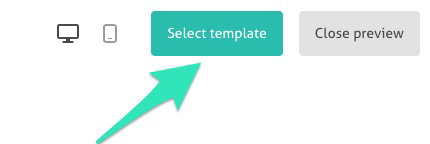
- Click Select Template in the top-right of the email preview window.
- Edit it. You can save your changes as a new template to reuse later, branded and designed just the way you need.
Use a professional template
Hundreds of professional, tested templates are available depending on your plan - brand the one you like, or use one that suits the season.
- Click Campaigns, then the Email Templates tab.
- Use the search bar and filters to browse the range of themes.
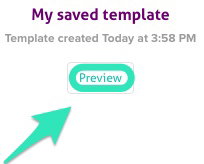
- Click Preview under your preferred template.
- Click Select Template in the top-right of the preview window, then edit it.

Reuse a previously sent campaign
For a recurring newsletter, reusing a template and changing the content is the easiest way to stay consistent and on-brand:
- Open the Sent Campaigns tab.
- Click the arrow to the right of the campaign you want, to open its menu.
- Choose Duplicate - the copy appears in your Drafts, ready to edit.
Design your own
If you're comfortable with design (or have someone who is), you can build a template from scratch. Choose Start from Scratch under Campaigns > Email templates, then pick one of:
- Start with the essentials - opens the editor with a basic template you can adapt.
- Start with a blank canvas - a clean slate to design from.
- Start with your own code - paste in HTML you've written elsewhere.
To use your own code: select Start with your own code, paste your HTML into the editor, and click Upload and Edit.
Designing an email that renders correctly across every inbox is genuinely tricky. If you're hand-coding, use inline CSS and avoid JavaScript and external stylesheets - many email clients strip them out.
Preview your campaign
Before sending, it's worth seeing exactly how your campaign will look. Click the eye icon at the top-right to preview it on web, mobile and in dark mode - links and buttons included, so there are no surprises.
Preview is great for catching design issues, but it doesn't replace a real test send. Always send yourself a test as well.
Test and send
Whatever you chose for your template, test your campaign thoroughly before sending to your audience - especially with a new design. Send a test to a few addresses, check it across different email apps, and don't forget your phone. When you're happy, add your subject line, choose a date and time, and send. For more, see Testing your campaign.
Troubleshooting
The designer won't load - clear your browser cache and cookies, try Chrome or Firefox, and disable any extensions that might interfere.
A template won't save - check your connection and save frequently when working on a complex design.
Images aren't displaying - keep images under 1 MB, use JPG, PNG or GIF, and add them to the library before inserting.
The campaign stays in draft - make sure every required field is complete: a recipient list, a subject line, and your sender details.
HTML import issues - validate your HTML first, remove JavaScript and external CSS, and use inline CSS for the best compatibility.
If you hit a wall, open a support ticket.