
On this page
Set up multi-factor authentication (MFA)
Add a second login step with an authenticator app to keep your MailMachine account secure.
Multi-factor authentication (MFA) adds a second step to logging in: as well as your password, you enter a one-time code from an app on your phone. It's one of the most effective things you can do to keep your account safe, and in MailMachine each user can turn it on for themselves.
Enable MFA for a user
- Open Parameters, then click Users.
- Choose the user you want to protect.
- Scroll down to Security and click Enable to turn on 2-step verification.
Register an authenticator app
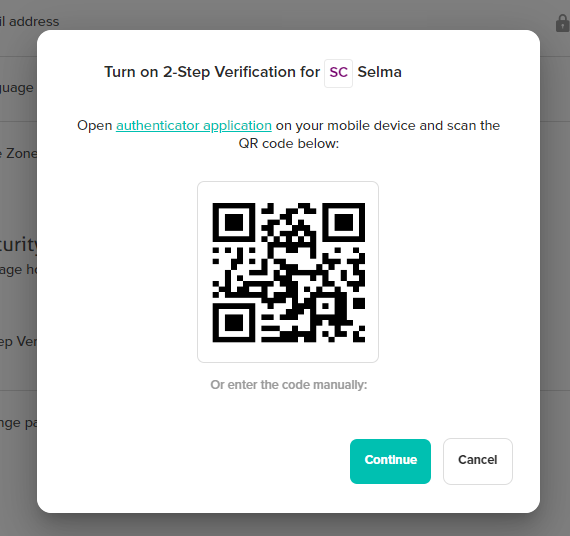
Open your authenticator app (such as Google Authenticator, Authy or 1Password) and scan the QR code shown on screen.
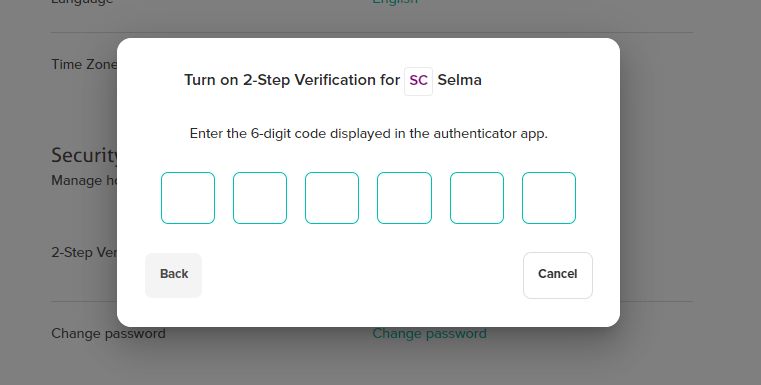
Then enter the 6-digit code your app displays to confirm the setup.
Save your backup codes
You'll be given 10 backup codes. If you ever lose access to your phone, each code lets you log in once. Store them somewhere safe and private - a password manager is ideal.
Without your phone and without your backup codes, you can be locked out of your account. Save the backup codes the moment you set up MFA, not later.
Each user decides for themselves
MFA is per-user, so everyone on the account can enable or disable it to suit how they work. We'd encourage every user to turn it on, especially anyone with administrator rights.
Troubleshooting
Can't scan the QR code - enable camera permissions, turn up your screen brightness, or use the manual-entry option to type the key by hand. A different authenticator app can also help.
The 6-digit code won't work - these codes expire every 30 seconds, so enter them promptly. Make sure your phone's clock is set to update automatically, since a drifting clock generates invalid codes.
Lost access to your authenticator app - use one of your 10 backup codes to get in, then set MFA up again on your new device.
Backup codes not working - each code works only once. Check you haven't already used it, and that you're entering it exactly.
Want to disable MFA - in the user's Security settings, click Disable next to 2-step verification and confirm with your password. Think carefully before removing it.
If you've lost both your device and your backup codes, open a support ticket so we can verify your identity and help you back in.