
On this page
How to install Craft CMS in cPanel
A step-by-step guide to installing Craft CMS on your Kualo hosting account via cPanel.

Craft CMS is a content management system laser-focused on one thing: managing content well. Because content comes in all shapes and sizes, Craft is built to be as flexible as possible without compromising ease of use for content authors.
These steps cover a manual installation. Craft requires PHP and a MySQL database, both of which are available on all Kualo hosting plans.
Before you start
- Download the latest version of Craft CMS from craftcms.com and save it to your computer.
- Make a note of the domain or subdomain where you want to install Craft.
Step 1 - Upload the Craft archive
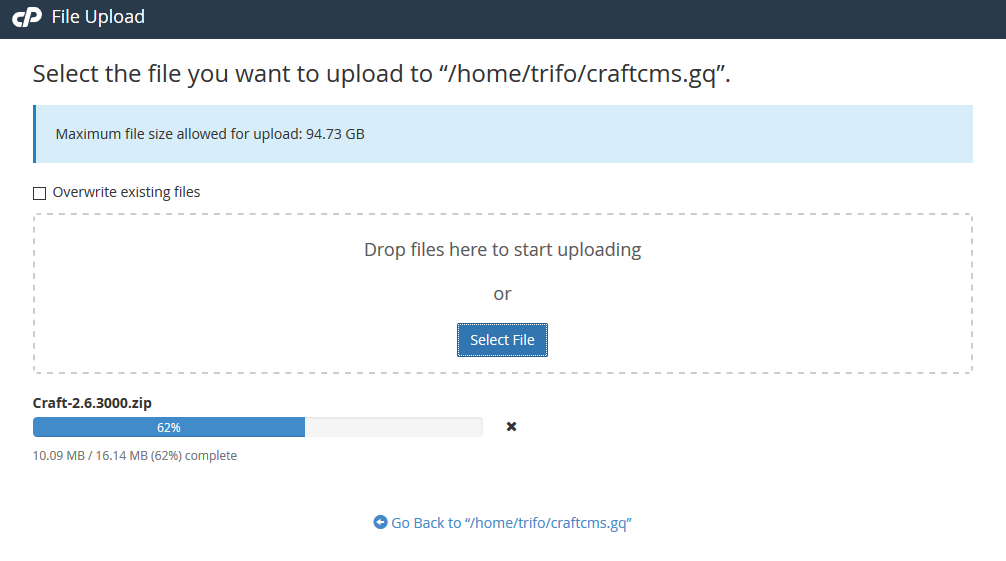
- Log in to cPanel.
- Open File Manager and navigate to the document root of the domain or subdomain where you want to install Craft (for example,
public_html). - Click Upload and upload the Craft archive file.
Step 2 - Extract the archive
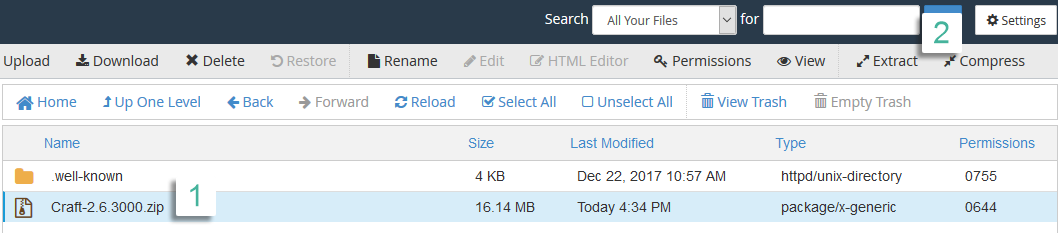
- In File Manager, select the uploaded archive.
- Click Extract to unpack the files into the document root.
Step 3 - Move files to the document root
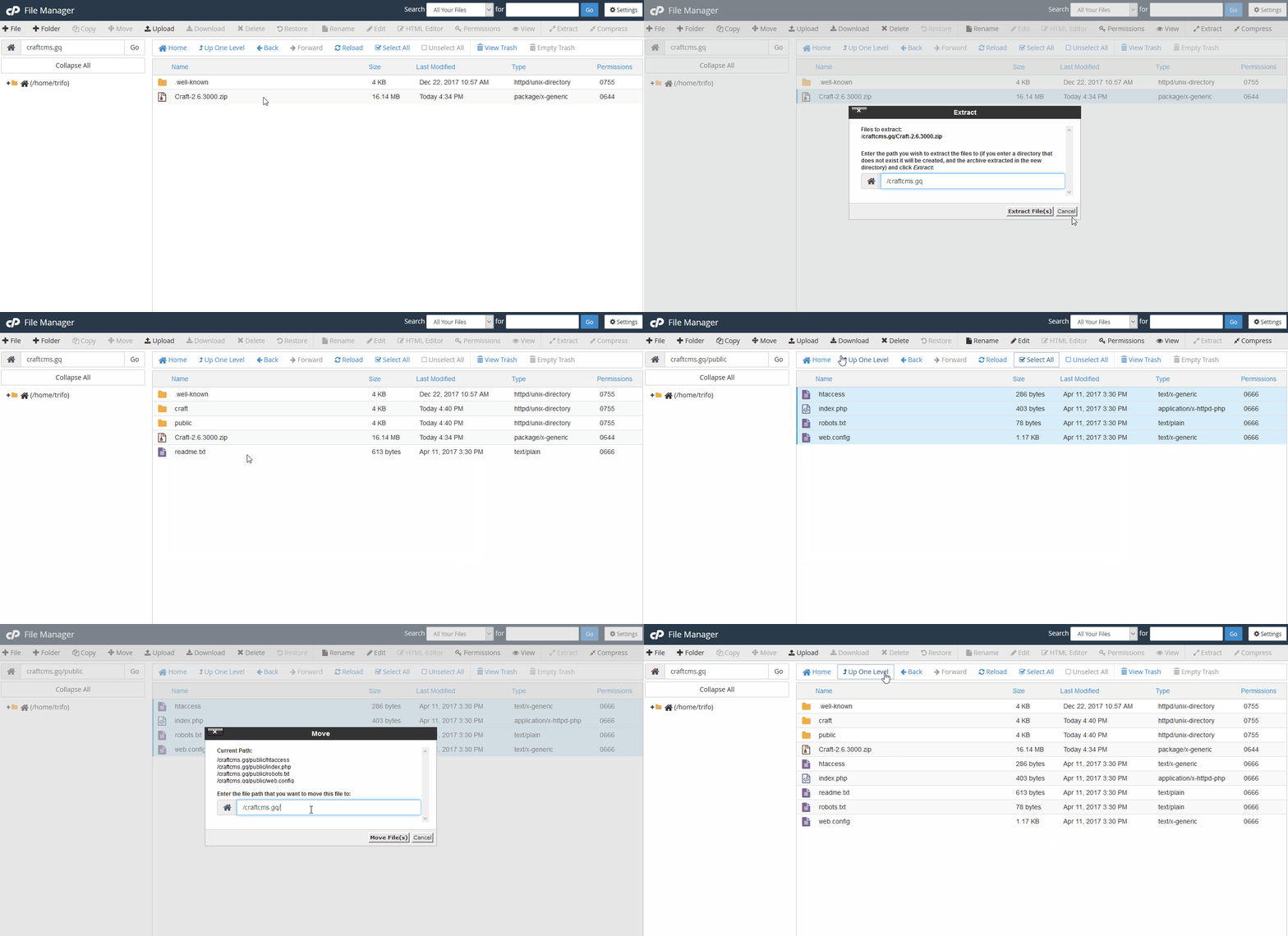
Craft's archive includes a public folder. You need to move the contents of that folder up to your document root so the web server can find them.
- Open the
publicfolder in File Manager. - Select all files inside it and move them to your document root.
Step 4 - Set the $craftPath in index.php
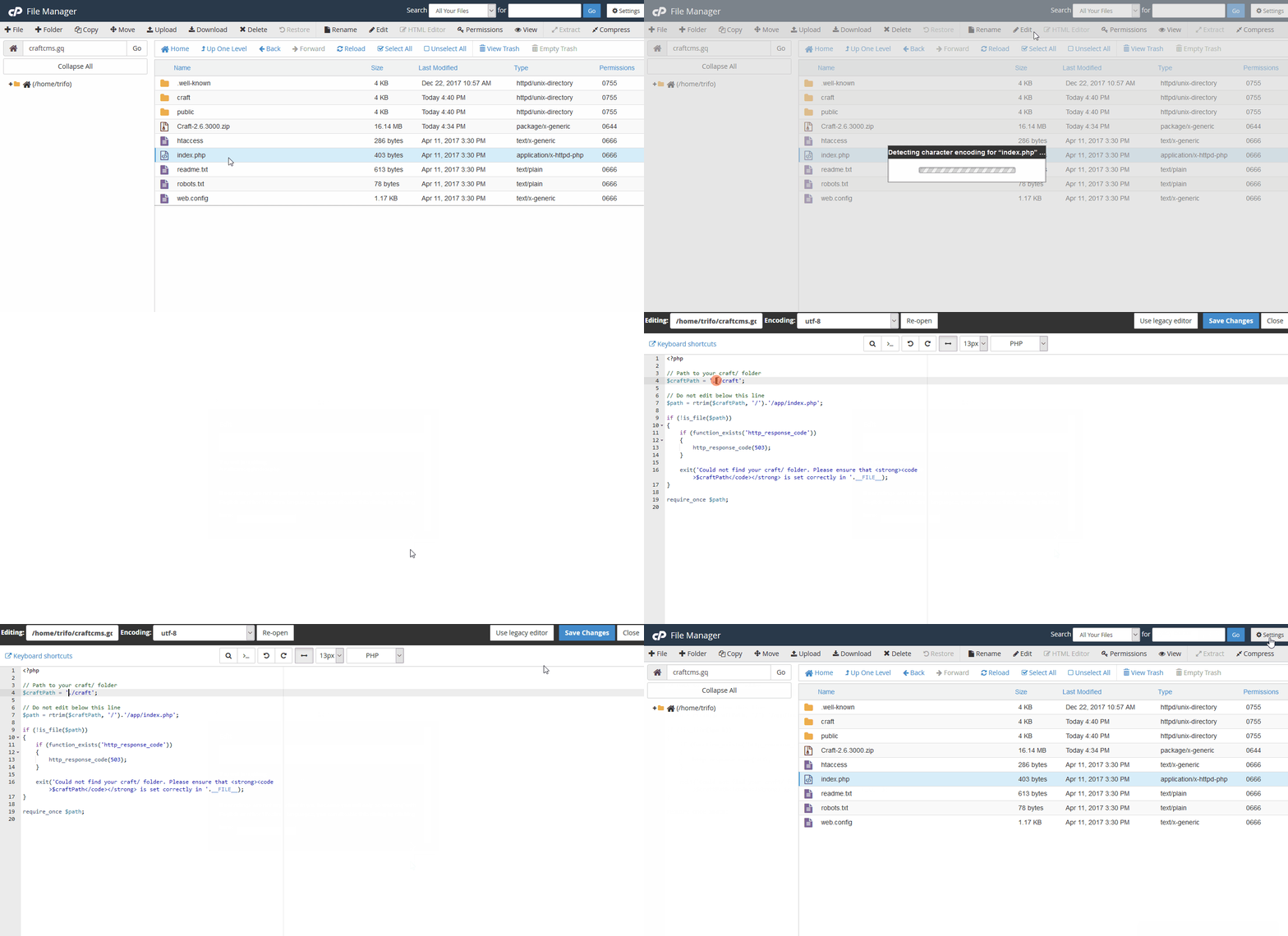
- Open
index.phpin File Manager's code editor. - Locate the
$craftPathvariable and set it to point to thecraftfolder:
$craftPath = './craft';
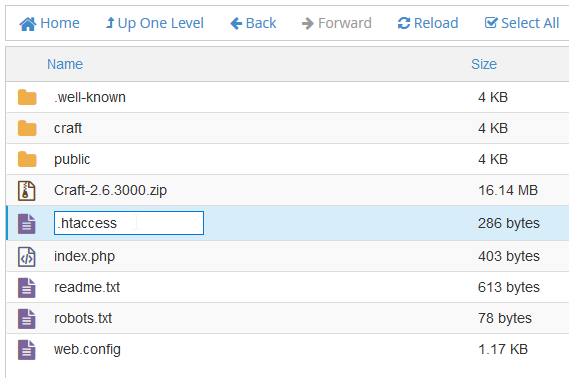
Step 5 - Rename the htaccess file
- In File Manager, locate the file named
htaccessin your document root. - Rename it to
.htaccess(with a leading dot).
Step 6 - Create a database and database user
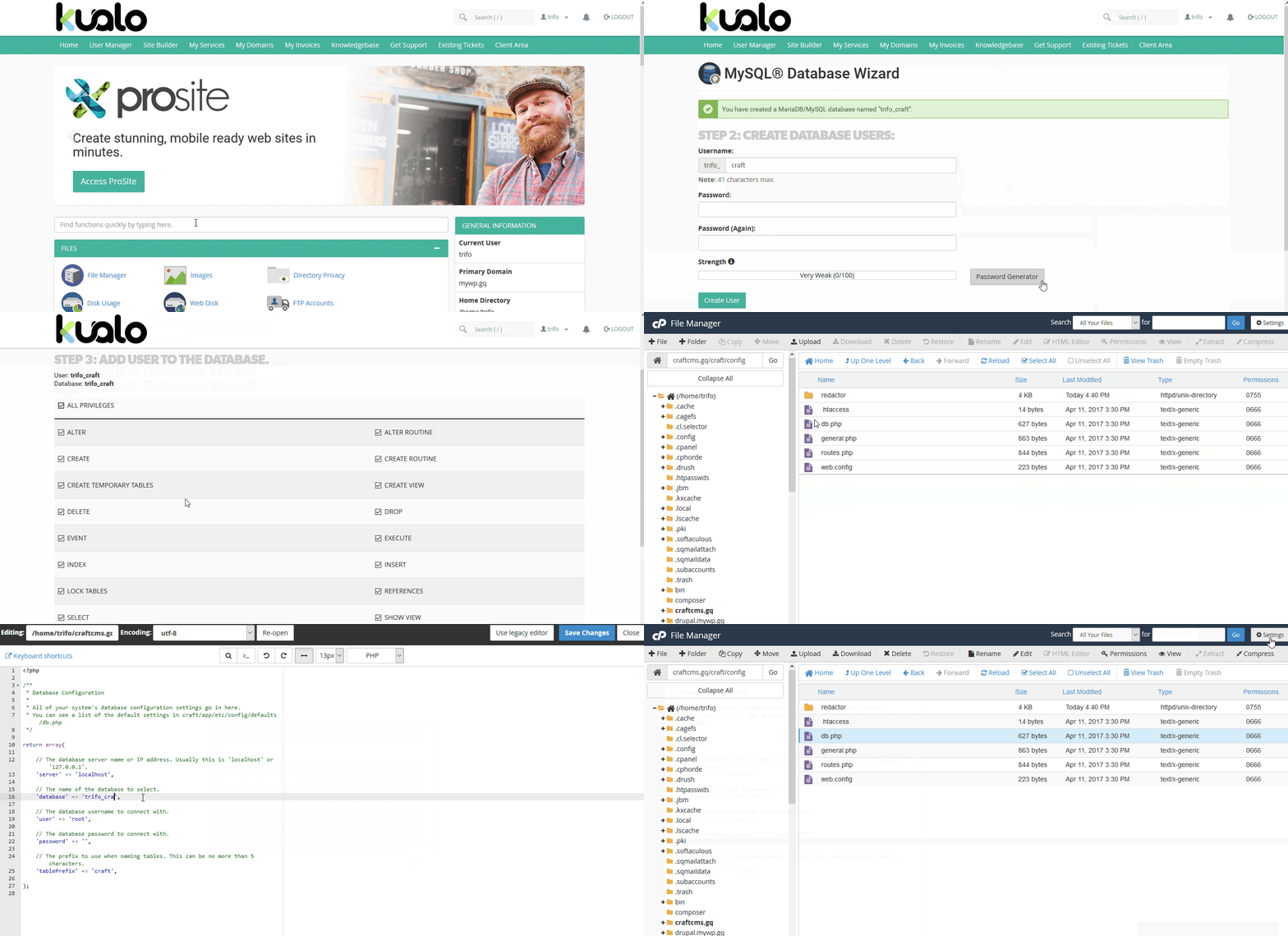
- In cPanel, go to Databases and open MySQL Database Wizard.
- Create a new database, then create a new database user.
- Save the database name, username and password - you will need them shortly.
- Grant the new user All Privileges on the database.
Step 7 - Configure the database connection
- In File Manager, open
craft/config/db.php. - Enter the database name, username and password you saved in the previous step.
Complete the installation
Visit https://your-domain.com/admin in your browser to run the Craft setup wizard and finish the installation.

If you need any help, please contact us.