
On this page
How to change Softaculous settings and email settings
Learn how to update your Softaculous general settings and email notification preferences from within cPanel.
Softaculous lets you customise your preferred language, timezone, and email notifications for script installations and removals. Here is how to update both areas.
Changing general settings
- Log in to cPanel and open Softaculous.
- Click the Edit Settings icon in the top navigation bar.

- Select your preferred language from the language dropdown.
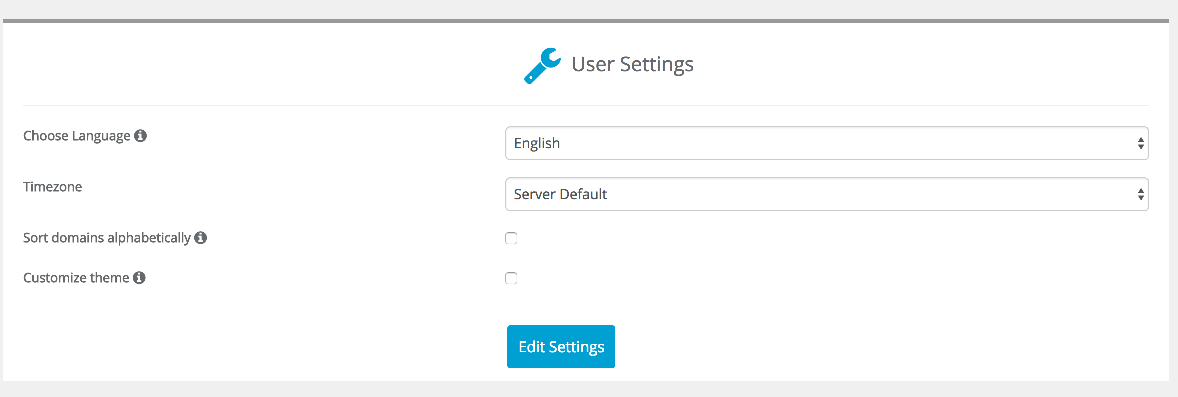
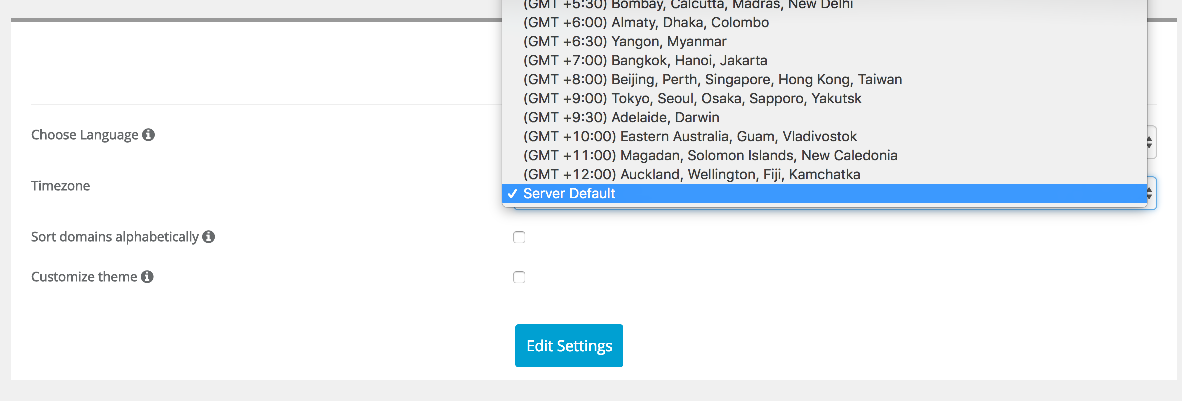
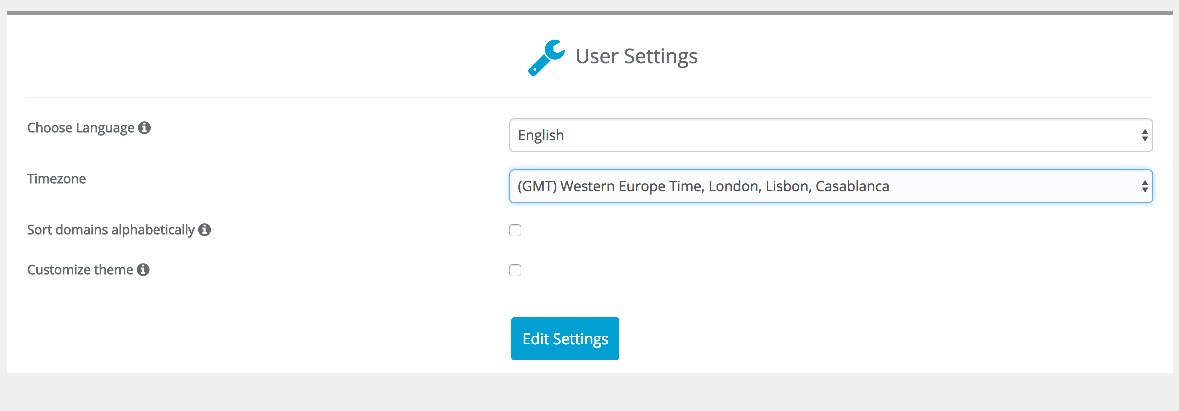
- Set your timezone using the timezone selector.
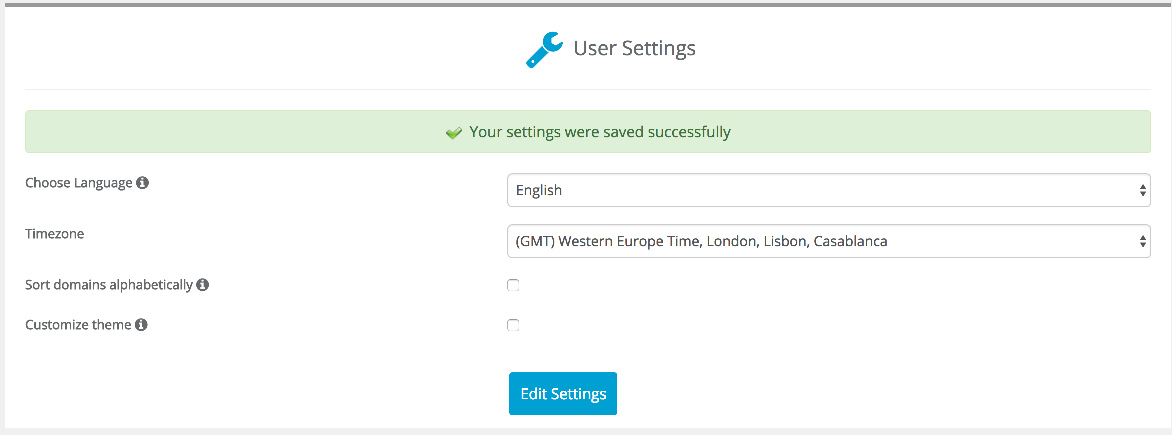
- When you are done, click Edit Settings to save your changes.
Changing email settings
- Click the mail icon in the Softaculous navigation bar.
- Update the email address where Softaculous notifications will be sent.
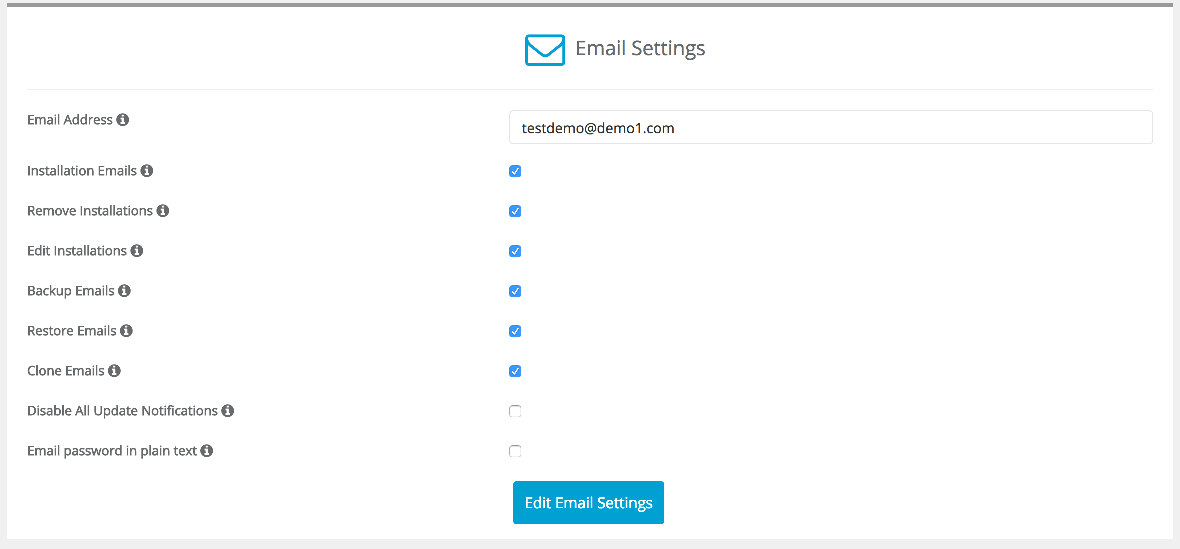
- Use the checkboxes on this page to control when emails are sent:
- Send installation details - sends an email containing setup information each time a script is installed.
- Send removal notification - sends an email when a script is removed.
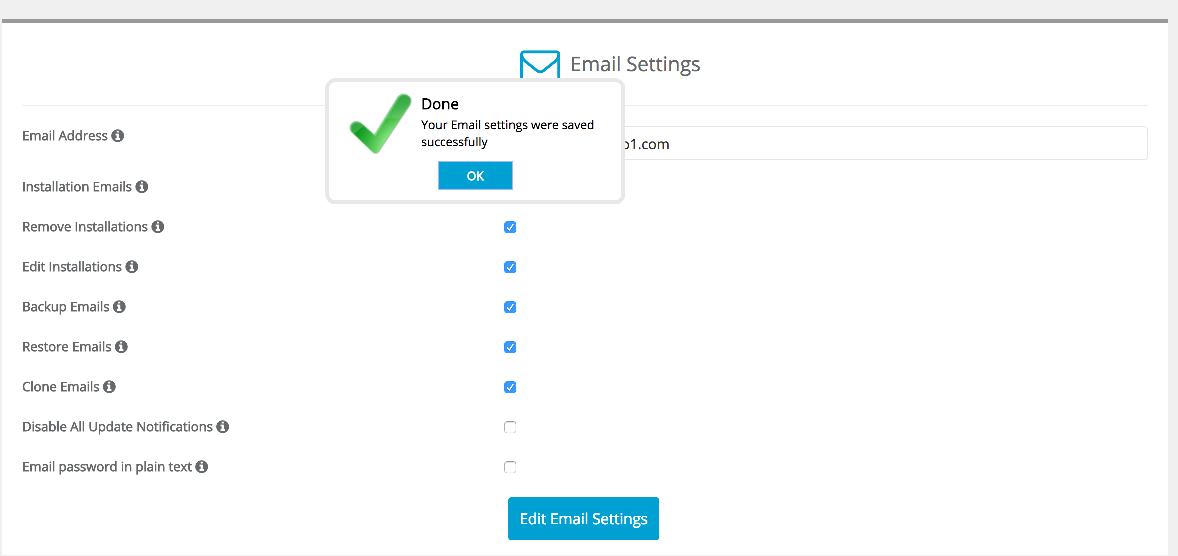
- Click Edit Email Settings to save.
Was this helpful?
Your feedback helps us find gaps in the docs.
Thanks for the feedback!
Related articles
Softaculous app installer
Getting started with Softaculous
Softaculous lets you install popular web applications such as WordPress, Joomla, and Drupa...
Softaculous app installer
How to find Softaculous in cPanel
Softaculous is built into cPanel and lets you install popular web applications in just a f...
Softaculous app installer
How to decide which script in Softaculous is right for you
Softaculous includes ratings, demos, and feature lists to help you pick the right script b...
Softaculous app installer
How to install a script using Softaculous
Softaculous lets you install hundreds of web applications in a few clicks directly from cP...
Still need a hand?
Real people, around the clock - start a chat or open a ticket and we'll help you put it right.