
On this page
Importing existing applications into Softaculous
Softaculous can import applications that already exist on your Kualo account or on a completely different server.
Softaculous can import applications that already exist - either ones already on your Kualo hosting account that Softaculous does not yet know about, or installations hosted on a completely different server.
Getting started
- Log in to cPanel and click the Softaculous icon.
- Find the application you want to import in the Softaculous library. The steps below use WordPress as an example.
- On the application's page, click the Import tab.

- Choose either the Local or Remote Import tab depending on where the application currently lives.

- A local import covers an installation that already exists in your hosting account but which Softaculous is not yet tracking - for example, a manually installed app or one migrated from another host.
- A remote import copies an application from a third-party server over the internet, recreating it in your Kualo account.
Local import
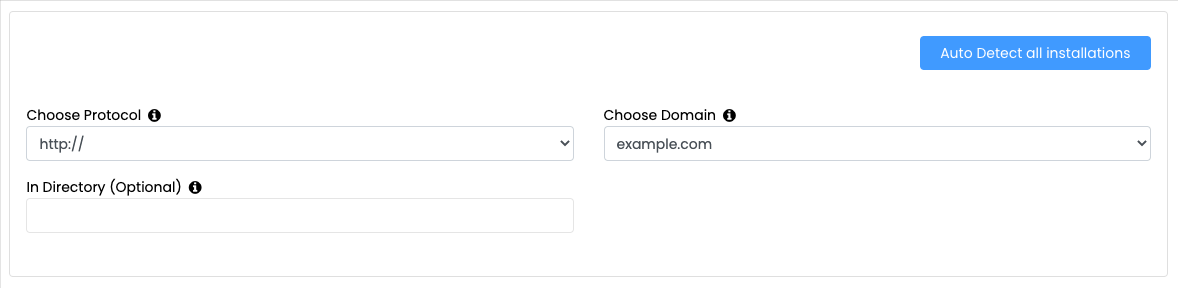
Use this option when the application files are already on the server and you simply want Softaculous to manage them.
Option 1 - Auto detect: Click Auto Detect All Installations to let Softaculous scan your account and import everything it finds automatically.
Option 2 - Manual import: Fill in the fields below and click Import.
| Field | What to enter |
|---|---|
| Choose Protocol | Select https:// or https://www for a secure site, or http:// / http://www for an insecure one. |
| Choose Domain | Select the domain that hosts the application from the dropdown. The files must already be in the correct location on the server. |
| In Directory (optional) | If the application lives in a sub-directory, enter the directory name here. Leave blank if it is at the domain root. |
Remote import
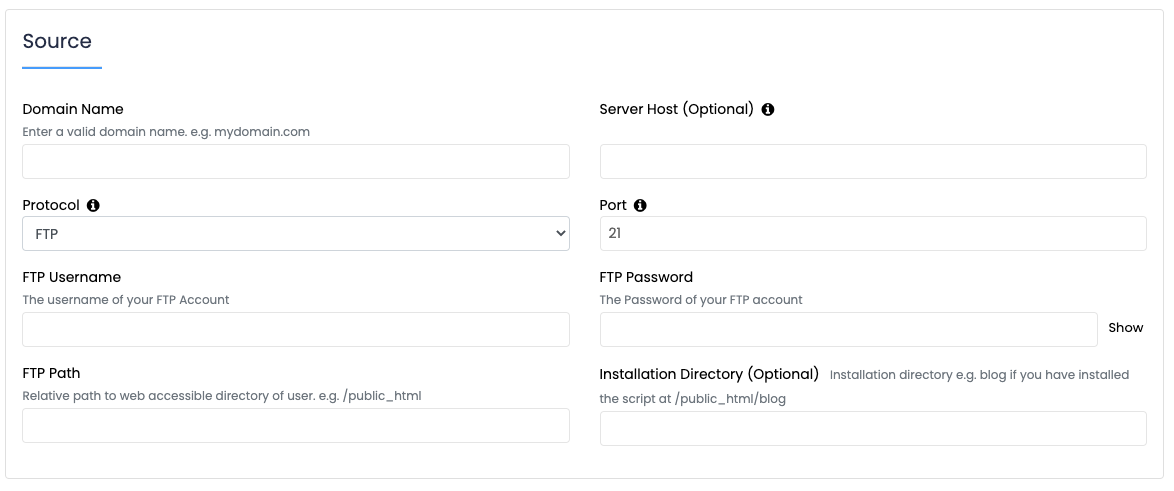
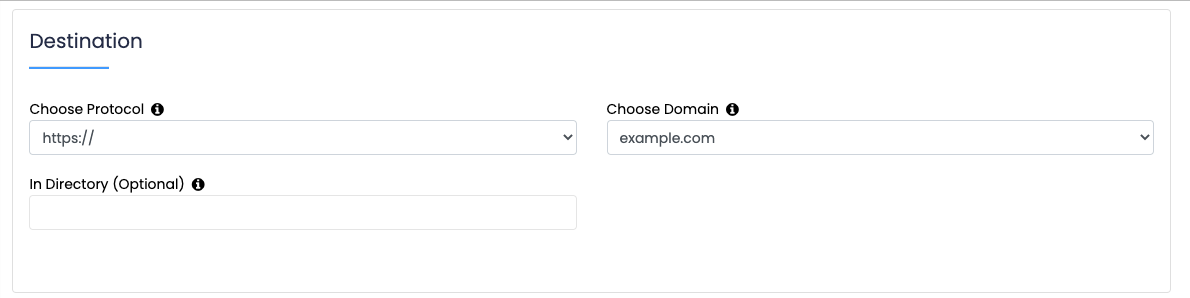
The remote import form is split into two sections: Source Details (where you are importing from) and Destination Details (how the application should be set up in your Kualo account).
Source details
| Field | What to enter |
|---|---|
| Domain Name | The current domain name or URL of the application you are importing. |
| Server Host (optional) | The IP address of the source server. Only needed if the domain no longer points to that server - for example, if DNS has already been moved. |
| Protocol | The file transfer protocol the source server supports. Typically FTP, though other protocols may be available. |
| Port | The FTP port on the source server. The default is 21; change this only if the source server uses a non-standard port. |
| FTP Username | The FTP username for the source server. This is not the same as your application login - check with your previous host if you are unsure. |
| FTP Password | The FTP password for the source server. |
| FTP Path | The path to the folder containing your application on the source server. For example, if you need to navigate into public_html after connecting via FTP, enter /public_html. |
| Installation Directory (optional) | If the application is in a sub-folder below the web root, enter the folder name here. For example, if the app is at https://www.example.com/sub-folder, enter sub-folder. |
If you are unsure of the FTP path, connect to the source server via FTP and note which folders you need to open before you reach the application files.
Destination details
| Field | What to enter |
|---|---|
| Choose Protocol | Select the protocol for the imported site. If you were not using SSL on the source server but want to enable it on Kualo, you can switch to https:// here. |
| Choose Domain | Select the domain or subdomain in your cPanel account where the application should be installed. If the domain is not listed, you will need to create the domain or subdomain first. |
| In Directory (optional) | Enter a sub-folder name if you want the application to run at a path such as https://www.example.com/sub-folder. Leave blank to install at the domain root. |
| Advanced Options | Optionally specify a custom database name. You can leave this at the default unless you have a specific reason to change it. |
Once you click Import, the process runs in the background and you will receive an email when it is complete. How long it takes depends on the size of the application.
After the import finishes, Softaculous will manage the installation and you can use it to handle upgrades, backups, and more.