
On this page
Configuring software auto-updates
Keep your web applications secure by enabling automatic updates through WP Toolkit or Softaculous in cPanel.
Keeping your installed software up to date is one of the most important things you can do to protect your website. Outdated software can be vulnerable to hackers and spammers, while updates fix security issues, improve performance, and maintain compatibility with newer technologies.
For more information on vulnerabilities and how we help protect your website, see this article.
Keeping WordPress updated with WP Toolkit
If you are using WordPress, WP Toolkit in cPanel makes managing updates straightforward.
- Enable automatic updates for WordPress core, themes, and plugins.
- Use Smart Updates to test your site before and after an update, so any issues are caught before changes go live.
- Run one-click updates manually if you prefer to review changes yourself first.
For full details, see the Smart Updates in WP Toolkit article.
Keeping software updated with Softaculous
If you installed an application through Softaculous in cPanel, you can configure it to apply updates automatically.
Enabling auto-updates during installation
-
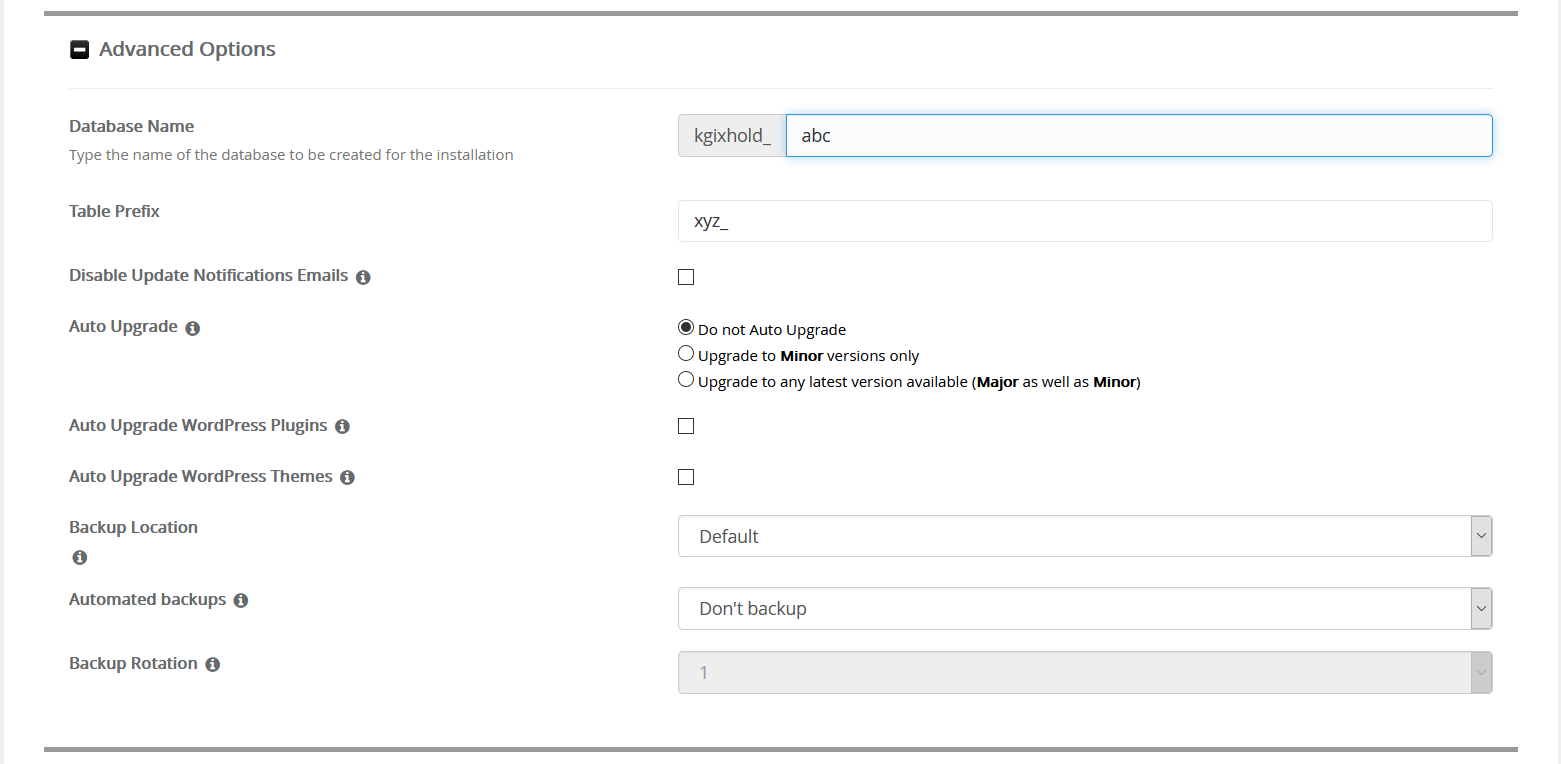
Fill in the application details on the installation screen, then expand Advanced settings by clicking the plus icon.
-
Tick the Auto Upgrade box. For some applications, including WordPress, you can also enable automatic updates for plugins and themes.
-
To protect your data, make sure backups are enabled. Set backups to Once Per Day with 1 backup rotation kept.
Softaculous will then keep your application updated and retain a backup so you can revert if anything goes wrong.
Enabling auto-updates on an existing installation
If you have software already installed but not set to auto-update, you can change this in Softaculous.
-
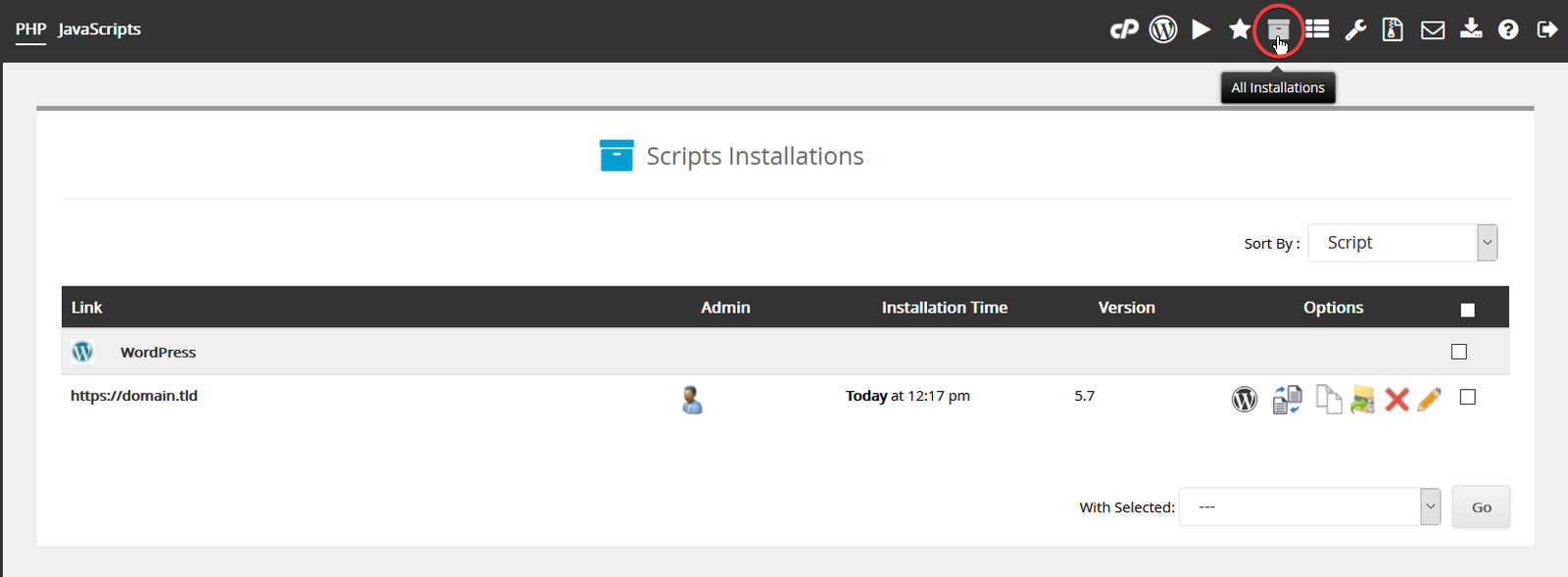
Log in to Softaculous and click the All Installations button at the top.
-
Locate the application you want to update automatically. If it does not appear, it may not have been installed through Softaculous and will need to be imported first. Follow the importing existing applications into Softaculous guide.
-
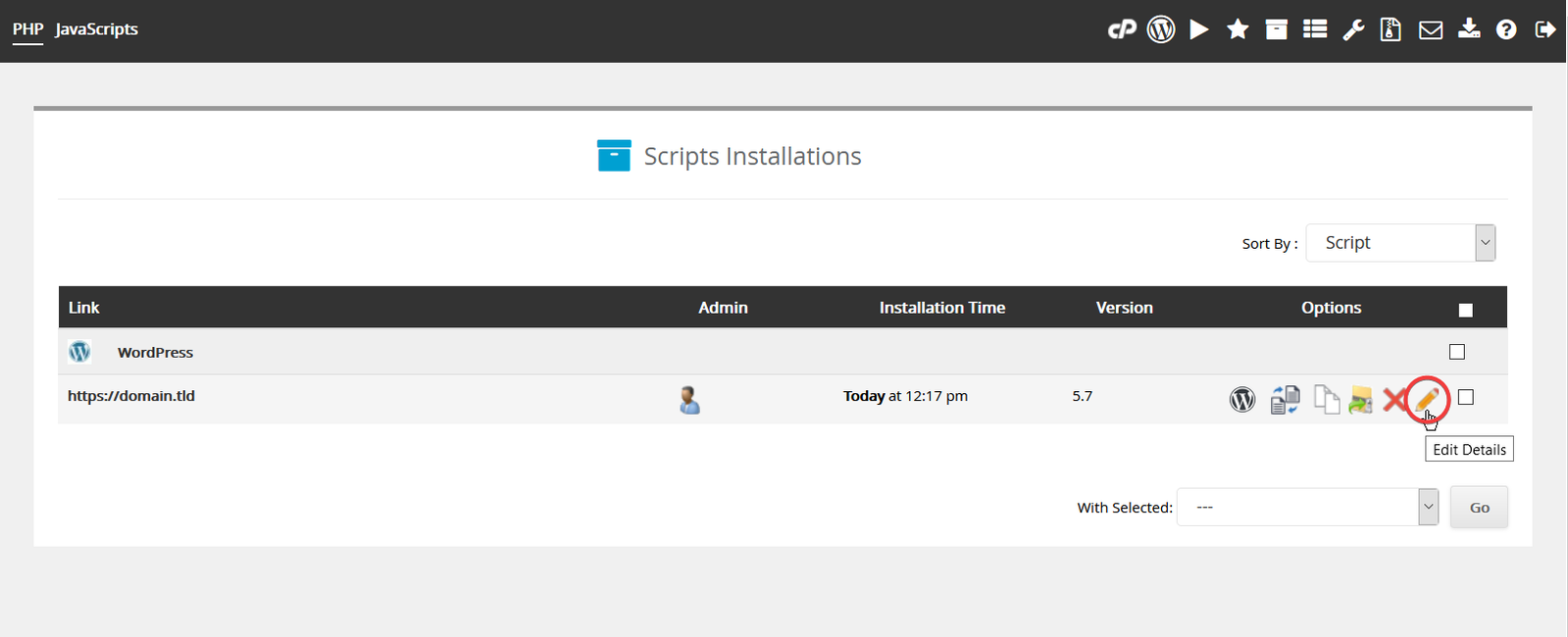
Click the Edit icon next to the application.
-
On the application details screen, enable auto-updates in the same way as described above.
Updating other software
For applications not managed by Softaculous, updates may be available in different ways.
- Some software includes built-in update options in its admin area.
- Others require you to manually download and apply a new version.
- If you are unsure, consider contacting your web developer for assistance.
Important: Automatic updates usually apply without problems, but compatibility issues can occasionally occur. For example, if a theme or plugin has not been updated by its developer to work with a new version of your software, an update could break your site.
To reduce this risk:
- WordPress users should enable Smart Updates in WP Toolkit, which creates a backup and tests your site before and after each update.
- Enable backups in Softaculous so you can restore a previous version if needed.
- Use cPanel account backups to keep regular full backups of your account.
Keeping your software updated and maintaining good backups gives you a secure, stable website with minimal risk.