On this page
How to install WHMCS from Softaculous
Install WHMCS on your hosting account in a few steps using the Softaculous app installer in cPanel.
You can install WHMCS quickly through the Softaculous app installer in cPanel. Before you begin, make sure you have a valid WHMCS licence key - a free trial licence is available from the WHMCS website if you do not yet have one.
Finding WHMCS in Softaculous
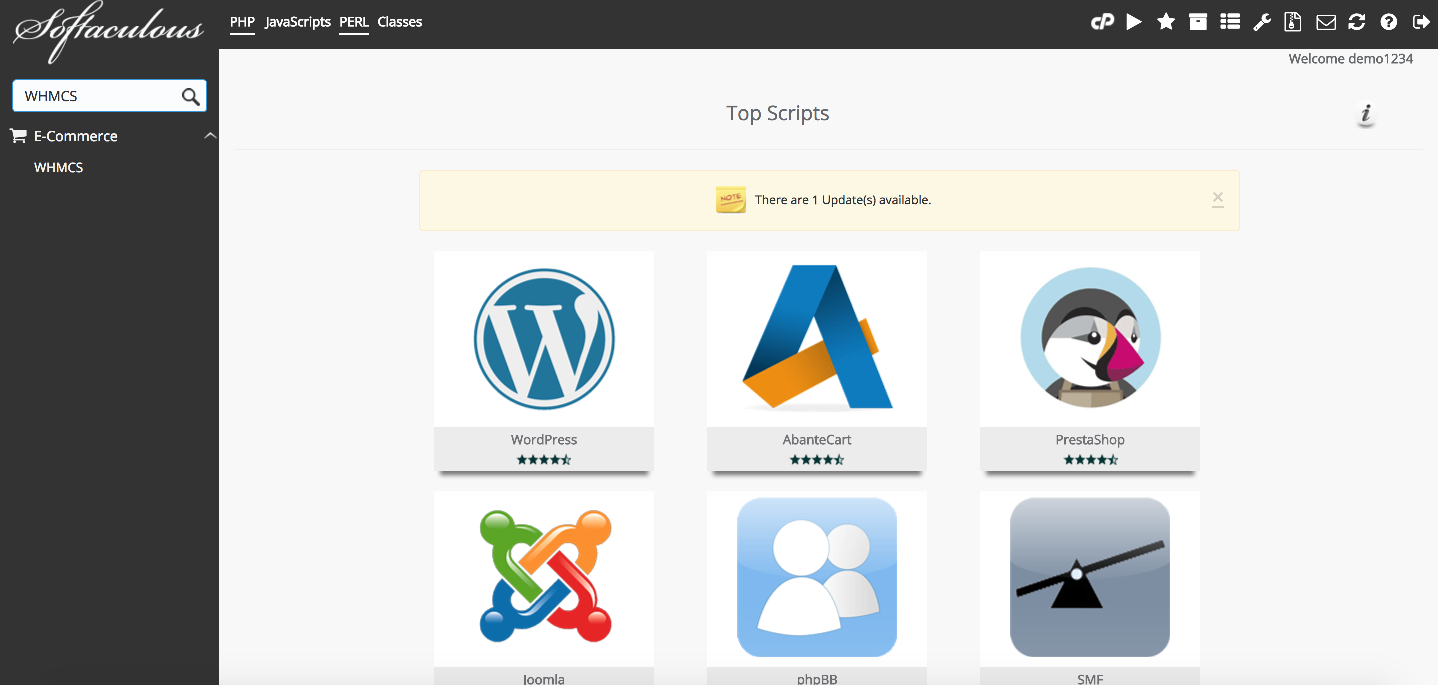
- Log in to cPanel and open Softaculous Apps Installer.
- Scroll through the left-hand menu or use the search box to find WHMCS.
- Click WHMCS to open the overview page, which shows information about the software.
Installing WHMCS
-
Click Install Now on the WHMCS overview page.
-
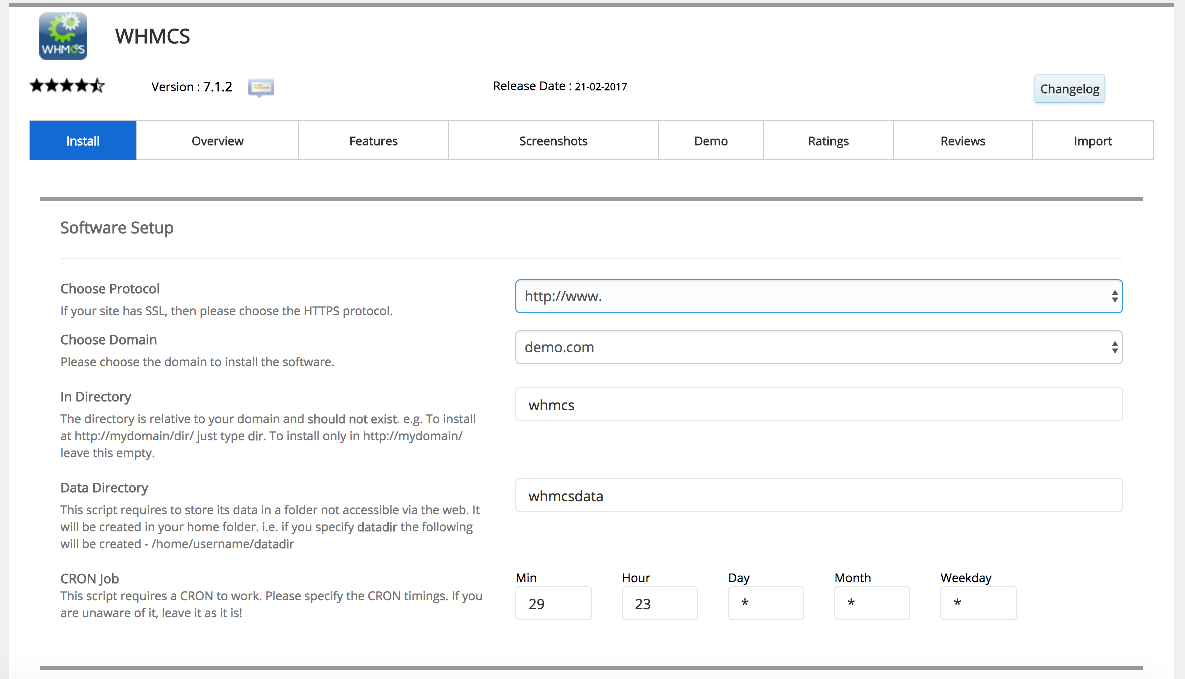
Under Software Setup, choose the domain you want to install WHMCS on. If you have multiple domains on your account, select the correct one from the drop-down.
-
Set the Directory and Data Directory fields. Leave these blank to install in your domain root, or enter a subdirectory name (for example,
billing). -
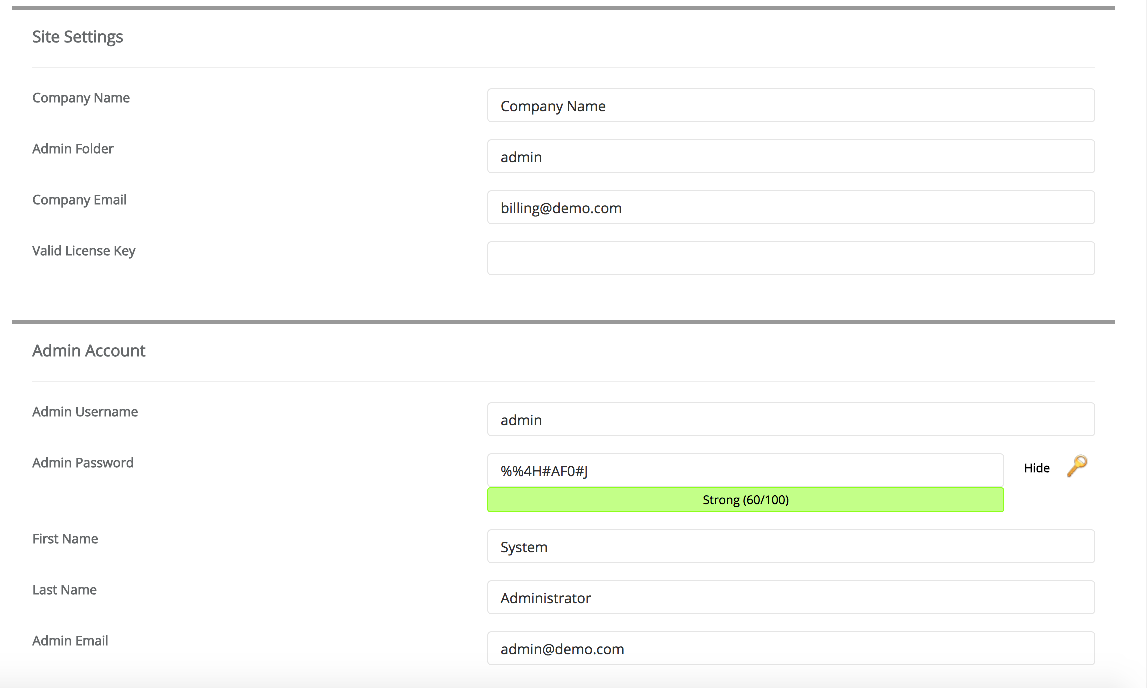
Under Settings, enter your Company Name and Email address.
Adding your WHMCS licence key
WHMCS requires a valid licence key before you can use it. If you do not have one, visit the WHMCS website to sign up for a free 15-day trial licence. Once you have signed up, WHMCS will email the trial key to the address you provided.
-
Retrieve the licence key from your email.
-
Paste the key into the License Key field in the Softaculous installation form.
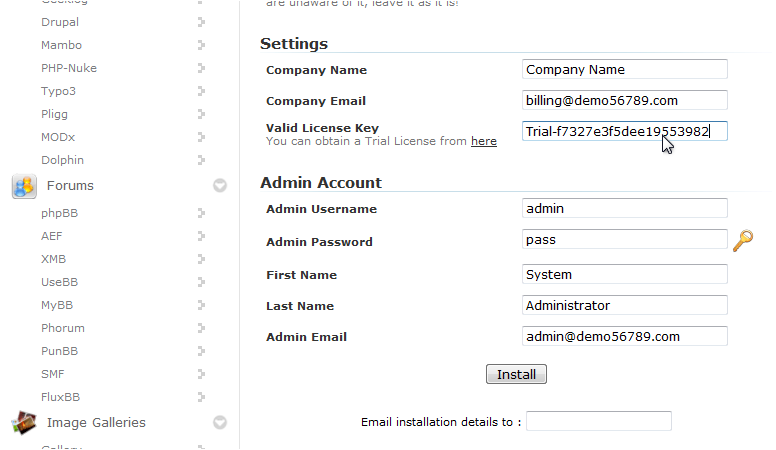
A trial licence lets you test WHMCS for 15 days. You will need to purchase a full licence before the trial expires to continue using the software.
Completing the installation
-
Enter a Username, Password, First Name, Last Name, and Email for the WHMCS admin account.
-
Click Install.
-
Once the installation finishes, click the link provided by Softaculous to visit your new WHMCS installation.