
On this page
How to list all scripts installed by Softaculous
Find out how to view every script Softaculous manages on your account, along with version details and update options.
Softaculous keeps a record of every script it has installed on your account, so you can check versions, manage installations, and remove anything you no longer need.
Viewing your installed scripts
- Log in to cPanel and open Softaculous.
- Click the All Installations icon (the box/grid icon in the top toolbar).
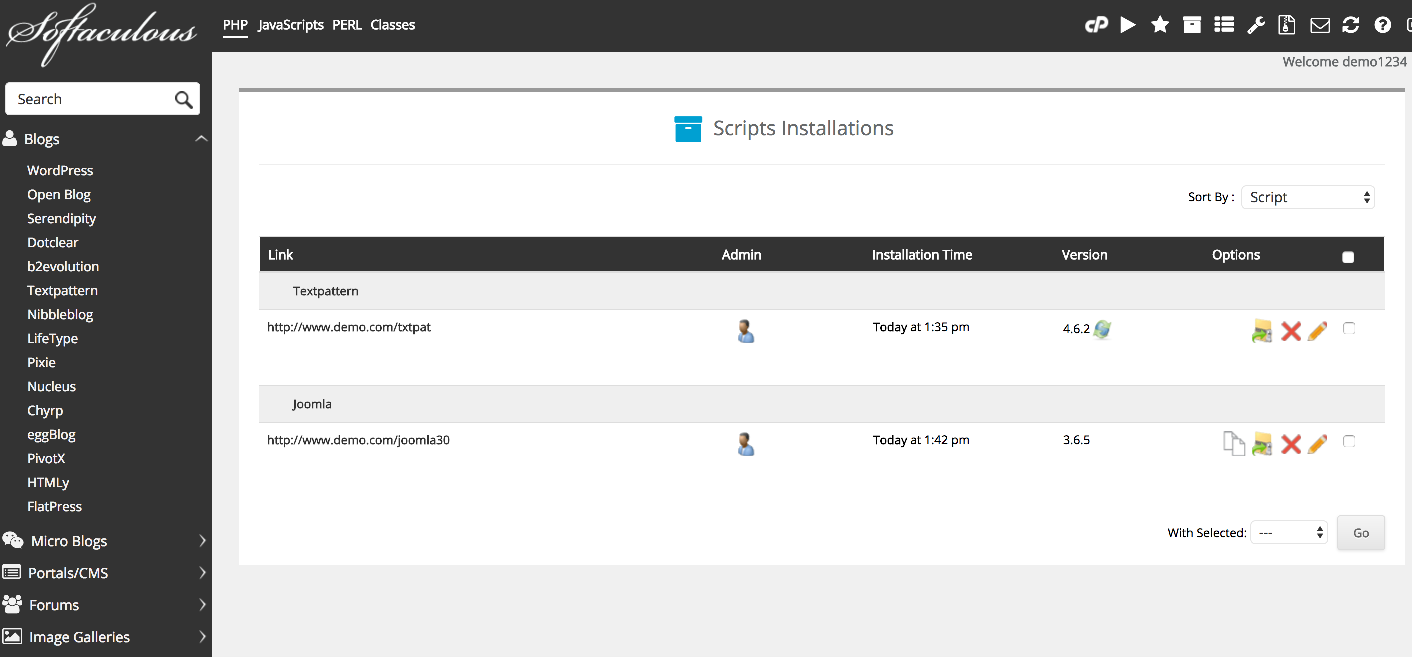
The installations list shows you:
- Which scripts Softaculous is managing on your account
- The date each script was installed
- The current version installed
Updating or removing a script
From the same list you can:
- Click the update icon next to a script to upgrade it to the latest available version.
- Click the remove icon to uninstall a script you no longer need.
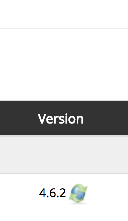
Keeping your installed scripts up to date is one of the easiest ways to protect your site. Softaculous will flag any installations that have a newer version available.
Was this helpful?
Your feedback helps us find gaps in the docs.
Thanks for the feedback!
Related articles
Softaculous app installer
Getting started with Softaculous
Softaculous lets you install popular web applications such as WordPress, Joomla, and Drupa...
Softaculous app installer
How to find Softaculous in cPanel
Softaculous is built into cPanel and lets you install popular web applications in just a f...
Softaculous app installer
How to decide which script in Softaculous is right for you
Softaculous includes ratings, demos, and feature lists to help you pick the right script b...
Softaculous app installer
How to install a script using Softaculous
Softaculous lets you install hundreds of web applications in a few clicks directly from cP...
Still need a hand?
Real people, around the clock - start a chat or open a ticket and we'll help you put it right.